We’re all quite rightly concerned about our private data stored on our most personal devices—the ones we carry with us all the time. Apple has done a stellar job in locking down access to an iPhone, iPad, Mac, or Apple Watch. But there’s still a fear: what if someone guesses our passcode or passphrase, or uses some new cracking technology to break in?
Apple offers an excellent option that can assuage some fears. You can remote erase your device by sending it an irreversible command that takes place immediately if it’s connected to the internet, or as soon as it’s next connected—if it ever connects again.
What happens when you erase a device in Find My?
- A confirmation email is sent to your Apple Account email address.
- When you erase a device remotely using Find My, Activation Lock remains on to protect it. Your Apple Account password is required to reactivate it.
- If you erase a device that had iOS 15, iPadOS 15, or later installed, you can use Find My to locate or play a sound on the device. Otherwise, you won’t be able to locate or play a sound on it. You may still be able to locate your Mac or Apple Watch if it’s near a previously used Wi-Fi network.
Erase an iPhone or iPad
The last resort in some cases (or first in others) is a remote wipe, in which all the user data on an iPhone or iPad is erased.
An erased device that has Find My enabled before erasure and remains associated with an Apple Account cannot be unlocked without the account password due to Activation Lock.
The erase option lets you provide a phone number and message so that a person who found (or stole) your device can get in touch. The device is essentially useless to them without the password.
Once you erase a device (or if someone else has), Find My can find its location only if it’s an iPhone or iPad running iOS 15/iPadOS 15 or later. Before that release, erasing a device disables its ability to send Find My tracking data when connected to the internet.
You can remove a device from your Find My list; see how Activation Lock protects a lost or stolen device.
It’s a multi-step process to prevent accidental erasure; you can cancel at any stage until the last step:
The device will be erased immediately at the last step. If you’re using two-factor authentication, it is also removed from your trusted devices at once.
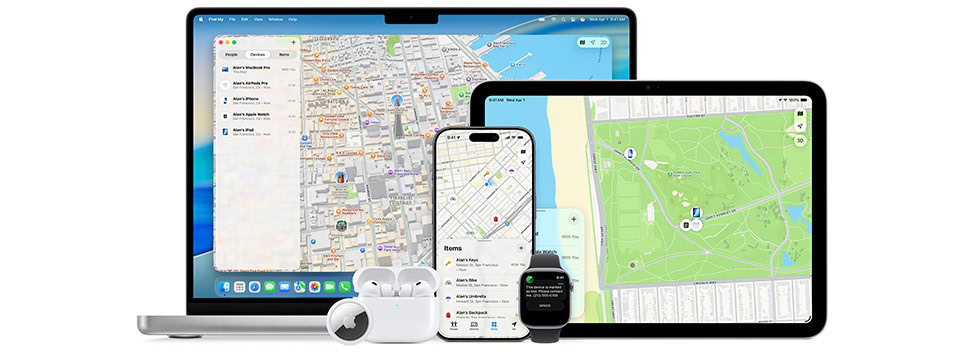
- Go to the Find My app
 .
. - Tap or click Devices at the bottom of the screen, then tap or click the name of the iPhone you want to erase.
- Tap or click Erase or Erase This Device.
- You’re warned that everything is about to be erased. Tap or click Continue.
- Optionally enter a phone number at which you can be reached after it’s erased, and tap or click Erase.
- Enter your Apple Account password and tap or click Erase. If this is another member’s device, accessible via Family Sharing, enter their Apple Account password.
If the device is online, the Erase action immediately wipes all your data. It’s fast because it throws away encryption keys that are used to secure your iPhone or iPad data—it doesn’t have to write zeros over all the data. If the device is offline, the erase begins as soon as it next comes online through any networking method.
What you actually lose
Wiping your device isn’t as bad for your stored data as it sounds. All iPhones and iPads are set by default to back up the unique data that’s stored on them, like settings, passwords, and documents created by or associated with apps. These backups can be either local to a Mac on a particular computer or remote to iCloud.
Apps are stored centrally, not in a backup, and restored from Apple’s servers; the same is true with synced books and purchased music, movies and TV programs. If you use iCloud Photos and Sync Library (for Music), that media is stored in the cloud and synced. (If you’re not using either, you probably sync music with a Mac or Windows system. This is a good time to check that you’re up to date with syncing.)
If you erase your device, and then either recover it or obtain a new device, you can restore from your most recent backup. If you were syncing any items to your device through Photos, Music, or other apps or tools on a Mac, you can then sync them back to the device. For items stored in iCloud, the restore process downloads them again.
You can accelerate restoring an iPhone or iPad with Apple’s Quick Start. Place one of your iPhones or iPads near another and follow the steps provided. This streamlines setup. In a final step, you can choose to restore from an iCloud or other backup.
If any unique data was syncing from your iPad or iPhone to iCloud, Dropbox, Exchange, or another service, you should retain changes up to the moment the device disconnected from a cellular or Wi-Fi network. You will lose only changes made on the device between the last sync (push, fetch, or manual) for each account and the remote wipe.
Erase a Mac
The process of starting is nearly the same as with a mobile device:
Macs can’t be tracked after erasure. The device will be erased immediately at the last step. Two-factor authentication will also drop it from your trusted devices.
- Select the device in any Find My app and reveal its sheet.
- Tap or click Erase This Device.
- Review Apple’s warning. Click Continue.
- Enter a message that will be displayed to someone who has or finds the machine and click Erase.
- Enter your Apple Account password and tap Erase. If this is another member’s device, accessible via Family Sharing, enter their Apple Account password.
The selected Mac will now be erased. How long that will take depends on hardware features. Erasure is nearly instantaneous.
Be sure you always have a current backup that you can restore from in case your Mac dies, there’s a natural or house disaster (fire, flood, collapse), you lose it, or someone breaks it or steals it.