You can tap, hold and select text on your iPhone 18 Pro or iPhone 18 Pro Max to copy it. Then, you can use the Command-V shortcut to paste the copied text on your Mac. This is called Universal Clipboard. This Universal Clipboard works automatically for most people because the requirements for this feature are met by most users and Apple devices in use today.
Universal Clipboard allows you to work with various content types such as text, images, photos or videos. Sometimes, copying and pasting between Apple devices may not work, and sometimes, it may stop working after an update. This article explains what you can do if you are having issues with using Universal Clipboard to copy and paste.
1. Ensure that all of your devices are up to date
Ensure that all of your Apple devices are updated to the latest version of the operating software. Follow these steps on your devices:
- iPhone: Go to Settings > General > Software Update.
- Mac: System Settings > General > Software Update.
If there is an update, follow the onscreen instructions to update your iPhone 18 Pro.
2. Ensure that the requirements are met
Ensure that the system requirements are met for each of your devices.
3. Ensure that Universal Clipboard is set up properly
- Ensure that all of your devices are using the same Apple Account. You can easily see which Apple Account you are using. On iPhone, go to Settings and tap on the Apple Account name at the top. On Mac, go to System Settings and click on the Apple Account name at the top of the sidebar.
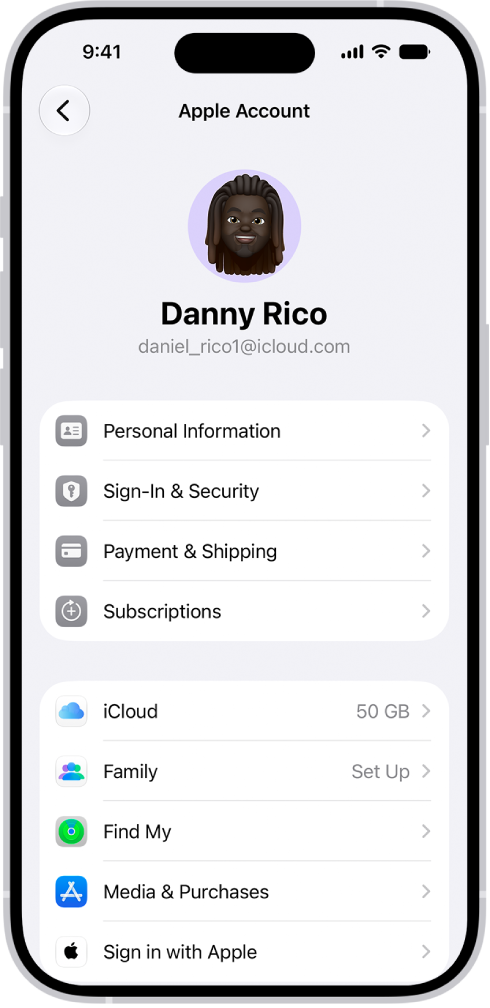
- On all devices, Wi-Fi and Bluetooth must be turned on.
-
On all devices, Handoff must be turned on:
- Mac: Go to Apple menu > System Settings > General (in the sidebar) > AirDrop & Continuity and turn on “Allow Handoff between this Mac and your iCloud devices.”
- iPhone: Go to Settings > General > AirPlay & Continuity, then turn on Handoff.
4. Restart everything
Restart your iPhone 18 Pro and Mac to see if this fixes the problem.
- Mac: Apple menu > Restart.
- Press and hold the side and one of the Volume buttons together until you see the power-off slider. Drag the slider. Wait for the device to turn off, and then press and hold the side button to turn it on again.

5. Turn off VPN and other virus or security types of software
VPN, anti-virus or other types of security apps may interfere with the Universal Clipboard connection. Turn them off or uninstall them to see if doing so fixes your problem. You can also turn off VPN on your iPhone 18 Pro by going to Settings > General > VPN & Device Management.
6. Turn on Clipboard sharing on Mac
For some reason, some Mac users’ Clipboard sharing is disabled. You can check this with Terminal. Here is how:
- Open the Terminal app on your Mac (Applications > Utilities).
Now, we will first delete Clipboard sharing and then enable it again. Here is how:
In Terminal, copy and paste the following code and hit Enter:
defaults delete ~/Library/Preferences/com.apple.coreservices.useractivityd.plist ClipboardSharingEnabledNow, copy and paste this code and hit Enter:
defaults write ~/Library/Preferences/com.apple.coreservices.useractivityd.plist ClipboardSharingEnabled 1Now check if copy and paste is working.