Some users have reported that their clock widgets are not showing the correct time.
Clock Widget gives you a nice, big analog clock to view on your Home Screen. Those who added this widget to their Home Screens must have wanted a good view of the time. But having an incorrect time displayed on the Clock Widget makes for a pretty disappointing experience. Never fear, for most users, this will be an easy fix.
iPhone users might be confused to see that while the clock in their iPhone 18 Pro’s status bar shows the correct time, the widget does not. In this article, we will go through the steps you can take to fix this issue.
You may be experiencing a problem where your Clock Widget shows a time which is either completely different or slightly different than the Clock App icon and the clock in the Status Bar on the top of your iPhone 18 Pro screen. There may be different factors at play here. One of the following suggestions should fix your Clock Widget woes.
Set your Clock Widget Time Zone
These are the steps that will fix the most common reason for your Widget not showing the correct time. When you first place your Clock Widget on your Home Screen, the Widget will be set to Cupertino’s time zone. Unless you live in California, you will need to change the time zone for your Clock Widget to your own time zone.
- Tap and hold the Clock Widget until a small menu appears. Then tap Edit Widget to open the Clock Widget’s settings.
- Tap on Cupertino and a screen with a search box will appear.
- Enter the name of your city into the Search box.
- If it tells you No Options Available, enter the name of a larger city in your time zone. Tap on the name of your city.
- You will now see your city listed under the City setting for your Clock Widget.
- Tap outside of the Clock Widget’s settings pop-up screen to exit. Your Clock Widget should now show the correct time.
Make Sure your Clock Changes When you Change Time Zones
You probably want your iPhone 18 Pro’s Clock to update automatically when you change time zones. If your Clock App is off by exactly 1 or 2 hours, this could be the problem. If your iPhone’s Clock is not updating automatically, you will need to enable the following Location Services settings.
- Open Settings by tapping on the Settings icon.
- Tap on Privacy & Security.
- Select Location Services.
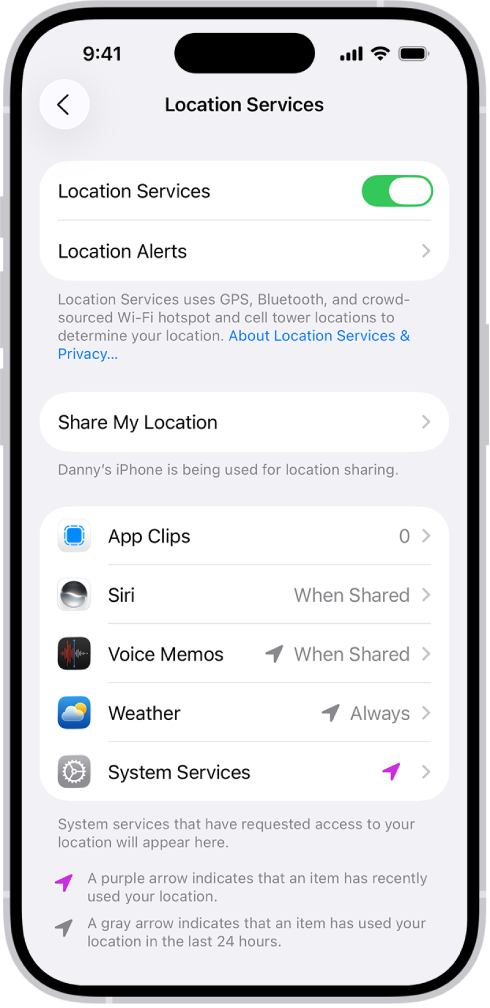
- Make sure Location Services is enabled. This is what will allow the clock to automatically adjust to your current time zone.
- In Location Services, choose System Services.
- Find Setting Time Zone and tap the switch to the right to enable.
Set the Correct Time for your Clock – not just the Widget
If your Clock App is displaying a time which is off by something other than an exact number of hours – say, off by 2 minutes, or 30 minutes, then you will want to change your Settings so that Date & Time are set automatically, i.e. you are not entering the time yourself, manually.
- Open Settings.
- Go to General, then select Date & Time.
- Tap the switch to the right of Set Time Automatically to the ON (green) position. If it is already on, switch it off for 10-15 seconds, then switch it back to On.
- Check to see that the Time Zone is set to the time zone for your region.
- Exit Settings. Your Clock should now display the correct time.
Reset Location & Privacy
If you are still having this clock problem, you may want to reset Location & Privacy. Doing so will reset your location and privacy settings to the factory defaults. Simply go to Settings > General > Transfer or Reset iPhone > Reset > Reset Location & Privacy. Then follow the onscreen instructions.