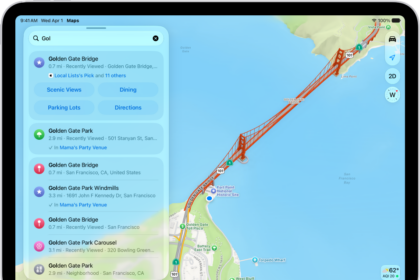
Yesterday, I had this problem. I wanted to go to a new restaurant. Opened the Apple Maps app on my iPhone 18 Pro, I entered its address and tapped “Directions” then “Go”. Then I noticed that navigation was not working properly. What I mean by this is that the Maps could not find my exact location. Apple Maps was not updating my position as I move. Further the navigation was incorrect. It was showing the wrong places. I thought my location services was turned off. But it was not; in fact I opened the Google maps app, and its navigation was working properly.
Some users have also reported the same problem. Some have further stated that Apple Maps stopped working after updating to the latest version of iOS. Apple Maps is developed by Apple. It offers turn-by-turn navigation. It was released in 2012.
Are you having this problem as well? This article explains how you can troubleshoot basic Maps and GPS location problems. Here is what you can do:
How to fix iPhone Maps
1– Make sure that Location Services is on. Go to Settings > Privacy & Security > Location Services.
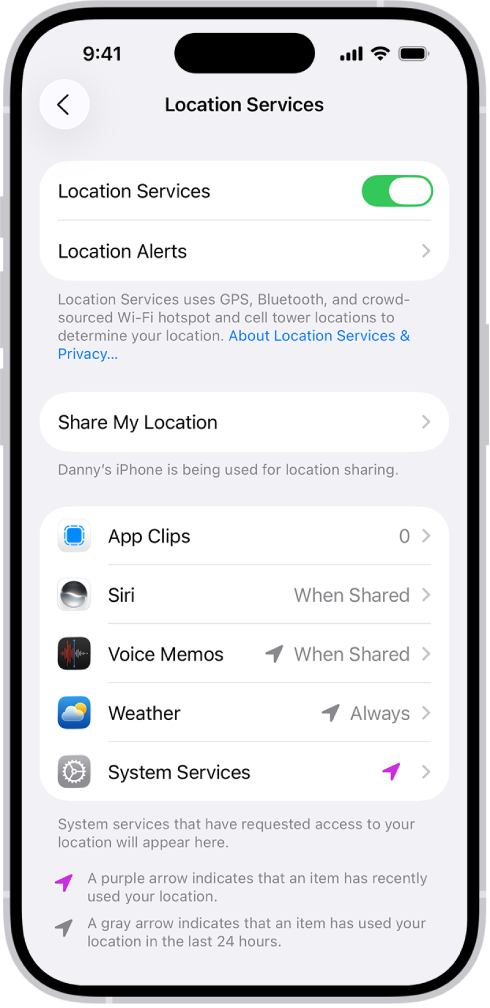
If it is on, try refreshing Location Services. Toggle off Location Services and wait a few seconds and toggle it back on.
2-Ensure that Maps is set to “while using” by going to Settings > Privacy & Security > Location Services > Maps
3– Restarting your iPhone 18 Pro may fix this issue, so try restarting your device.
4– Make sure that Cellular Data is on. Go to Settings > Cellular
5– Ensure that Maps has cellular data enabled for it. Simply go to Settings > Cellular and scroll down and ensure that Maps is on to use cellular data.
6– Go to Settings and turn on Airplane Mode, wait about ten seconds and turn off Airplane Mode.
7– Go to Settings > General > Date & Time and ensure that your time zone setting is correct and also you may want to turn on “Set Time Automatically”.
8– Remove the Apple Maps app and reinstall again. This is a very simple process. Touch and hold the app on the Home Screen or in App Library. Tap Remove App, then tap Delete App. Tap Delete to confirm. Now launch the App Store app. Search for the Maps app, find it and tap the restore icon to download and install it.
9– Reset your network settings by going to Settings > General > Transfer or Reset iPhone > Reset > Reset Network Settings. Please note that this will reset your network settings, like your Wi-Fi passwords etc.
10– Reset Location & Privacy. Simply go to Settings > General > Transfer or Reset iPhone > Reset > Reset Location & Privacy.
If your issue persists, you may want to contact Apple.