Some users report that Google Scholar stops working in Safari on iPhone 18 Pro. When they try to perform a search, they see this message:
“We’re sorry… but your computer or network may be sending automated queries. To protect our users, we can’t process your request right now.”
This error makes it impossible to use Google Scholar — a tool widely used by students, researchers, and academics to find scholarly articles, books, theses, case law, and more. Scholar is designed to surface safe, authoritative academic sources, but it can block traffic when something about your connection appears unusual.
If you’re experiencing this problem in Safari, Apple’s Private Relay is likely the cause.
Many people think that Private Relay is a VPN. iCloud Private Relay is not a VPN, but a Safari-only privacy feature that hides your IP address and encrypts some traffic without offering full VPN capabilities like system-wide protection or location selection.
Why This Happens: Private Relay Interfering With Google Scholar
iCloud Private Relay is an online privacy feature available to iCloud+ subscribers. It works by hiding your IP address and routing your Safari traffic through two separate internet relays. This prevents websites from building a detailed profile about you.
However, this privacy protection can sometimes cause websites — especially security-sensitive platforms like Google Scholar — to mistakenly detect your traffic as automated or suspicious. As a result, they block searches and show the “automated queries” error.
The good news: pausing or turning off Private Relay usually fixes the issue immediately.
How to Fix Google Scholar Not Working in Safari
Follow the steps below on iPhone 18 Pro.
- Open Settings
- On iPhone: Open Settings.
- Go to Your Apple Account,
- Tap your name at the top.
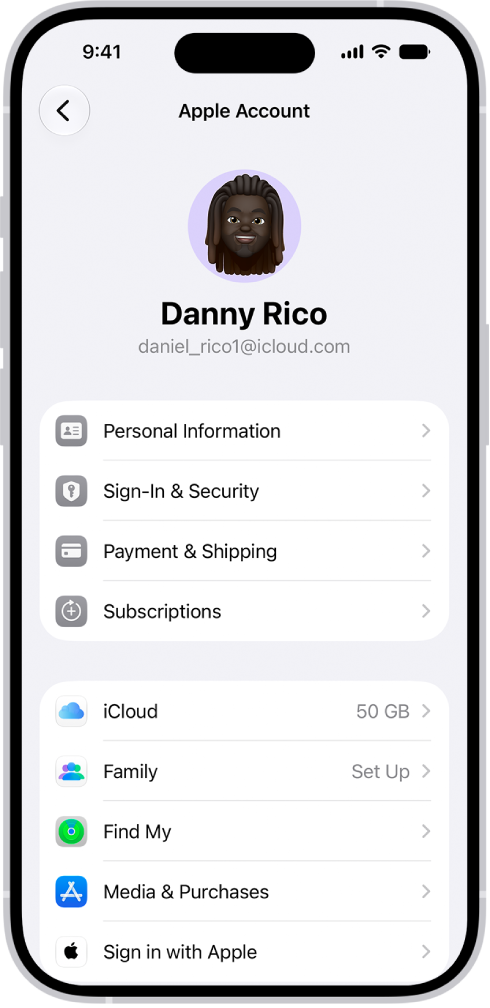
- Tap your name at the top.
- Select iCloud
- Open Private Relay
- Now, you need to pause or turn off Private Relay.
- Toggle Private Relay off.
- A pop-up will appear with two options:
- Turn Off Until Tomorrow > Pauses Private Relay temporarily, usually enough to fix the issue.
- Turn Off Private Relay > Fully disables the feature until you manually enable it again.
Once Private Relay is paused or turned off, searches should now work normally.