Several users have reported that they are having various problems with the Google Maps app on iPhone 18 Pro. Some of the reported problems are listed below:
- Google Maps is not working as expected, ex, slow-loading
- Google Maps is not finding the current location correctly, (is Google Maps not locating you properly?)
- Google Maps is not showing driving navigation correctly
- The Google Maps app keeps crashing
Are you having this issue as well? It seems that a lot of Apple users have been experiencing this problem. This short article explains how you can troubleshoot the problem.
Google Maps troubleshooting
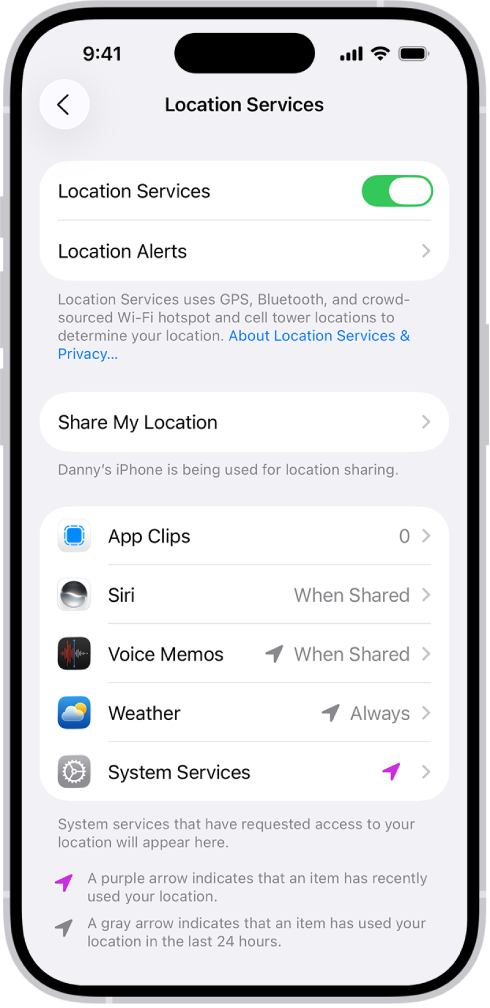
1. First of all, make sure that Location services is turned on. And further, Google Maps has permissions to use them. On your iPhone 18 Pro, tap:
- On your device, go to Settings
- Privacy & Security
- Location Services and make sure that Location Services are on. Then scroll down and find the Google Maps app and tap Google Maps and select either “While Using the App” or “Always”.
2. Reboot your iPhone 18 Pro. Restarting your device may fix your problem. There is more than one way to turn off your device. Here is one of them:
- Go to Settings > General > Scroll down and tap Shut Down.
3. You may want to close your app and restart. This may help you fix the problem. Here is how:
- Swipe up and pause, this will show your recently used apps.

- Find the Google Maps app, you may swipe left or right
- Swipe up to close Google Maps
- Restart Google Maps
4. Turn on Background App Refresh. This will allow Google Maps to refresh its content in the background. Here is how:
- Settings
- Apps
- Google Maps
- And toggle on Background App Refresh.
- If you see that Background App Refresh is grayed out, it is probably because your device is in Low Power Mode. If you see that Background App Refresh is green but not functional, this is probably because you turned off Background App Refresh. You can turn on by going to Settings > General > Background App Refresh.
5. Turn on Airplane Mode for a short time. Here is how:
- On your device, go to Settings
- Airplane Mode and turn on
- Wait a few seconds
- Then turn it back off
6. Update your Google Maps app. There may be updates available. Outdated version of the apps may be the reason. Here is how you can check:
- On your device, tap App Store
- Tap your picture, then tap App Updates
- You can see available updates. If you see Google Maps, tap Update.
7. Reset Location & Privacy. Here is how:
- On your device, go to Settings
- General
- Transfer or Reset iPhone
- Reset
- And tap Reset Location & Privacy
8. Reset your network settings. The problem may be a network related issue. Resetting your network setting may resolve this issue. However, please note that, as the name implies, this will reset your network settings, e.g., your Wi-Fi passwords will be deleted etc. Here is how:
- Go to Settings
- General
- Transfer or Reset iPhone
- Scroll down and tap Reset
- And tap Reset Network Settings