This article explains how you can troubleshoot when your iPhone 18 Pro isn’t showing your correct location. If Location Services is not working properly, map apps, directions, and location-based apps may not determine your location and thus they may give false or misleading results. See Google Results Show the Wrong Location on iPhone 18 Pro. For example:
- Google Maps and Apple Maps may not work properly, will not give accurate directions.
- Weather apps will not work as expected.
- Siri may not personalize your search based on your location.
- Camera will not geotag your videos or photos.
- Navigation apps will not work.
- Location-based reminders will not work.
- Find My (Find My iPhone) will not work
- Your Apple Watch may not work properly with your paired iPhone.
- You will not be able to share your locations, via WhatsApp, Messages, etc.
- Sometimes certain apps may say “Locations Services is not enabled” even though it is enabled.
When you have Location Services (and GPS) enabled, some apps and websites (Maps, Camera, etc) may use your Location Services information (in the foreground or background) to determine your exact location. To determine your location, your iPhone uses information from cellular, Wi-Fi, Global Positioning System (GPS) networks.
When an app is using your phone’s location, an arrow icon will appear in the status bar of your iPhone 18 Pro.
How to troubleshoot Location Services
After trying each, check whether it fixed your issue.
Before you do anything, make sure that your iPhone 18 Pro is running the latest version of the iOS software. You can update your device wirelessly by going to Settings > General > Software Update. If there is an update available, simply update your device.
1. Make sure that Location Services is enabled. Tap Settings > Privacy & Security and then Location Services. You can turn on the global Location Services setting or you can turn on individual app Location Services.
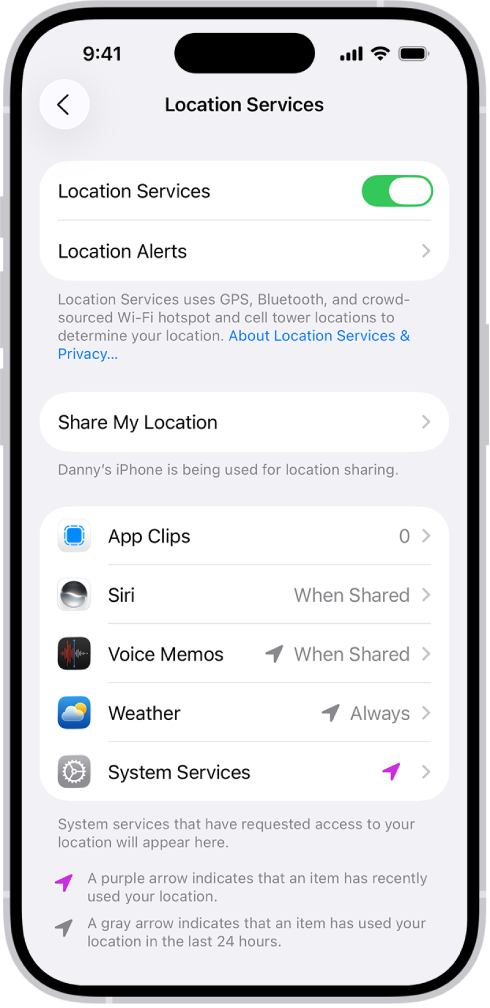
2. If the Location Services setting is greyed out, this may be because of your Screen Time settings. If this is the case, check your Screen Time settings. Tap Settings > Screen Time > Content & Privacy Restrictions > Location Services > Allow Changes. And then adjust your settings.
3. If you are experiencing this problem with a particular app (Safari, Maps, etc), tap Settings > Privacy & Security > Location Services and then make sure that Location Services and the problematic app is set to While Using the App.
4. If you are still experiencing this with a particular app, restart the app. Here is how:
- Go to your Home screen
- Swipe up to reveal your most recently used apps

- Swipe left or right to find the problematic app
- Swipe up on the app’s icon to close it
- Then re-open the app.
5. If you are experiencing this with a particular app, check to see if there is an app update. On your device, open the App Store app and then tap your profile icon and then tap App Updates.
6. On your iPhone 18 Pro, make sure that cellular data and/or Wi-Fi is turned on. Here is how:
- Settings > Cellular and turn on Cellular Data
- Settings > Wi-Fi
7. On your device, enable Airplane Mode and wait about a minute and then turn it off. Go to Settings > Airplane Mode.
8. Turn off and on Location Services. Go to Settings > Privacy & Security > Location Services. Turn this off and wait a minute and then turn it on.
9. On your device go to Settings > General > Date & Time, is this information correct? If not, change it. You may want to turn on Set Time Automatically. Doing so will improve GPS accuracy.
10. Restart your iPhone 18 Pro. Simultaneously press and hold the side button and either volume button until the sliders appear, then drag the Power Off slider.

11. Force restart your device. Here is how:
- Press and quickly release the volume up button. Press and quickly release the volume down button. Press and hold the side button. When the Apple logo appears, release the side button.

12. Reset all of your location settings to the factory default, as this may resolve your problem. Go to Settings > General > Transfer or Reset iPhone > Reset and tap Reset Location & Privacy.
13. Reset your network settings. Note that you will erase all of your network settings like Wi-Fi passwords etc. To do this, go to Settings > General > Transfer or Reset iPhone > Reset and tap Reset Network Settings.