Summary:
Notifications can appear on Lock screen. Some users, however, have reported that they are missing their text notification alerts because they say notifications are disappearing from the lock screen.
Article:
A notification is a message banner that provides the users with reminders, communication from other people etc. Users are supposed to be able to see all of their notifications on their Lock screen. But users having this problem are unable to see all of their notifications on the Lock screen.
This issue can be very annoying because let’s say you rely on your iPhone’s lock screen to tell you if you have a text message or any other kind of notification, if notifications don’t show on the lock screen, then you would not think you have one.
It seems that the majority of people who have this issue have text message notifications problems meaning text alerts are disappearing within seconds and sometimes within minutes. Some users have further stated that this issue happens only when text messages are received while the iPhone 18 Pro is turned off.
If you are having this issue, here is how you can troubleshoot:
Notifications
1- There are two types of notifications. First one is temporary and the second one is persistent. Temporary notification alerts will go away itself automatically after a short period of time. Persistent alerts stay there until you act on them. You can change your settings by going to Settings > Notifications then tap any app there to change the notification style.
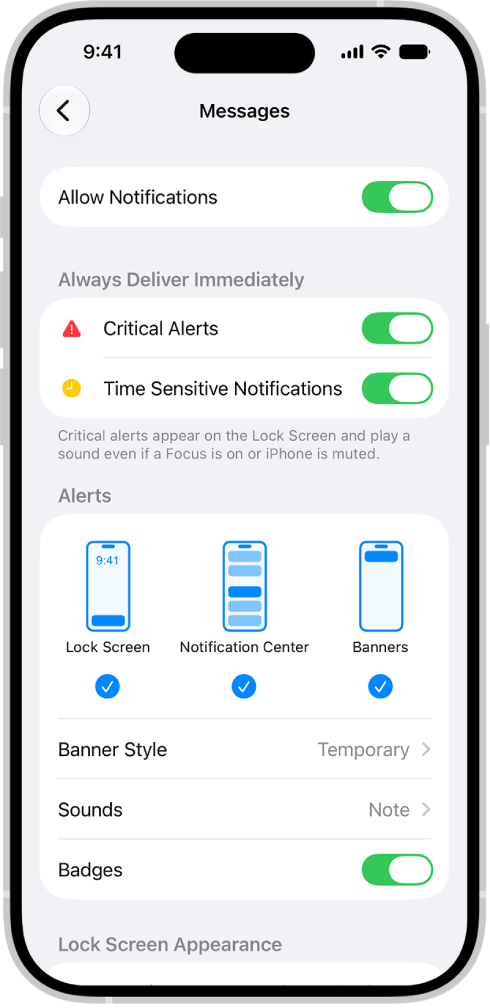
2- Update your iPhone 18 Pro. Latest version of the iOS version may have addressed the issue. Thus updating your device may fix it. Simply go to Settings > General > Software Update.
3-Restart your iPhone 18 Pro. You can turn off your device by going to Settings > General > Shut Down. And after that simply turn on your device.
4- Toggle off and on Notifications for a specific app, Messages, FaceTime, Mail etc, that is not working properly. Go to Settings > Notifications > Select the app and toggle off “Allow Notifications” and wait a few seconds and then turn it back on.
5- Lastly make sure that Do Not Disturb is turned off. Go to Settings > Focus > Do Not Disturb.
If you are still having this problem, please contact Apple support.