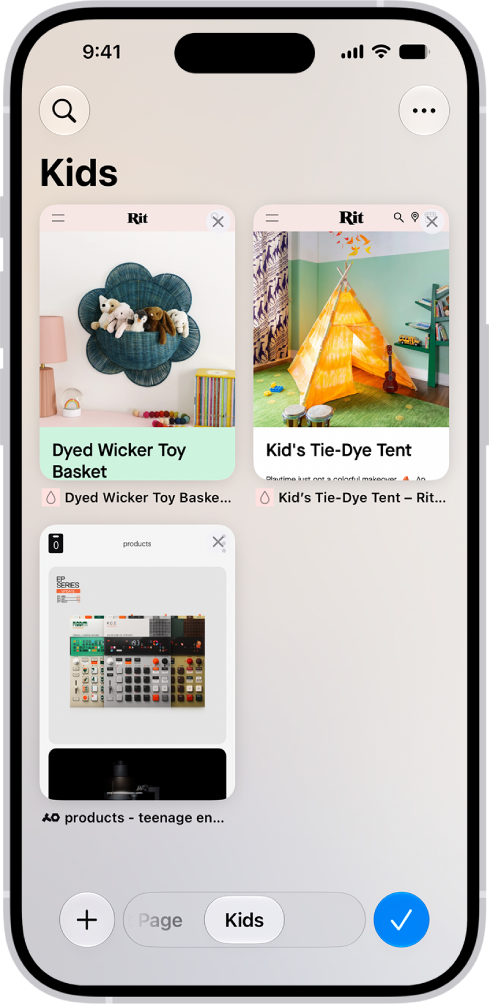
On iPhone, you can share a Tab Group and collaborate with people who use iCloud. Collaborators can add and remove tabs from the Tab Group, and everyone sees updates in real time.
Sharing starts from the Tabs button, and you stay in control of who’s in it. You can add and remove people from the Tab Group at any time, and even start a message conversation, FaceTime call, or phone call without leaving Safari.
Everyone you collaborate with must be signed in to their Apple Account, have Safari turned on in iCloud settings, and have two-factor authentication turned on.
Share a Tab Group
- Open the Safari app on your iPhone.
- Tap the Tabs button.
- Tap the More button and tap the Share button.
- Tap Messages. Choose the person or group you want to share it with.
You get activity updates in the Messages conversation when someone makes changes in the Shared Tab Group. Tap the updates to go to the Shared Tab Group.
Add and remove people from a shared Tab Group
- Open the Safari app on your iPhone.
- Tap the Collaborate button.
- Tap Manage Shared Tab Group and then do any of the following:
- Remove someone: Tap a name, then tap Remove Access.
- Add someone: Tap Share With More People, then invite them.
- Stop Sharing with everyone: Tap Stop Sharing.
Start a Messages, audio, or video conversation from Safari
You can start a conversation with everyone who shares the Tab Group (using Messages, FaceTime audio, or FaceTime video) without ever leaving Safari.
- Open the Safari app on your iPhone.
- In Safari, tap the Collaborate button. Tap message, audio, or video to start the conversation.