On iPhone, some long video files are too large to send in a standard text message. You can use AirDrop, iCloud, or Mail Drop to send long videos that you record with your iPhone camera.
AirDrop is the simplest way to send a large video to someone nearby on an iPhone, iPad, Mac, or Apple Vision Pro, since it sends information using Wi-Fi and Bluetooth.
Here’s how to share long videos on iPhone.
Send a video using AirDrop
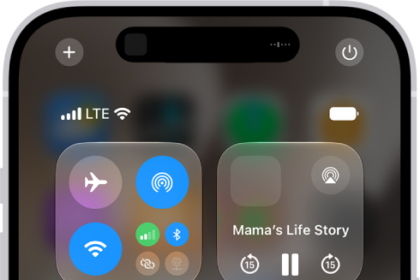
AirDrop is the simplest way to send a large video to a nearby Mac, iPhone, iPad, or Apple Vision Pro. It sends information using Wi-Fi and Bluetooth®, so before you send anything, check that both you and the recipient have these controls turned on in Control Center.
- If the person you’re sending the video to isn’t in your contacts, have them do one of the following:
- On iPhone or iPad: Open Settings, tap General, tap AirDrop, and tap Everyone for 10 Minutes.
- On a Mac: Choose Apple menu > System Settings. Then click General in the sidebar. Click AirDrop & Handoff. Then click the pop-up menu next to AirDrop and choose Everyone.
- Start the Photos app on your iPhone.
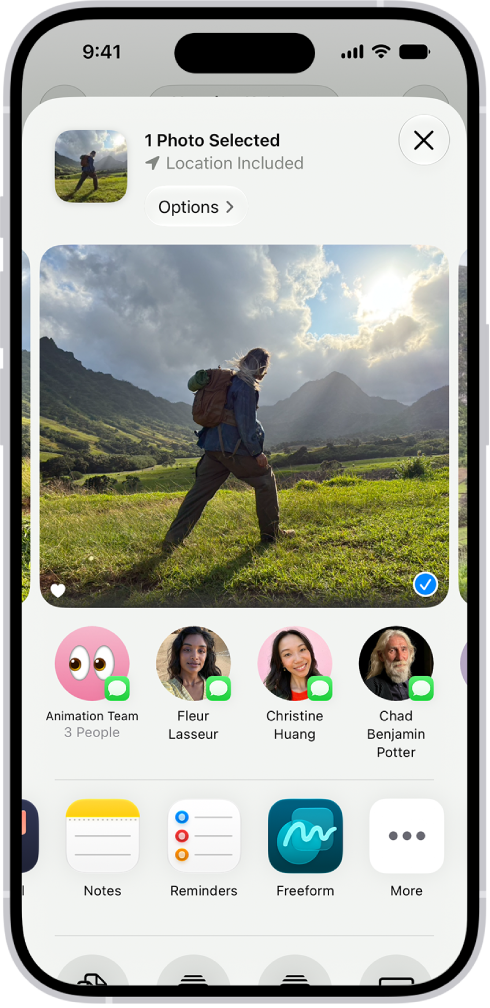
- Tap the video you want to send. Tap the Share button.
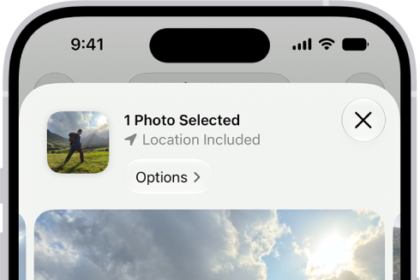
If you want to send the video in its original format, including metadata, location, and any associated edit history or captions, tap Options, then turn on All Photos Data.
- Tap AirDrop and then tap the contact or device you want to share with.
After you share, the recipient gets an alert asking them to accept or decline the AirDrop transfer.
Send a video using Mail Drop
With Mail Drop, you can send a large video as an attachment in Mail.
- Start the Photos app on your iPhone.
- Tap the video you want to send, tap the Share button, and then tap Mail.
- Tap the To field and then enter the name or email of the recipient.
If you want to add a subject or message, tap the Subject field or email body.
- Tap the Send button to send.
Recipients have 30 days to download Mail Drop attachments.