On iPhone, use Safety Check to periodically review and update information you share with people, apps, and devices.
From Safety Check, you can stop sharing your location with others in Find My, remove others’ access to shared content like Photos, Notes, and Calendar, reset system privacy permissions for apps, restrict Messages and FaceTime to the device in your hand, and more. It’s all in one place, in Privacy & Security settings. From there, you just follow the onscreen instructions.
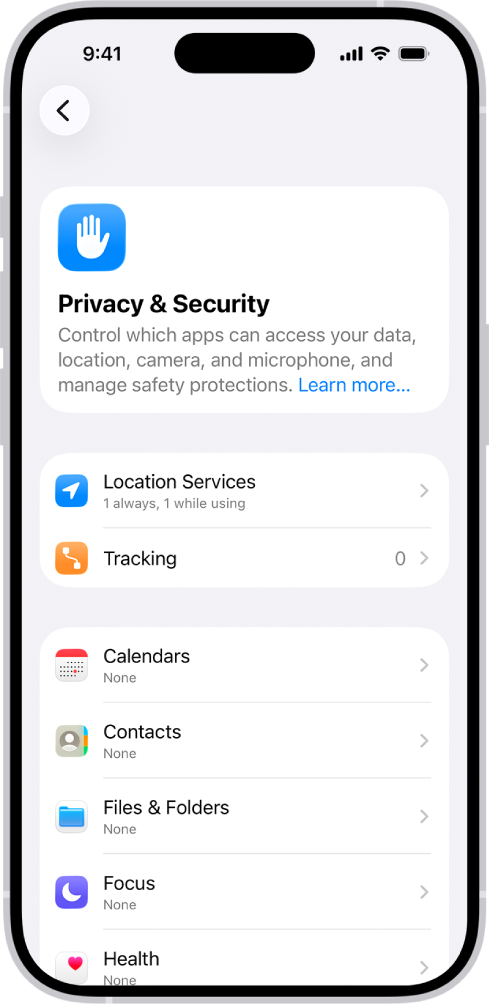
- Open Settings, tap Privacy & Security, and then tap Safety Check.
- Tap Manage Sharing & Access, tap Continue, and then follow the onscreen instructions.
You might also be sharing information that Safety Check can’t review or change—for example, accounts and passwords, social media sharing, and information shared from another device.
Important: In an emergency, you can also use Safety Check to quickly reset access to your device and personal information. Go to Settings > Privacy & Security > Safety Check, tap Emergency Reset, tap Start Emergency Reset, then follow the onscreen instructions.