iPhone comes with built-in accessibility features for hearing, tools designed to help you hear better—or stay connected without hearing a sound.
With Live Captions, you can get a transcription of the audio from any app, and even from live conversations around you. iPhone can listen for sounds like a doorbell or siren and alert you when it recognizes them, and it can listen for your name, too. You can also make Real-Time Text (RTT) calls, and experience music as taps, textures, and refined vibrations. You’ll also find transcriptions of audio messages and podcasts.
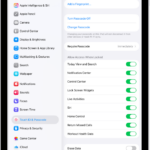
To explore accessibility features for hearing, go to Settings > Accessibility, then scroll down to the Hearing section.
Use alternatives to sound
- Get real-time captions of spoken audio
With Live Captions, get a transcription of the audio from any app and from live conversations around you.
Get live captions of spoken audio
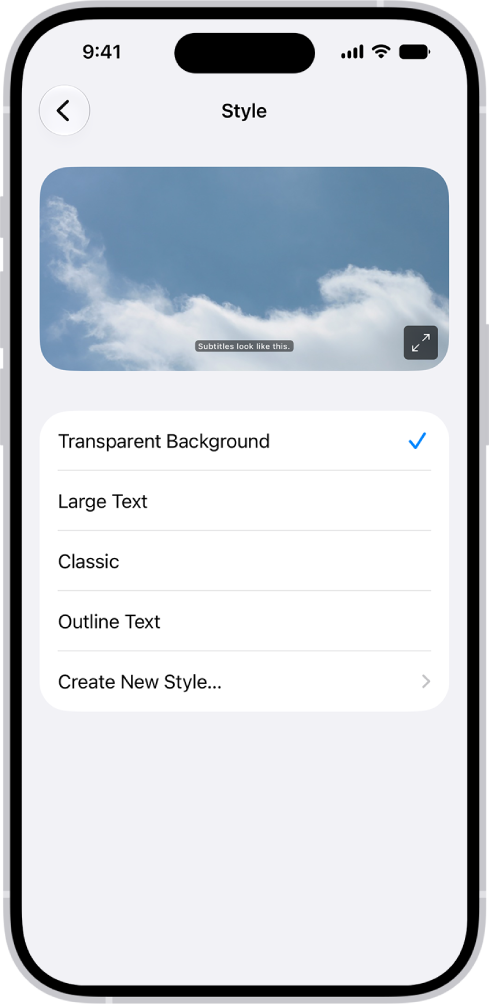
- Customize subtitles and captions
Change how subtitles look. Or instead of standard subtitles, use closed captions and SDH when available.
Display subtitles and captions
- Get notified if someone says your name
With Name Recognition, have iPhone listen for your name and alert you when it recognizes it.
Recognize your name
- Get notified about sounds around you
With Sound Recognition, have iPhone listen for sounds—such as a doorbell or siren—and alert you when it recognizes them.
Recognize sounds
- Feel the music
Experience music as taps, textures, and refined vibrations that are synchronized with a song’s audio.
Play music as vibrations and other haptics
- Type to Siri
Type your Siri requests instead of speaking them.
Change Siri accessibility settings
- Make Real-Time Text (RTT) calls
Type to communicate on a phone call. The person you’re talking to sees your message as you type it.
Set up and use RTT and TTY
- Blink the iPhone light for notifications
If you can’t hear your alerts, get notified visually.
Flash the iPhone screen or indicator light for notifications
Transcriptions are also available for audio messages, podcasts, and HomePod intercom messages.
Use hearing devices and make audio adjustments
- Hearing devices
Pair Made for iPhone (MFi) hearing aids or sound processors with iPhone and adjust their settings.
Use hearing devices
- Live Listen
Stream sound from the iPhone microphone to your MFi hearing devices or AirPods.
- Audio balance
Play stereo audio as mono, adjust left-right stereo balance, and more.
Adjust audio settings
- AirPods
Set accessibility options for AirPods and other Apple headphones paired with your iPhone.
Adjust the accessibility settings for AirPods
- Background sounds
Have your iPhone play ambient sounds—such as ocean waves or rain—to help you focus or rest.
Play background sounds
Siri can also announce calls and notifications on your MFi hearing devices.
Quick tip: With the click of a button or from Control Center, you can control your go-to accessibility features and settings.