On iPhone, you can export a PDF or image as a HEIC, JPEG, JPEG-2000, PDF, PNG, or TIFF file. You can also compress the file.
Depending on the format you selected, you’ll be able to choose a smaller file size or higher quality, flatten transparency or keep transparency editable, and set the resolution. For a PDF, you can optimize the PDF for fast web loading, make the PDF searchable, or save embedded images as JPEG for a smaller file.
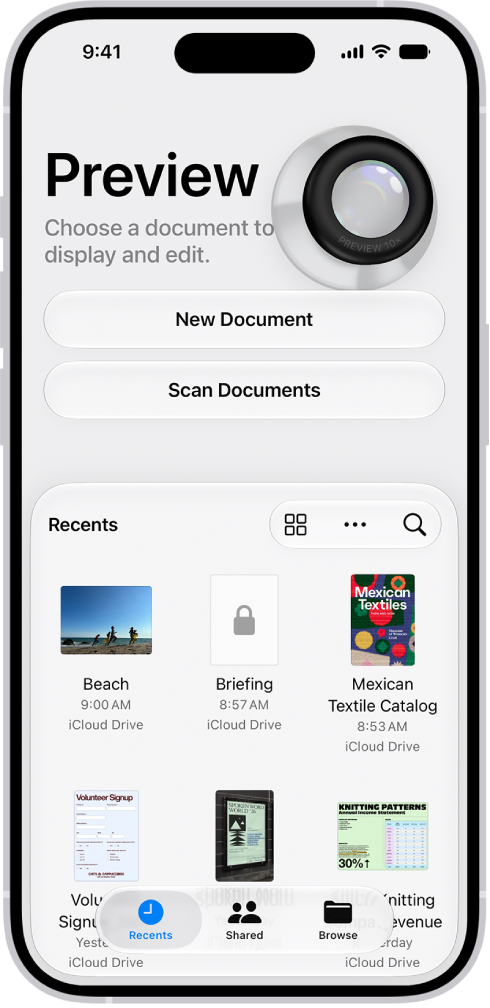
- Start the Preview app on your iPhone.
- Open a PDF or image.
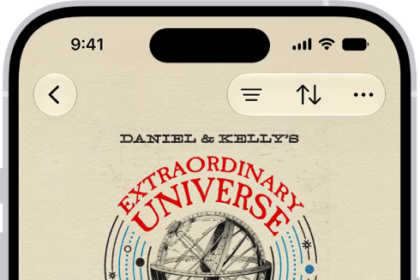
- Tap the Actions Menu button next to the filename. Then tap Export.
- Select a file format. Available formats are HEIC, JPEG, PDF, PNG, and TIFF.
- Depending on the format you selected, adjust any of the following:
- Size (HEIC, JPEG): Drag the slider left for a smaller file size or right for higher quality.
- Alpha (PNG, HEIC, TIFF): Turn off to flatten transparency, or leave on to keep transparency editable.
- Resolution (available when exporting a PDF to an image format): Enter a value and choose pixels per inch or pixels per cm. Higher values produce larger, more detailed images.
- Create Linearized PDF (PDF): Turn on to optimize the PDF for fast web loading.
- Embed Text (PDF): Turn on to run OCR on images and make the PDF searchable.
- Optimize Images for Screen (PDF): Turn on to reduce image resolution for screen viewing. (This creates a smaller file.).
- Save Images as JPEG (PDF): Turn on to save embedded images as JPEG for smaller file size.
- Tap the Done button.
- Choose a location for the file.
- Optionally, tap the Save As field and then rename the file.
- Tap Save.