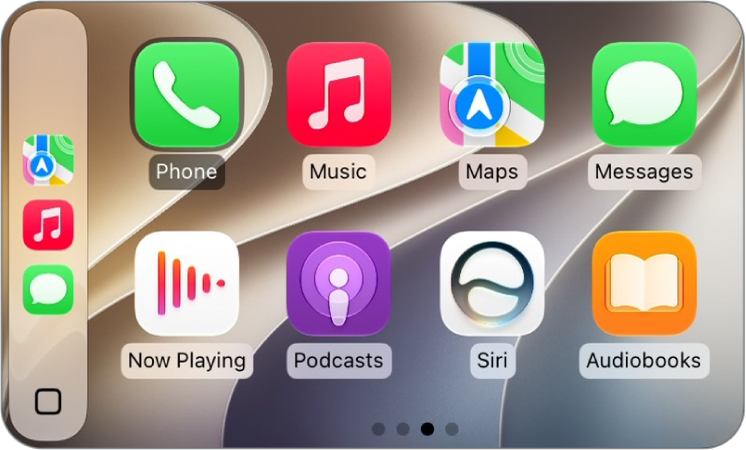
On iPhone, in Settings in CarPlay, you can change the wallpaper, turn on Driving Focus, change how CarPlay looks on the display, turn suggestions in CarPlay Dashboard on or off, and show or hide album art.
Driving Focus is the one to know about. With Driving Focus on while your iPhone is connected to CarPlay, notifications and text messages are silenced or limited, so you can stay focused on the road while you drive.
Use the Driving Focus with CarPlay
To help you stay focused on the road, Driving Focus silences or limits notifications and text messages while it’s on and your iPhone is connected to CarPlay.
- Open Settings in CarPlay using your vehicle’s built-in controls.
Note: If you’re viewing CarPlay Dashboard and Settings doesn’t appear in the recent apps list on the left, tap the Home button to see pages of all of your CarPlay apps, including Settings.
- Go to Driving Focus, then select Activate With CarPlay.
If you receive a Driving Focus notification when you’re not driving (for example, when you’re a passenger) you can turn it off—tap the notification, then tap “I’m not driving.”
Switch the appearance of CarPlay
CarPlay is set to dark appearance by default in most vehicles. If you prefer to have CarPlay automatically switch between dark and light appearance, do the following:
- Open Settings in CarPlay using your vehicle’s built-in controls.
- Select Appearance.
- Select Always Dark.
At night and in other low-light environments, the dark appearance is optimized for viewing.
Change the wallpaper in CarPlay
Open Settings in CarPlay using your vehicle’s built-in controls, select Wallpaper, then choose one of the available options.
Hide or show suggestions on CarPlay Dashboard
Open Settings in CarPlay using your vehicle’s built-in controls, then turn Suggestions in CarPlay off or on.
Hide or show album art
Open Settings in CarPlay using your vehicle’s built-in controls, then turn Show Album Art off or on.
Capture screenshots from CarPlay
- Open the Settings app on your iPhone.
- Tap General, then tap Screen Capture.
- Turn on CarPlay Screenshots.
- While connected to CarPlay, take a screenshot with iPhone to also capture a screenshot of CarPlay.