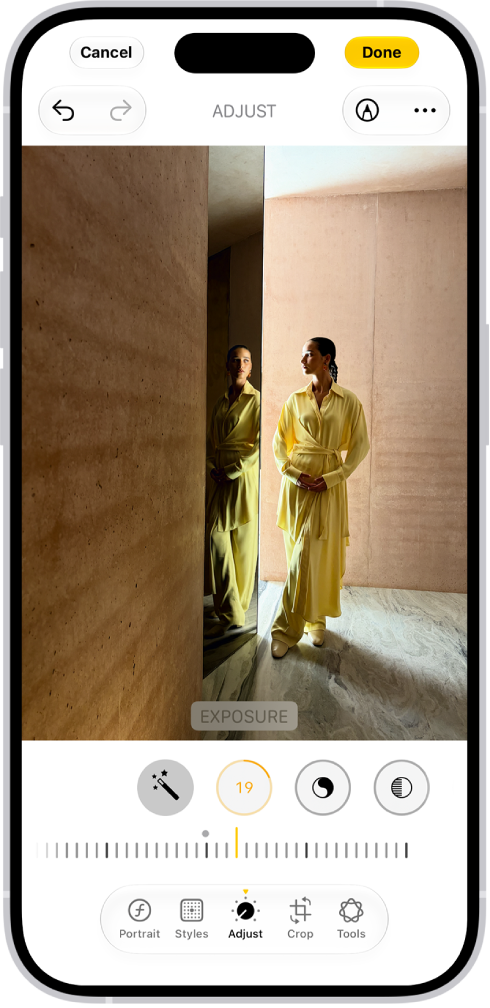
On iPhone, while you edit a photo or video, you can undo and redo changes. After saving, if you don’t like how your changes look, you can revert back to the original.
And when you use iCloud Photos, any edits you make to your photos and videos are saved across all your devices. As you edit, you can compare the edited version to the original, and undo and redo multiple edit steps.
Undo and redo as you edit
As you edit a photo or video, tap the Undo button and the Redo button at the top of the screen to undo and redo multiple edit steps.
Quick tip: Tap the photo or video, and you can compare the edited version to the original.
Revert an edited photo or video
To undo edits after you save, you can revert to the original.
- Start the Photos app on your iPhone.
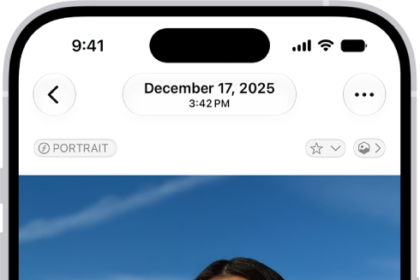
- Open the edited photo or video and tap the More button.
- Tap Revert to Original.