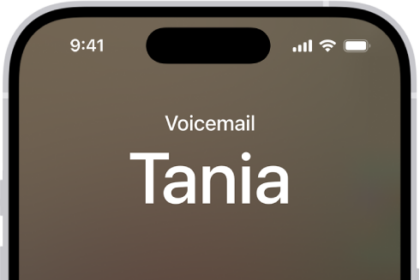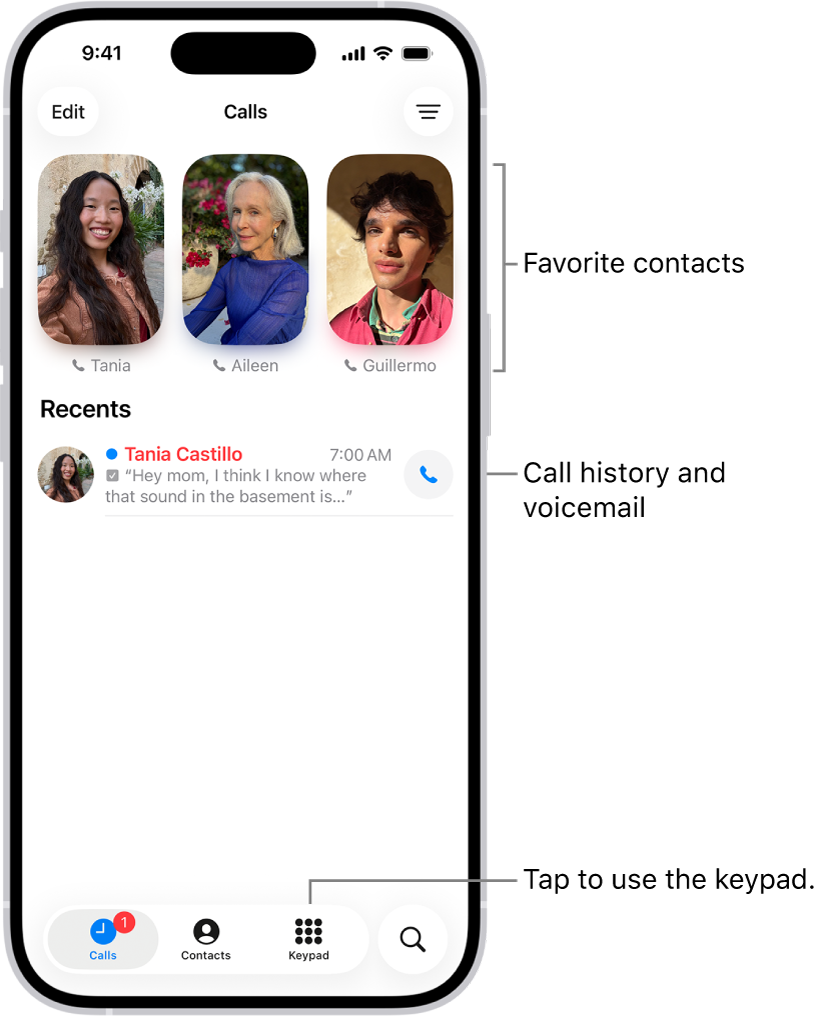
In the Phone app on iPhone, you can call contacts and add recent callers to the Contacts app.
VIP contacts can go in your Favorites list for quick dialing, and their calls bypass Do Not Disturb. You can even automate dialing an extension or passcode.
Here’s how to use contacts from the Phone app on iPhone.
Add a contact to Favorites
You can add VIP contacts to your Favorites list for quick dialing.
- Open the Contacts app on your iPhone.
- Select a contact, scroll down, and then tap Add to Favorites.
Calls from these contacts bypass Do Not Disturb.
Add a recent caller to Contacts
- Open the Phone app on your iPhone.
- Tap a number in the Calls list.
- Tap Create New Contact, then enter the contact’s information.
To add a recent caller to an existing contact, tap Add to Existing Contact, then choose a contact.
Automate dialing an extension or passcode
If the number you’re calling requires dialing an extension, iPhone can enter it for you. When editing a contact’s phone number, tap the Symbols button, then do any of the following:
- Tap Pause to enter a two-second pause (a two-second pause is represented as a comma in the phone number).
- Tap Wait to stop dialing until you tap Dial again (wait-to-dial is represented as a semicolon in the phone number).