You can play audio from iPhone on wireless devices like HomePod, Apple TV 4K, AirPlay 2-enabled smart TVs, and Bluetooth® headphones and speakers. With AirPlay 2, you can play audio on multiple devices on the same Wi-Fi network, like a party playlist playing on HomePod speakers in the living room and kitchen.
Play audio from iPhone on a wireless device
- Open an audio app such as Podcasts or Music on your iPhone.
- Choose an item to play.
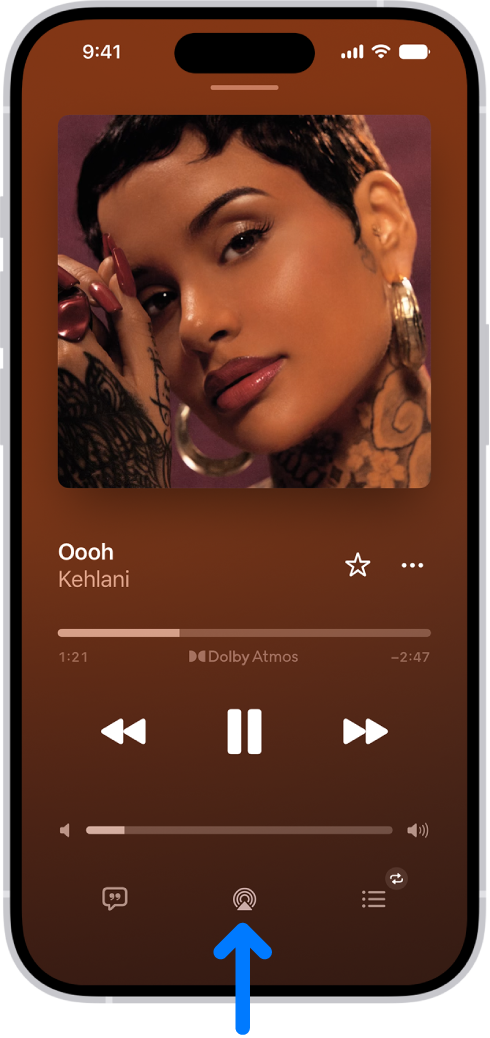
- Tap the Playback Destination button and then choose a playback destination.
Note: AirPlay 2-enabled devices need to be on the same Wi-Fi network to appear in the list of playback destinations. And with a Bluetooth device, moving it out of Bluetooth range sends the playback destination back to iPhone.
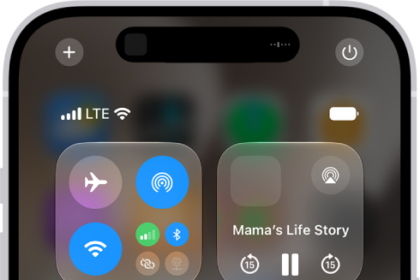
To select the playback destination, you can also tap the Playback Destination button on the Lock Screen or in Control Center.
Play audio on multiple AirPlay 2-enabled devices
Using AirPlay 2, iPhone can play audio on several AirPlay 2-enabled devices on the same Wi-Fi network. A party playlist could play on HomePod speakers in the kitchen and living room, for example, as well as on an AirPlay 2-enabled smart TV in the den and an Apple TV 4K in the bedroom.
Siri: Ask Siri something like:
- “Stop playing music everywhere”
- “Set the dining room volume to 10 percent”
- “What’s playing in the kitchen?”
- “Play a song I like in the kitchen”
- “Add the living room speaker”
- “Remove the music from the kitchen”
- “Move the music to the den”
Playback destinations can also be chosen from the iPhone screen.
- Tap the Playback Destination button in Control Center, on the Lock Screen, or on the Now Playing screen for the app you’re listening to.
- Select each device you want to use.
Note: A stereo pair counts as a single audio device.
Hand off audio from iPhone to HomePod
While playing audio from Music, Podcasts, or another audio app, bring iPhone close to the top of HomePod.
For audio handoff to work, you need all of the following:
- You must be signed in to the same Apple Account on both devices.
- On your iPhone, you’ve turned on Wi-Fi and Handoff.
- iPhone and HomePod must be in the same Apple Home and on the same Wi-Fi network.
- Your devices must have Bluetooth turned on in Settings and be within Bluetooth range of one another (about 33 feet or 10 meters).
To disable Handoff between iPhone and HomePod and other devices, go to Settings > General > AirPlay & Continuity.