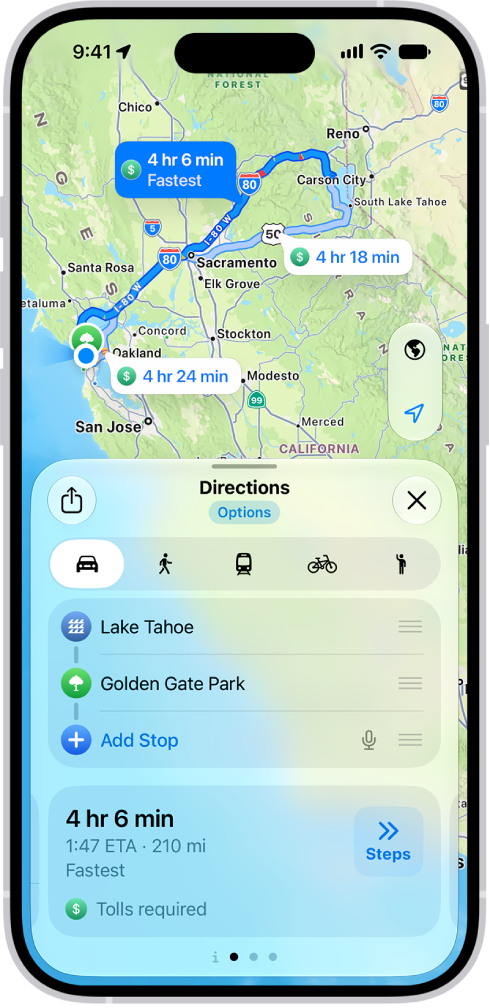
On iPhone, you can view traffic conditions and report accidents, hazards, and speed checks (where allowed), and you can report when they’re cleared.
On the map, yellow indicates slowdowns, and red indicates stop-and-go traffic. Apple evaluates incoming incident reports, and when there’s a high level of confidence in the reports, incident markers, such as for hazards and accidents, are displayed or cleared for other Maps users too.
Here’s how to check traffic conditions and report traffic incidents in Maps on iPhone.
Note: Not all features are available in all countries and regions.
Find out about traffic conditions
- Open the Maps app on your iPhone.
- Tap the Map Modes button at the right of a map, choose Driving or Satellite, and tap the Close button.
Yellow indicates slowdowns, and red indicates stop-and-go traffic.
- To view a report, tap a marker on the map.
Markers indicate incidents such as:
- Road closure
- Accident
- Traffic
- Roadwork
- General alert or other hazard
- Speed check
Report traffic incidents
Siri: Ask Siri something like, “Report an accident.”
Or without using Siri:
- Open the Maps app on your iPhone.
- Do one of the following:
- When following turn-by-turn driving directions: Tap the Incident Reporting button and choose an option.
You can also tap the route card at the bottom of the screen, then tap Report an Incident.
- When not following directions: Tap your picture or initials next to the search field and tap Reports.
Tap Report a New Issue, tap Report an Incident, then choose an option.
- When following turn-by-turn driving directions: Tap the Incident Reporting button and choose an option.
If neither your picture nor initials appear, tap Cancel next to the search field, or tap the search field, then tap Cancel.
Report on the status of a hazard or accident
In select countries or regions, you can report on the status of incidents when you’re near them.
Siri: Ask Siri something like, “Clear the accident.”
Or without using Siri:
- Open the Maps app on your iPhone.
- Tap the incident marker.
- Tap Cleared or Still Here.
You can’t clear reports of speed checks.