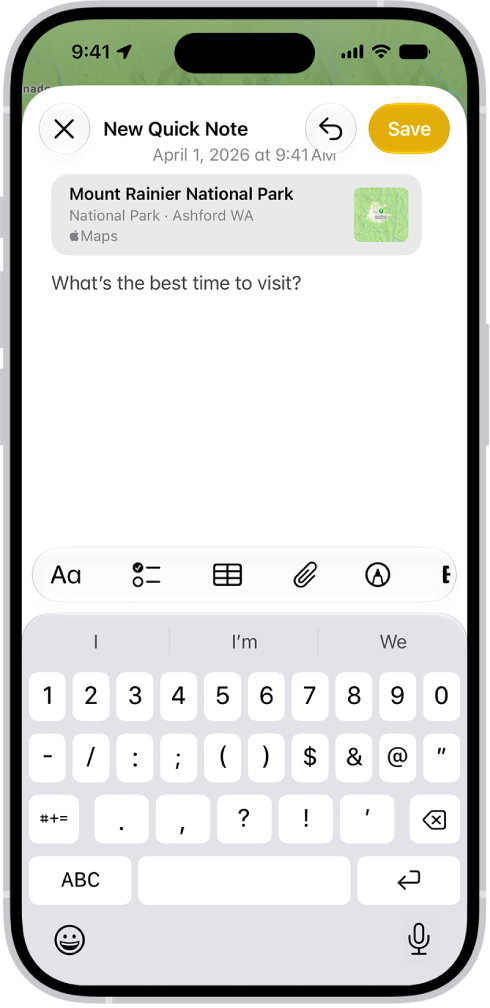
On iPhone, in the Notes app, you can add links to webpages or sections in a note. You can also link to related notes, like a trip itinerary and a list of recommended restaurants.
When you add street and email addresses, phone numbers, and dates, they automatically become underlined text that you can act on. There’s even a quick typing shortcut for linking to another note by its title, right in the note body.
Link to a webpage
- Open the Notes app on your iPhone.
- In the note where you want to insert a link, select the text or tap to place the insertion point.
- Tap the Forward button and tap Add Link. Enter the URL to specify the link destination.
- Optionally, you can add a name for the link.
- Tap the Done button.
Link to a note or section of a note
First, organize a note with sections if you want to link to a section of it.
- Open the Notes app on your iPhone.
- In the note where you want to add a link, select the text or tap to place the insertion point.
- Tap the Forward button and tap Add Link. Do any of the following:
- Link to a section in the same note: Tap Link to Section, then select a section. To customize the link name, turn on Use Section Title or enter a custom link name. Note: If the title of a linked note or section changes, any link that uses the note or section title as its name is updated automatically.
- Link to another note: Start typing the title of the target note and then select it. To customize the link name, turn on Use Note Title or enter a custom link name. Tip: To quickly link to another note, type “>>” in the note body, then enter the title of the target note. You can then link to a section in that note by typing “/,” then selecting a section.
- Link to a section in another note: Link to another note, tap Link to Section. Then select a section.
- Tap the Done button. To edit or remove the link, touch and hold the link. Choose an action.
Take action on addresses, phone numbers, dates, and more
In your notes, an underline appears below text that’s recognized as a street or email address, phone number, date, or other data. Tap the underlined text to take action on it. For example, you can see a street address in Maps, compose an email, call a phone number, add a calendar event, or convert units and currency. Note: Data detection is available when the system language of your iPhone is set to a supported language in Settings > General > Language & Region.