How to download a PDF from Safari to your iPhone

You can save a PDF from Safari to the Files app on your iPhone to read later or share with others.

By Tom Griffin - Executive Editor
0 Min Read

You can save a PDF from Safari to your iPhone to read later or share with others. The PDF goes to the Files app, and you can enter a name for the file before you save it, so it’s easy to find later.
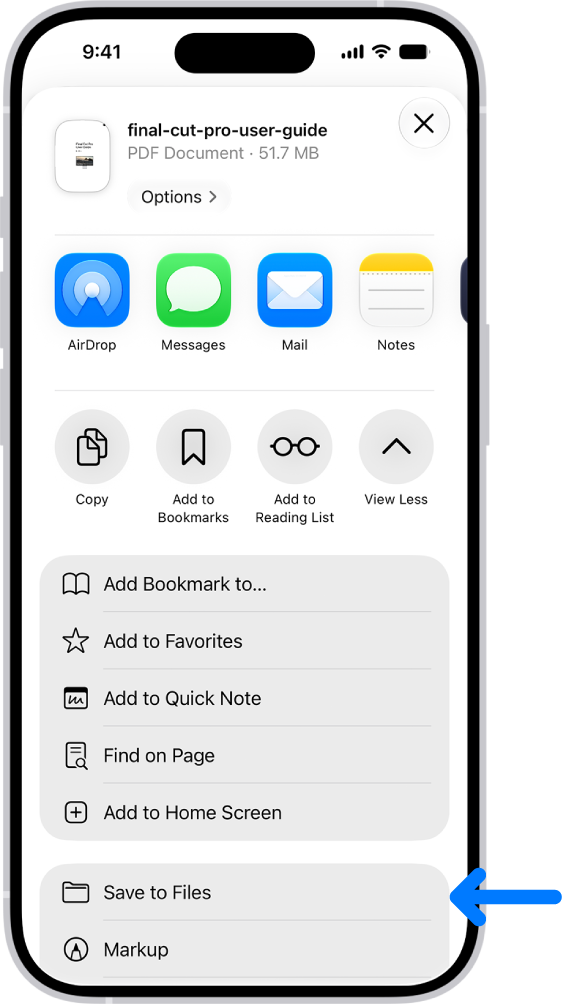
In Safari, the Share button on a PDF has been tapped, revealing a list of options including Save to Files near the bottom of the screen.

  1. Start the Safari app on your iPhone.
  2. Go to the PDF.
  3. Tap the Page Menu button and tap Share. If your Tabs layout is Bottom or Top, tap the Share button.
  4. Tap Save to Files.
  5. Enter a name for the file, then tap Save.

TAGGED:
Executive Editor
Follow:
Tom Griffin is the editor-in-chief at GeeksChalk where he oversees all of site’s evergreen content to ensure it’s up to date with the latest information. Hailing from London in the UK, he has over seven years of experience in the tech journalism space and holds a degree in English Literature. In his spare time, Tom can found checking out the latest video games, immersing himself in his favorite sporting pastime of football, and petting every dog he comes across in the outside world.
Leave a Comment