How to customize the toolbar in Preview on iPad

You can customize the toolbar in Preview on iPad by dragging buttons into or out of it from the View menu.

By Kristina Terech - Staff Writer
0 Min Read

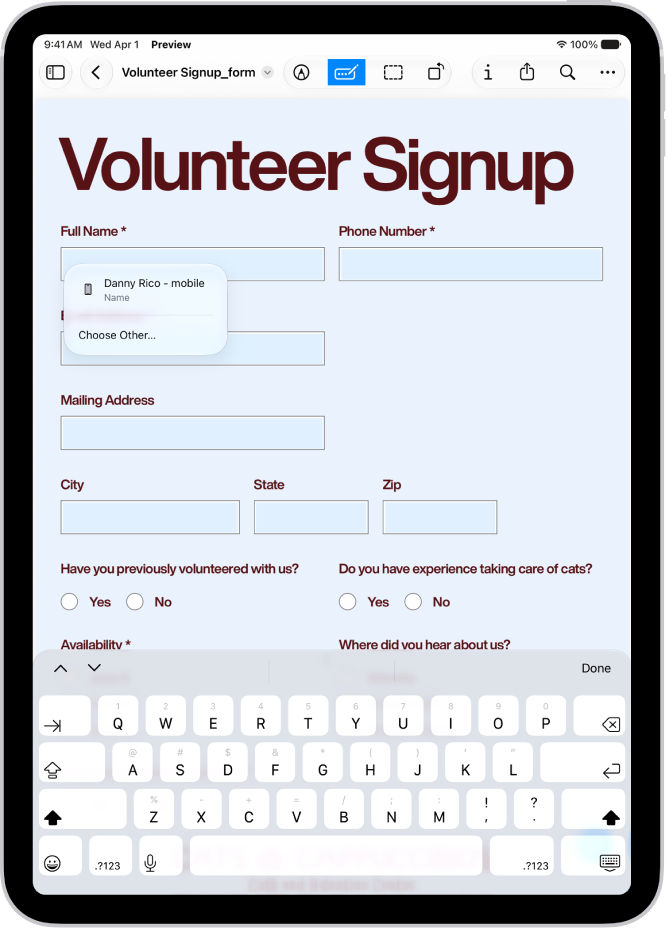
On iPad, you can choose which buttons appear in the toolbar in the Preview app for quick access to frequently used items. With Customize Toolbar, you just move items into or out of the toolbar. You can also manage PDFs and images in Preview, and lock PDFs.

  1. Go to the Preview app on your iPad.
  2. Choose View > Customize Toolbar in the menu bar.
  3. Drag items into or out of the toolbar.
  4. Tap the Done button.

See also
TAGGED:
Staff Writer
Follow:
Kristina is a staff writer at GeeksChalk, and is interested in all things Apple. This includes its best products such as the iPad, iPhone, Mac, AirPods, and Apple Watch. When she's not tinkering with the latest Apple gear, you’ll find her watching movies, taking pictures and exploring the great outdoors.
Leave a Comment