On iPad, you can fine-tune your recordings using the editing tools. Remove parts, record over parts, or replace an entire recording.
You can trim a recording to keep or delete a section, and save the edited version as a new recording, so the original stays as it was. You can also delete a recording, and recover or erase a deleted one later.
Here’s how to edit or delete a recording in Voice Memos on iPad.
Edit a voice recording
- Go to the Voice Memos app on your iPad.
- In the list of recordings, tap the recording you want to edit and then tap Edit at the top right.
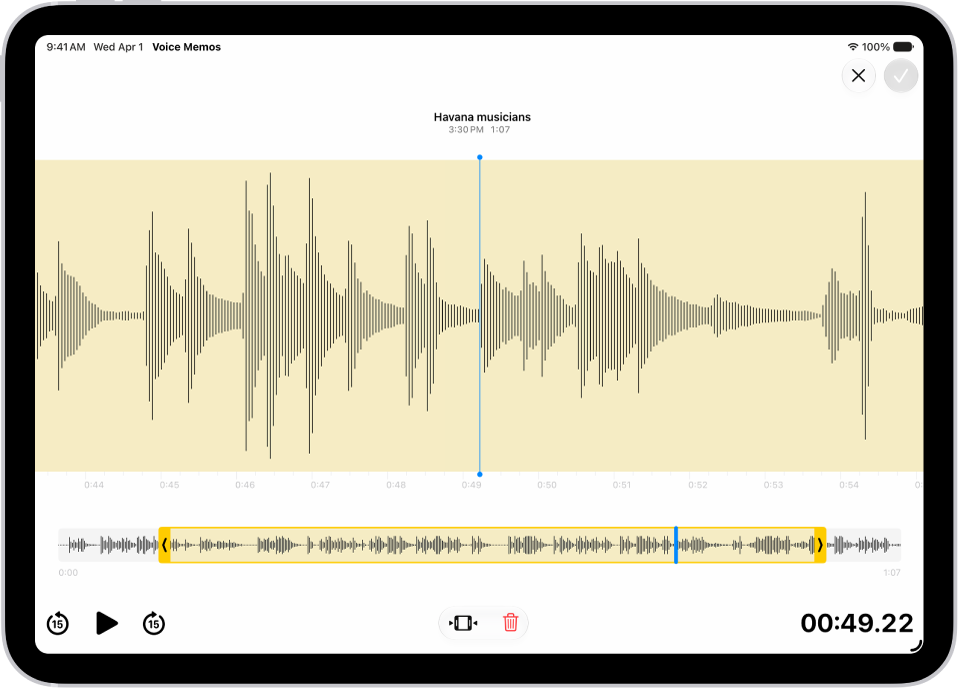
- Tap the Trim button at the top right. Then drag the yellow trim handles to enclose the section you want to keep or delete.
You can pinch open to zoom in on the waveform for more precise editing.
To check your selection, tap the Play button.
- To keep the selection (and delete the rest of the recording), tap Trim, or to delete the selection, tap Delete.
- Tap Apply and then tap Done.
- Tap Save Recording to overwrite the original recording, or tap Save as New Recording to save the edited version as a new recording (leaving the original as it was).
Replace a recording
- Start the Voice Memos app on your iPad.
- In the list of recordings, tap the recording you want to replace and then tap Edit at the top right.
- Drag the waveform to position the playhead where you want to start recording new audio.
You can pinch open to zoom in on the waveform for more precise placement.
- Tap Replace to begin recording (the waveform turns red as you record).
Tap the Pause button to pause; tap Resume to continue.
- To check your recording, tap the Play button.
- Tap Done and tap Save Recording to replace the original recording, or tap Save as New Recording to save the changes as a new recording (leaving the original as it was).
Delete a recording
- Start the Voice Memos app on your iPad.
- Do any of the following:
- In the list of recordings, tap the recording you want to delete, then tap the Delete button.
- Tap Edit above the list of recordings, select one or more recordings, then tap Delete.
Deleted recordings move to the Recently Deleted folder, where they’re kept for 30 days by default. To change how long deleted recordings are kept, go to Settings > Apps > Voice Memos > Clear Deleted, then select an option.
Recover or erase a deleted recording
- Start the Voice Memos app on your iPad.
- Tap the Recently Deleted folder. Then tap the recording you want to recover or erase.
- Do any of the following:
- Recover the selected recording: Tap Recover.
- Delete the selected recording: Tap Delete.
- Recover everything in the Recently Deleted folder: Tap Edit above the Recently Deleted list, then tap Recover All.
- Delete everything in the Recently Deleted folder: Tap Edit above the Recently Deleted list. Tap Delete All.
See also