How to get started with Voice Memos on iPad

You can get started with Voice Memos on iPad to record lectures and ideas, fine-tune recordings, and view audio transcripts.

By Tom Griffin - Executive Editor
1 Min Read

In the Voice Memos app on iPad, you can easily record lectures, song ideas, meetings, and more. Your recordings appear automatically on your other devices signed in to the same Apple Account, and you can edit them, view and search transcripts, and share or export them.
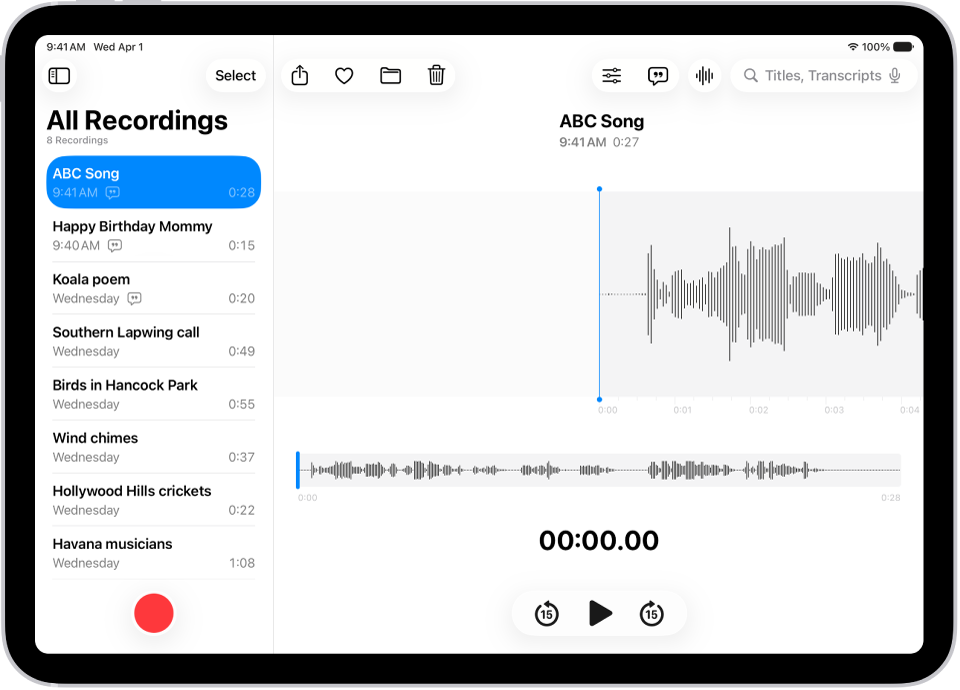
A recording made in Voice Memos. The list of recordings is on the left, with a selected recording at the top. On the right, the waveform has a playhead, which you can drag to go to a specific place in the recording. Above the waveform are the Share, Favorite, Move, Delete, Playback Options, Transcription, and Edit buttons. Below the timeline are the Playback controls.

Record with a single tap

To begin recording, just tap the Record button.

As long as Voice Memos is on in iCloud settings and you’re signed in to the same Apple Account, your audio recordings show up automatically on your iPhone, iPad, Mac, and Apple Vision Pro.
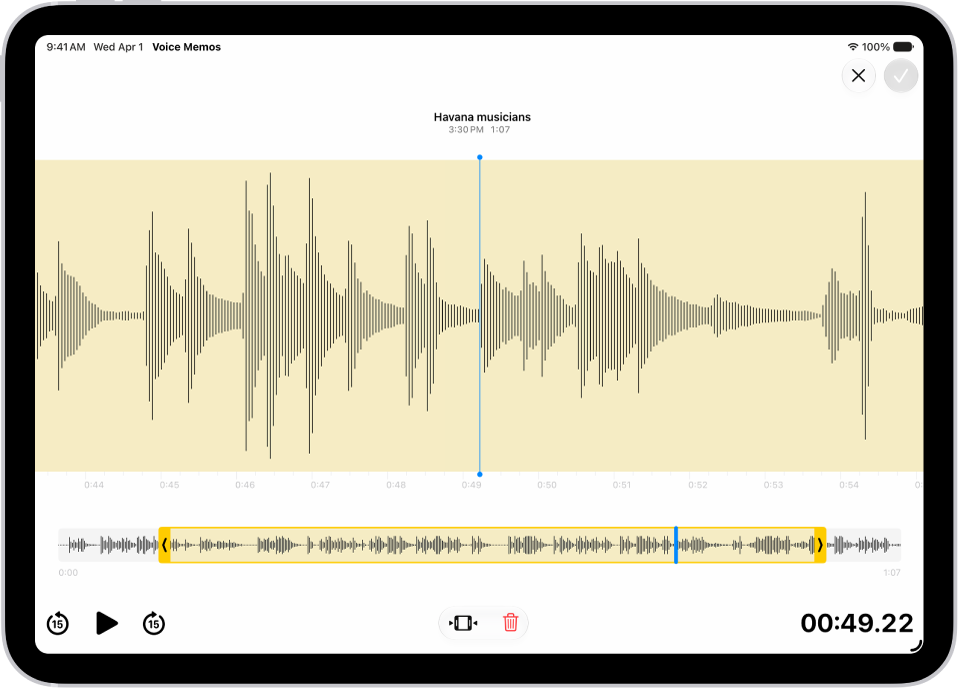
A recording is being edited, with the yellow trim handles enclosing a portion of the audio waveform at the bottom of the screen. To the left of the Playback controls are the Trim button (for deleting the part of the recording outside the handles) and the Delete button (for deleting the part of the recording outside the handles).

Fine-tune your recordings

Whether you capture a recording on your iPad, iPhone, Mac, Apple Watch, or Apple Vision Pro, you can edit it easily, right on your iPad. Select the recording in the recordings list, tap the Edit button, then tap the trim button at the top right to begin editing.

A recording made in Voice Memos. The list of recordings is on the left, with a selected recording at the top. On the right, the waveform has a playhead, which you can drag to go to a specific place in the recording. Above the waveform are the Share, Favorite, Move, Delete, Playback Settings, Transcription, and Edit buttons. Below the timeline are the Playback controls.

View and search audio transcripts

You can view transcripts of your recordings in Voice Memos, either live while you’re recording or after. Transcripts are searchable, so you can find just the moment you’re looking for. To see the transcript of the selected recording, tap the Transcription button at the top right. To search for specific text, enter it in the search field above the list of recordings. The list shows only recordings with that text.

A recording made in Voice Memos. The list of recordings is on the left, with a selected recording at the top. On the right, the waveform has a playhead, which you can drag to go to a specific place in the recording. Above the waveform are the Share, Favorite, Move, Delete, Playback Settings, Transcription, and Edit buttons. To see the transcript, tap the Transcription button.

Share or export a recording

You can share a recording with friends, or export it to Logic Pro to enhance it with professional editing tools. To share, tap the recording, then tap the Share button. Tap Options, choose whether to share as a rendered or editable file, then tap the Done button. Choose a sharing option, or to export, swipe up, then tap Save to Files.

For more on Voice Memos, here’s where to head next:

TAGGED:
Executive Editor
Follow:
Tom Griffin is the editor-in-chief at GeeksChalk where he oversees all of site’s evergreen content to ensure it’s up to date with the latest information. Hailing from London in the UK, he has over seven years of experience in the tech journalism space and holds a degree in English Literature. In his spare time, Tom can found checking out the latest video games, immersing himself in his favorite sporting pastime of football, and petting every dog he comes across in the outside world.
Leave a Comment