On iPad, you can export your passwords for websites and accounts to a CSV file, and then import them into another password manager. You just choose what to include in the export. You can’t export Wi-Fi passwords, passwords you shared with a group unless you created it, or Sign in with Apple account passwords, though.
WARNING: Your exported passwords are not encrypted and are visible to anyone who can access the file. After you import the passwords into another password manager, delete the file you exported.
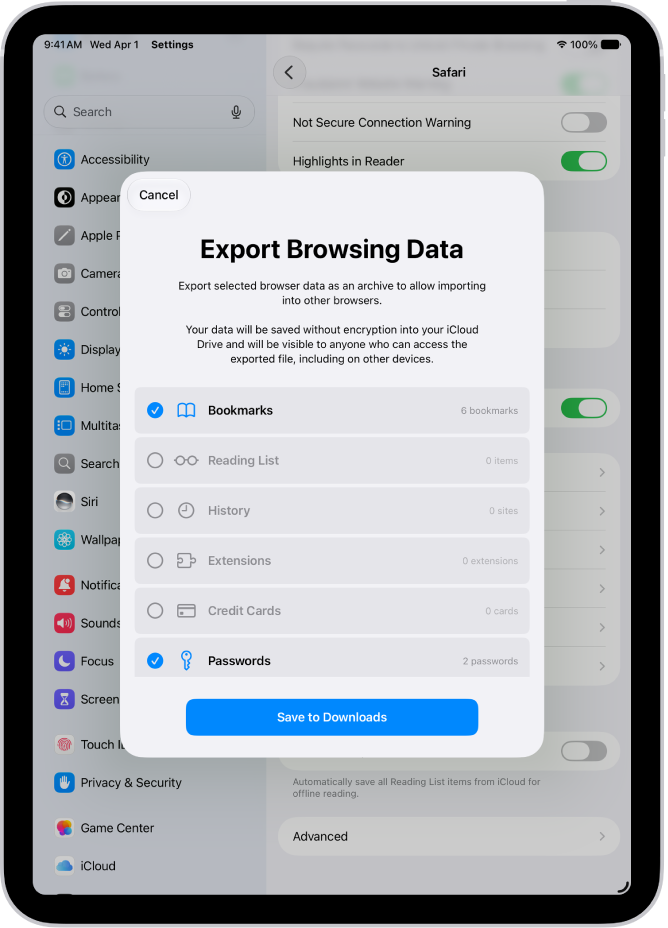
- Start the Settings app on your iPad.
- Tap Apps, then tap Safari.
- Below History and Website Data, tap Export.
- Select Passwords.
Deselect the other choices.
- Tap Save to Downloads.
- Tap Done.
Note: You can’t export Wi-Fi passwords, passwords you’ve shared with a group (unless you’re the one who created the group), or Sign in with Apple account passwords.
See also