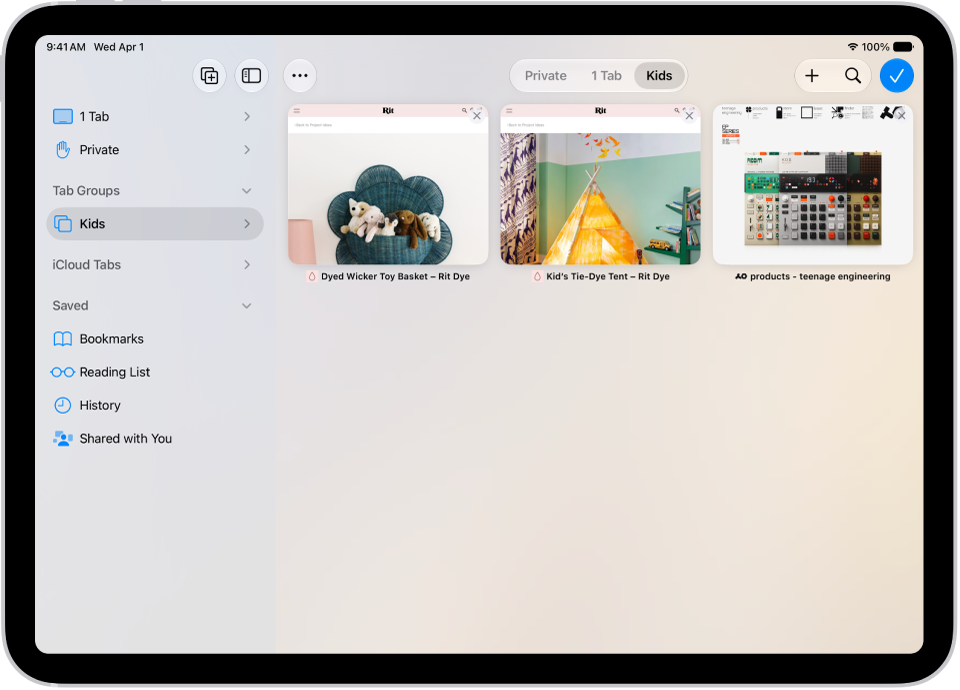
On iPad, you can work with several tabs at the same time in the sidebar in Safari. After you select the tabs you want to work with, you can copy the tabs to paste somewhere else, duplicate the tabs in the same location, move the tabs to another window or a Tab Group, or close the tabs.
- Go to the Safari app on your iPad.
- Tap the Show Sidebar button to open the sidebar, then tap the More button.
- Tap Select Tabs and select the tabs you want to work with.
- Touch and hold one of the selected tabs and then do any of the following:
- Copy the tabs to paste somewhere else: Tap Copy [x] Links.
- Duplicate the tabs in the same location: Tap Duplicate [x] Tabs.
- Move the tabs to another window: Tap Move [x] Tabs to New Window.
- Move the tabs to a Tab Group: Tap Move to Tab Group and tap a Tab Group.
- Close the tabs: Tap Close [x] Tabs.
- Tap the Done button.
See also