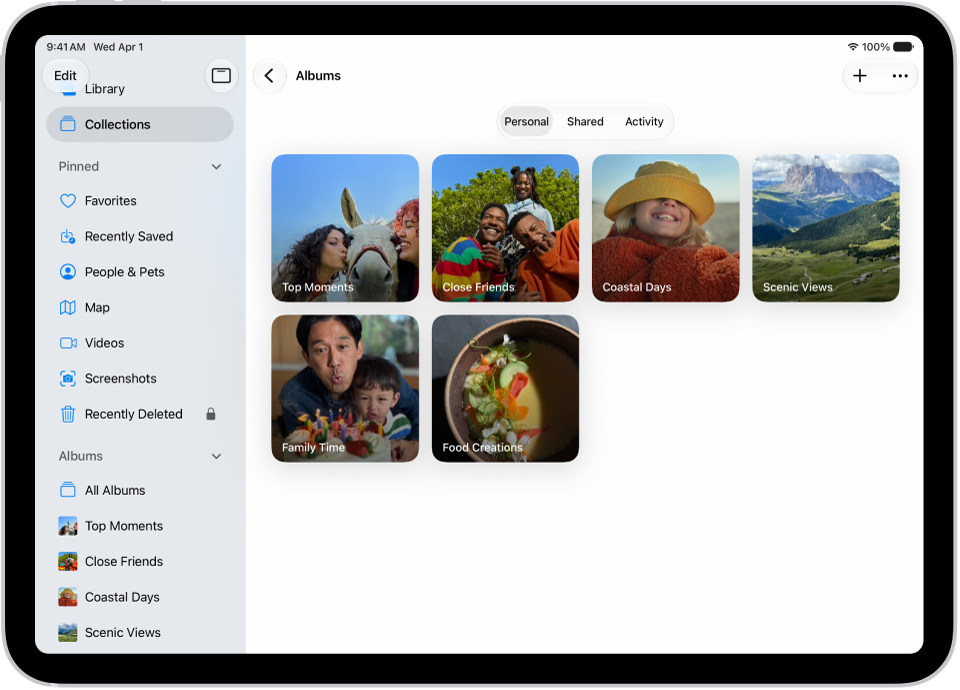
On iPad, if you created a shared album, you can invite more participants to join the album. You can also remove participants, manage album notifications, let other participants manage the album, and turn posting for participants off and on.
By default, all participants can view and comment on album content, but you can change each person’s permissions to Can Manage Album and Photos, Can Add Photos, or Can View and Comment.
Here’s how to add and remove people in a shared album on iPad.
Add participants to a shared album
- Open the Photos app on your iPad.
- Tap Collections.
- Tap Shared Albums and tap an album.
- Tap the Manage Shared Album button and tap Invite Participants.
- Tap a share method, enter the recipients’ details, and then send the invite.
Manage participant permissions
The organizer of a shared album can manage participant permissions. By default, all participants can view and comment on album content, contribute photos and videos, and remove any content they contributed. You can change these permissions:
- Open the Photos app on your iPad.
- Tap Collections.
- Tap Shared Albums and tap an album.
- Tap the Manage Shared Album button, tap a participant, and then tap one of the following:
- Can Manage Album and Photos: The participant can invite other participants, rename the album, update permissions, and delete photos or videos added by others.
- Can Add Photos: The participant can share photos and videos and remove content they contributed.
- Can View and Comment: The participant can view and comment on photos and videos.
- Tap the Done button.
When participants post or comment in a shared album you’re a part of, notifications about the activity appear in the Albums Activity tab.
Remove participants from a shared album
- Open the Photos app on your iPad.
- Tap Collections.
- Tap Shared Albums, then tap an album you created.
- Tap the Manage Shared Album button.
- Tap the participant you want to remove.
- Tap Remove Participant at the bottom of the screen.
See also