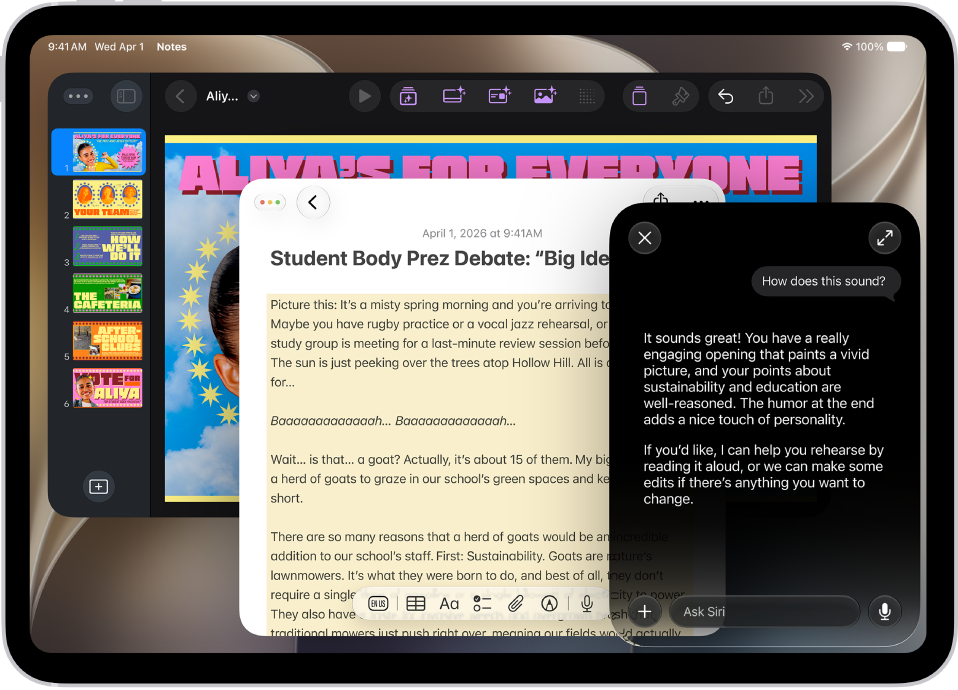
On iPad, with Siri AI (Beta), you can use Siri to compose, rewrite, proofread, and get feedback on what you’ve written. If you don’t have Siri AI, you can use Writing Tools instead.
You can compose a draft from scratch, like a day-by-day itinerary for a 3-day trip, or proofread and rewrite documents. Siri can also give you feedback and summarize text, like condensing meeting notes into key points, and you can refine your work with follow-up questions.
Siri AI is available in beta on iPadOS 27 or later on an Apple Intelligence-enabled iPad mini (A17 Pro) or iPad model with M1 or later set to a supported language. Available in English to start. Siri AI will not initially be available in the EU on iPadOS. Usage limits may apply.*
- On your iPad, do one of the following:
- Select the text you want to refine, tap the Siri AI icon, then describe what you want or choose an option—Proofread or Rewrite, for example.
Tip: When you choose Rewrite, tap the Compare button to review changes by comparing the original and current versions.
- Activate Siri, then describe what you want.
See the ideas below for requests you can make.
- Compose a draft from scratch
“Write a story for my four-year-old explaining the concept of evaporation.”
“Write a day-by-day itinerary for a 3-day trip to New York.”
- Proofread and rewrite documents
“Proofread this.”
“Tidy up the recipe I wrote down from my cooking class and format it step by step.”
- Get feedback
“How’s this sound?”
- Summarize text
“Condense these meeting notes to give me key points.”
- Compose a draft from scratch
- Select the text you want to refine, tap the Siri AI icon, then describe what you want or choose an option—Proofread or Rewrite, for example.
- Swipe down on Siri’s answer to start a conversation, ask follow-up questions, or refine your work.
To choose the Siri features you can use and which content Siri can access, open Screen Time settings; check out our guide, Block features or content with Screen Time.
*Apple Intelligence is available with Siri and device language set to Chinese (Simplified), Chinese (Traditional), Danish, Dutch, English, French, German, Italian, Japanese, Korean, Norwegian, Portuguese, Spanish, Swedish, Turkish, or Vietnamese. Some features may not be available in all regions or languages. Some devices may not be available in all regions. Siri AI is available in beta in iOS 27, iPadOS 27, macOS 27, watchOS 27, and visionOS 27 and requires an Apple Intelligence–enabled device set to a supported language. Available in English to start. Siri AI will not be initially available in the EU on iOS, iPadOS, and watchOS. Certain Apple Intelligence features that rely on server-side models are subject to daily usage limits, including but not limited to Siri AI, Intelligent Photo Editing Tools, Image Playground, and AFM 3 Cloud models in Shortcuts. Daily limits may vary by feature, request complexity, system demand, system policies, and other factors. Expanded access to such features will be available for a fee in the future. Use of these features is subject to the Apple Intelligence Terms and Conditions.
See also