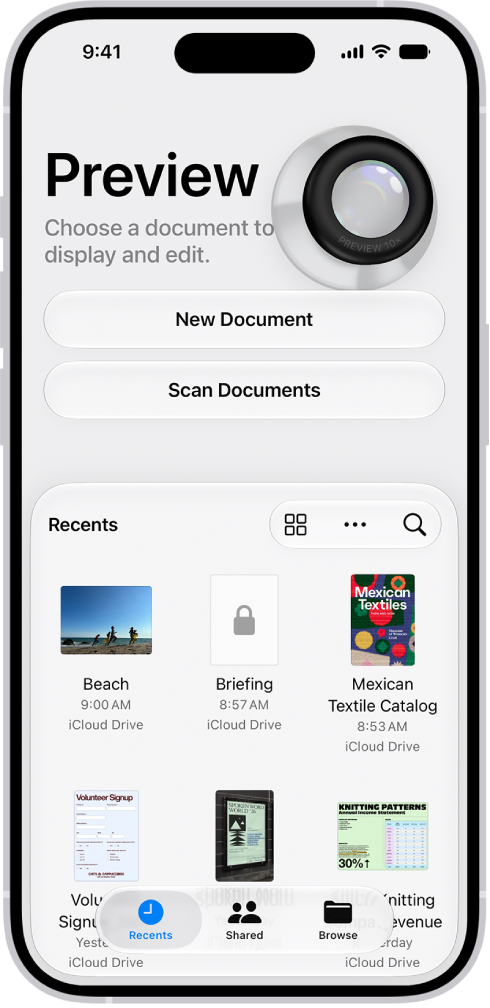
On iPhone, in the Preview app, you can save a PDF or image, rename the file, copy the PDF or image to the Clipboard, create a duplicate, or move the file. When you leave a file, it’s saved, and you return to the main menu.
- Open the Preview app on your iPhone.
- Open a PDF or image.
- Do any of the following:
- Save the file and return to the main menu: Tap the Back button.
- Rename the file: Tap the Actions Menu button next to the filename. Then tap Rename. Enter a new filename. Then tap Done on the onscreen keyboard.
- Copy the PDF or image to the Clipboard: Tap the Share button, then tap Copy.
- Create a duplicate: Tap the Actions Menu button next to the filename. Tap Duplicate.
- Move the file: Tap the Actions Menu button next to the filename and tap Move. Tap the Actions Menu button next to Preview and select a new location.