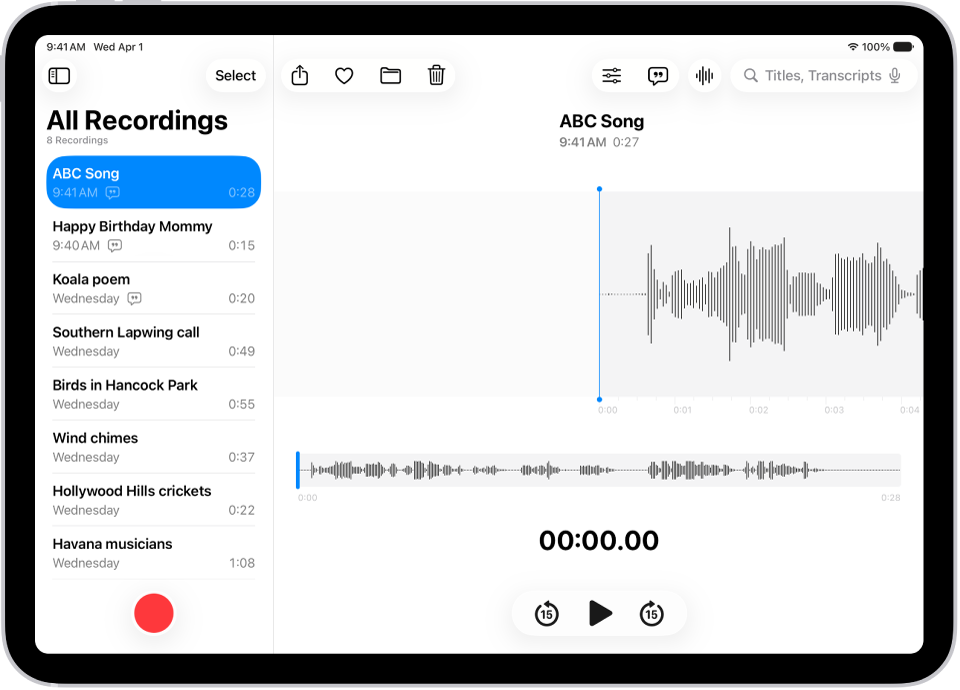
On iPad, you can search for recordings or rename any recording in Voice Memos. A new recording is first named New Recording or the name of your location, and you can even search a transcript for a word or phrase.
Here’s how to search for or rename a recording in Voice Memos on iPad.
Search for a recording
- Go to the Voice Memos app on your iPad.
- Swipe down from the middle of the list of recordings to reveal the search field.
- Tap the search field, enter part or all of the recording name, and then tap Search.
Note: This field can also search transcripts for a word or phrase you enter.
Rename a recording
A recording is initially saved with the name New Recording or the name of your location, if Location Services is turned on in Settings > Privacy & Security.
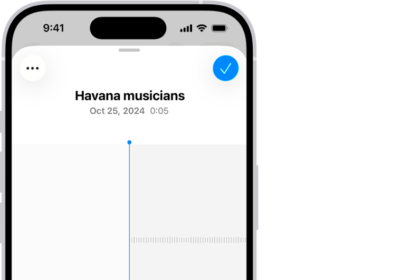
To change the name, tap the recording, tap the name, then type a new one.
See also