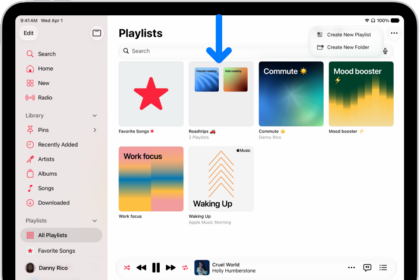
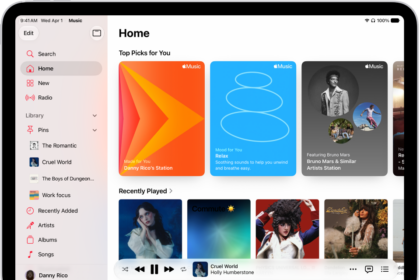
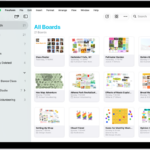
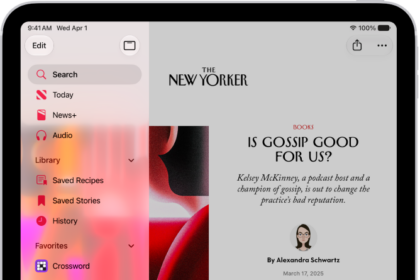
On iPad you can work with multiple apps, or multiple windows of the same app. As you work, you can resize, move, and add windows.
Multiple windows work when either Windowed Apps or Stage Manager is turned on in the Settings app. You can open a second app or window, place it alongside your other resized app windows, and return a window to full screen when you’re ready. You can also organize windows with Stage Manager.

Set up iPad to work in multiple windows
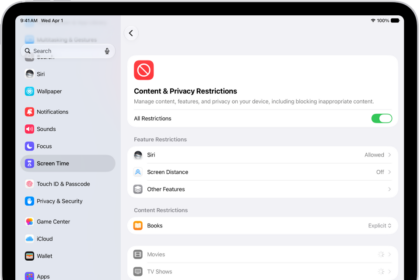
To work with multiple windows, you’ll need to turn on Windowed Apps or Stage Manager in the Settings app.
- Open the Settings app on your iPad.
- Tap Multitasking & Gestures, then select Windowed Apps.
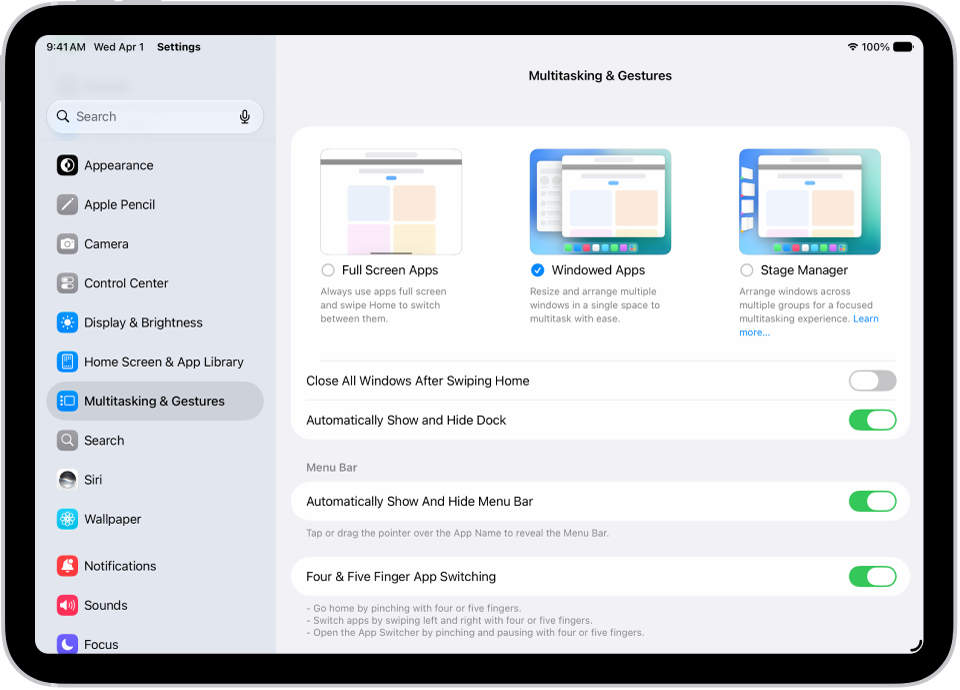
Or you can select Stage Manager instead; read our guide, Organize windows with Stage Manager.
Resize and move windows
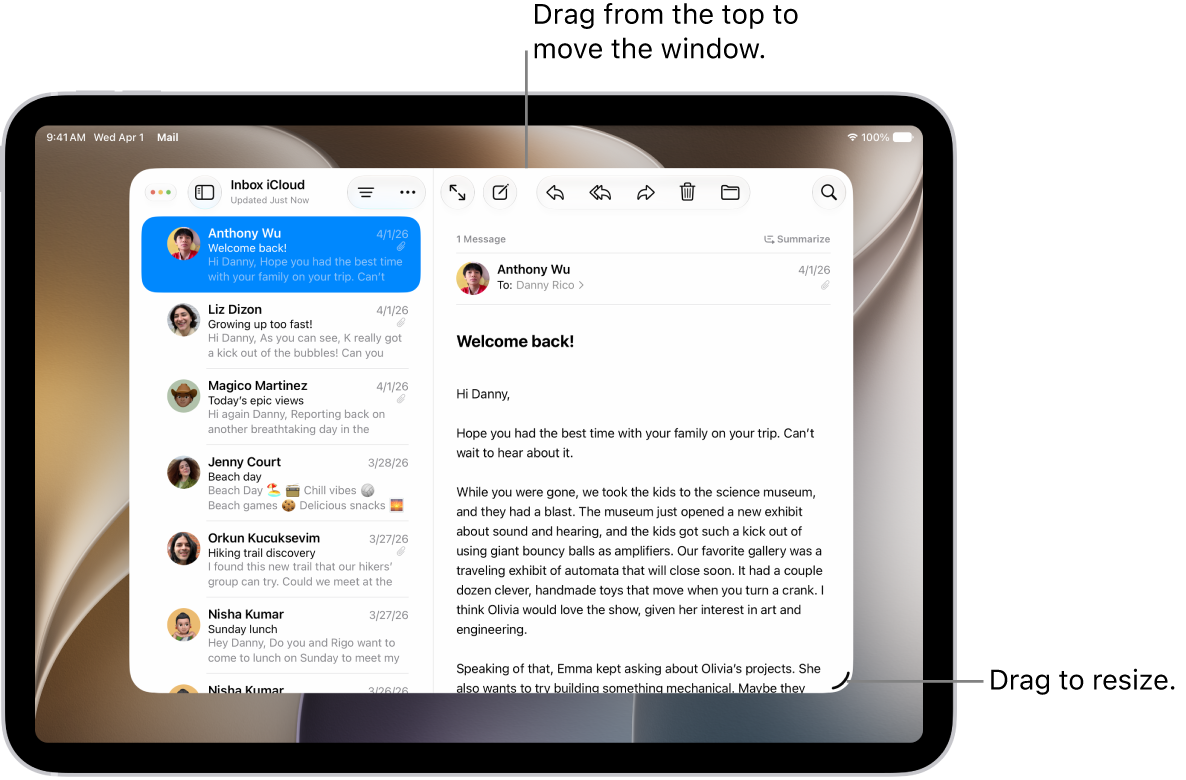
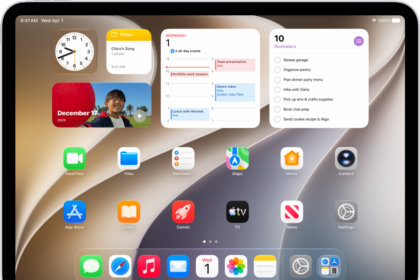
To open an app, tap it in the Dock, on one of your Home Screens, or in App Library, then do any of the following:
- Resize a window: Drag the resize handle in the bottom-right corner of the window.
- Move a window: Drag it from the top.
- Manage an app window: After you resize a window, the window controls appear at the top left of the window. You can use these controls to close, minimize, or make your window full screen again. Touch and hold the window controls to reveal more options.
Open a second app or window
- Tap the app in the Dock or App Library.
- Swipe up from the bottom edge of the screen. This temporarily moves your windows to the edges of the screen so you can see and open the apps on your Home Screen.
If you open an app to full screen, you can still resize it and place it alongside your other resized app windows.
Return a window to full screen
When multiple windows are resized, you can switch any of them to full screen by doing one of the following:
- Tap the Window Controls button at the top of the window, then tap the Full Screen button.
- Double-tap the top of the window.
- Drag the window down from the top and hold, then swipe it up quickly toward the top of the screen.
For more on layouts, see our guide, Change the layout of windows.
Minimize or close a window
Tap the Window Controls button at the top of the window, then do any of the following:
- Tap the Minimize button to minimize the window.
- Tap the Close button to close the window.
Quick tip: Swipe up from the bottom of the screen and then swipe up again, and all your windows minimize at once.
See also