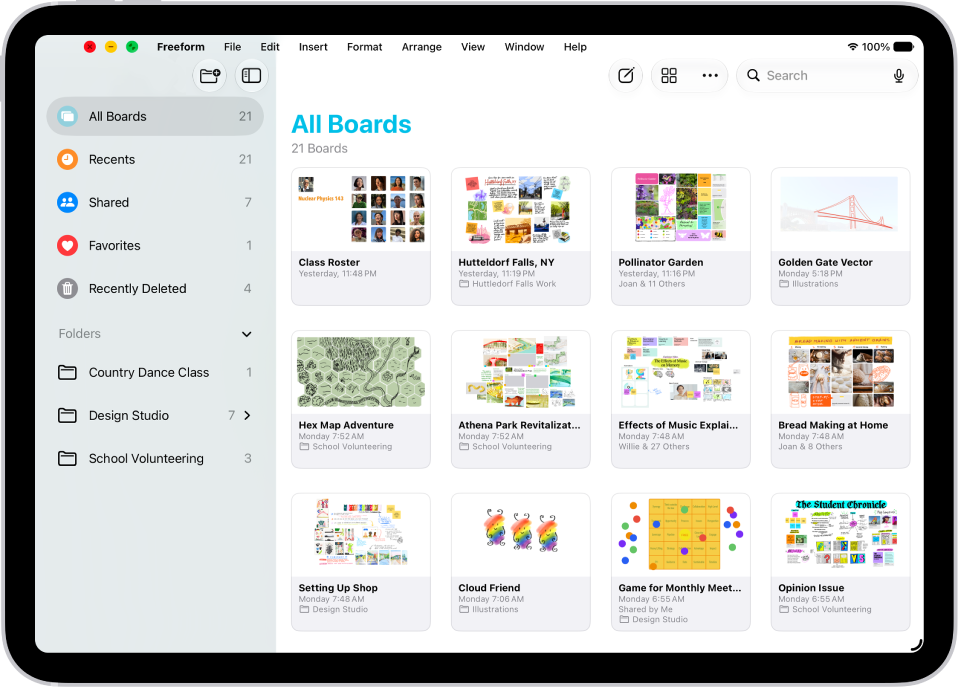
On iPad, you can send a link to a copy of a Freeform board, so others can download the copy and add it to their boards—if you’re signed in to your Apple Account. You can also export your Freeform board as a PDF to send a copy of it to others.
Anyone with the link can download the copy within 30 days, and you can send it to as many recipients as you like. Changes on your board don’t appear on their board, either.
Send a copy of a board
With just a link, you can send a copy of your board to anyone. They can make it their own. To send a copy of the board, you must be online and signed in to iCloud.
- Go to the Freeform app on your iPad.
- Do one of the following:
- While browsing All Boards: Touch and hold the board you want to share and tap Share.
- From inside a board: Tap the Share Board button.
- Tap the pop-up menu under the board name and choose Send a Copy. Tap one of the following:
- Copy iCloud Link: The link is copied to your clipboard. You can then paste it anywhere you like.
- Any contact or app icon: Follow the onscreen instructions.
You can send this link to as many recipients as you like. Anyone with the link can download the copy within 30 days. When browsing for the board, recipients can find it in All Boards, not the Shared section. (Shared is only for boards you’re collaborating on.)
For sharing your board collaboratively, so everyone can see one another’s updates, read our article, Share Freeform boards and collaborate.
Every new link carries a copy of the board from the moment you created the link. The link opens a new board when you send someone a copy. Changes on your board don’t appear on their board, while anything others change doesn’t affect yours.
Note: Who has access to the original board stays the same when you send a copy. To change access to a board, see our guide, Change access and permissions for boards and folders.
Send a PDF of a board
- Open the Freeform app on your iPad.
- Open a board, or tap the New Board button to start a new one.
- In the board you want to send, tap the Actions Menu button and then tap Export as PDF.
If you saved scenes in your board, choose to export one of the following:
- The entire board as a single page: Tap Board.
- One scene per page: Tap Scenes.
- Choose how you want to send the PDF, such as in Messages or Mail and then follow the onscreen instructions.
People and groups you recently communicated with appear as icons. Tap one to send the board to them.
You can also export a board as a PDF while browsing All Boards. Touch and hold the thumbnail or name of the board, tap Share, then tap Export as PDF.
Quick tip: For a PNG of your board, take a screenshot and share it from the Photos app. Or select and copy the items you want to share, then paste them into other apps, like Mail or Files, as a PNG.
See also