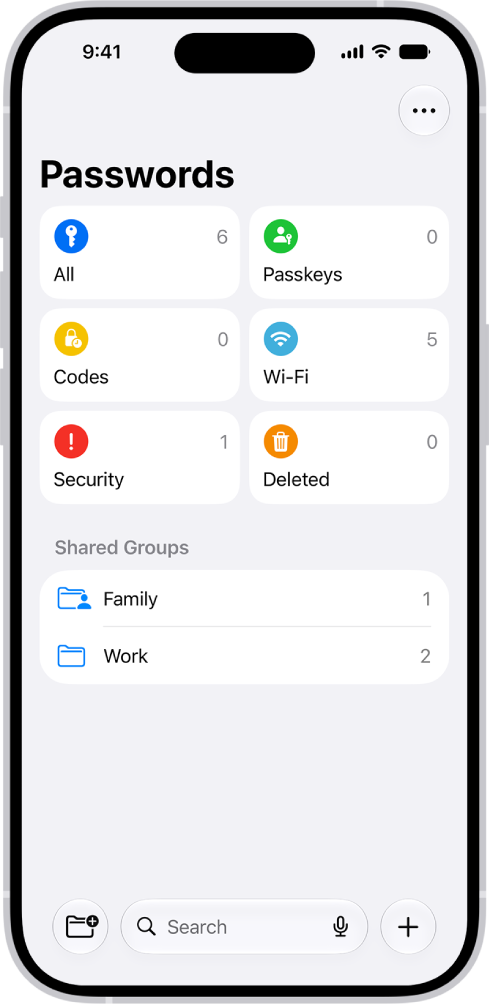
When you create and store your own passwords for websites and apps, iPad automatically identifies common weaknesses (for example, if they’re easily guessed or used multiple times). iPad can also securely monitor your passwords and alert you if any of them appear in known data leaks.
For an account with a weak or compromised password, you’ll see a message that explains the problem. You can hide a security recommendation, too. And if a website allows it, you can switch to a passkey instead.
Change a weak or compromised password
- Go to the Passwords app on your iPad.
- Tap Security.
If an account has a weak or compromised password, a message explains the problem.
- Tap an account.
- Tap the Password field. Tap Copy Password, so you can paste it where it’s requested—for example, when you create a new password and you’re asked to enter your old password.
- Tap Change Password. Change your password on the website or in the app.
If the website or app allows you to use a passkey or to upgrade to Sign in with Apple, you can take advantage of the security and convenience of those features. If you aren’t given the upgrade option when you change your password, many accounts allow iPad to automatically create a strong password that you don’t have to remember.
Note: You can remove the account for a website or app that’s no longer available from your iPad and iCloud Keychain when iPad warns you about its password. Go to the Passwords app on your iPad, tap All, and swipe left on the account.
Hide a security recommendation
If you’re unable to address a security recommendation, hide it so that you don’t have to continue reviewing it.
- Open the Passwords app on your iPad.
- Tap Security.
- Tap an account, then tap Hide.
To show a security recommendation you’ve hidden, tap Security, tap the Show Hidden Recommendations button at the top of the screen, tap the account, then tap Unhide.
Turn detection of compromised passwords on or off
iPad can monitor your passwords and alert you if they appear in known data leaks.
- Open the Settings app on your iPad.
- Tap Apps and tap Passwords.
- Turn Detect Compromised Passwords on or off.
See also