On iPad, use iCloud Keychain to keep your website and app passwords and passkeys, credit card information, Wi-Fi network information, and other account information up to date across all your approved devices and Mac computers. It’s secured with 256-bit AES encryption during storage and transmission, and its data can’t be read by Apple.
iCloud Keychain can also keep your Mail, Contacts, Calendar, and Messages accounts up to date on your iPhone, iPad, and Mac. When you add a device, you approve it on one of your others.
Set up iCloud Keychain
Skipped iCloud Keychain when you first set up your iPad? You can still set it up now.
- Start the Settings app on your iPad.
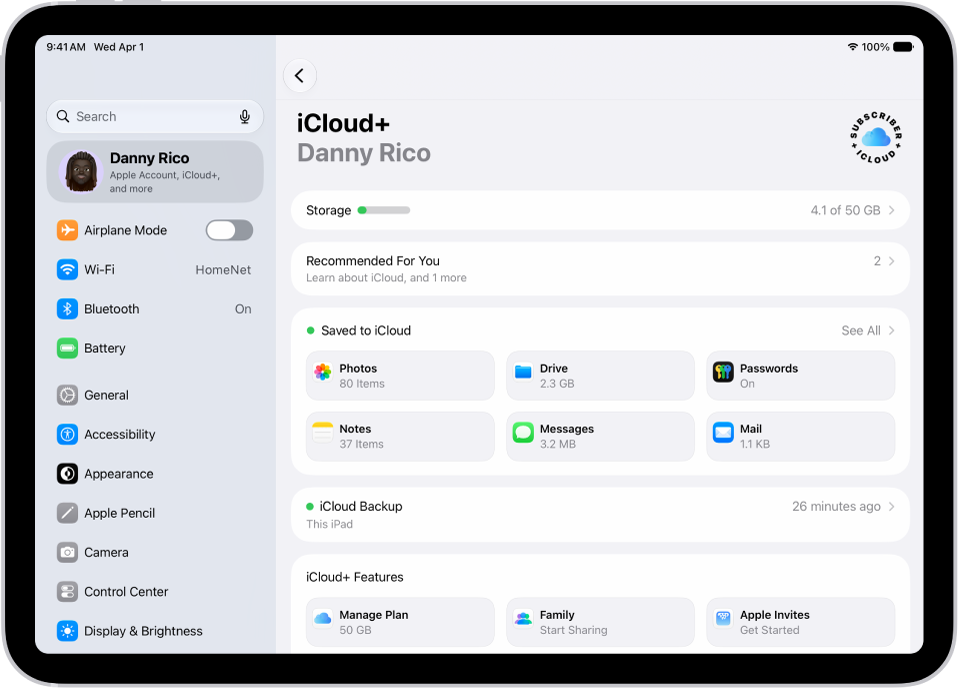
- Tap your name, then tap iCloud.
- Tap See All (next to Saved to iCloud) and tap Passwords & Keychain.
- Turn on Sync this iPad. Follow the onscreen instructions.
Set up iCloud Keychain on an additional device
Turning on iCloud Keychain on an additional device sends a notification to your other devices using iCloud Keychain, asking you to approve the additional device.
After you approve the additional device on one of your other devices, your iCloud Keychain automatically begins updating on it.
If you don’t have access to your other devices, you can still approve iCloud Keychain by following the onscreen instructions to use your iCloud Security Code.
Recover your iCloud Keychain if all your devices are lost or stolen
iCloud Keychain syncs across devices to provide convenience and redundancy in case you lose a single device. If all your devices are lost and you’ve added a recovery contact to your Apple Account, your contact can help you recover your iCloud Keychain. Go to Settings > [your name] > Sign-In & Security, tap Recovery Contacts, then tap Learn More.
You can also recover your iCloud Keychain through iCloud Keychain escrow, which is also protected against brute-force attacks. According to Apple, iCloud Keychain escrows a user’s keychain data with Apple without allowing Apple to read the passwords and other data it contains. Your keychain is encrypted using a strong passcode, and the escrow service provides a copy of the keychain only if a strict set of conditions is met.
Recovering your keychain through iCloud Keychain escrow starts with authenticating with your Apple Account on a new device and responding to an SMS sent to a trusted phone number. After that, you must enter the device passcode. iOS, iPadOS, and macOS give you only 10 attempts to authenticate, and after several failed attempts, the record locks. To be granted more attempts, you must contact Apple Support on the Apple Support website.