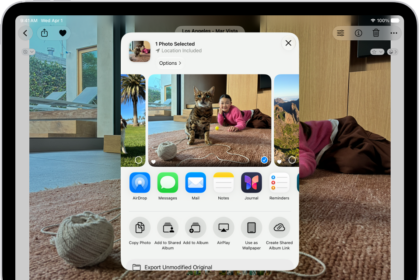
Control Center on iPad gives you instant access to useful controls—including Airplane Mode, Do Not Disturb, volume, screen brightness, and more.
Many controls offer additional options. The Camera control, for example, can take a selfie, record a video, or take a photo, and the Power button can power off your iPad. You can rearrange, add, or remove controls, or add a custom group, and you’re able to temporarily disconnect from a Wi-Fi network or Bluetooth devices.
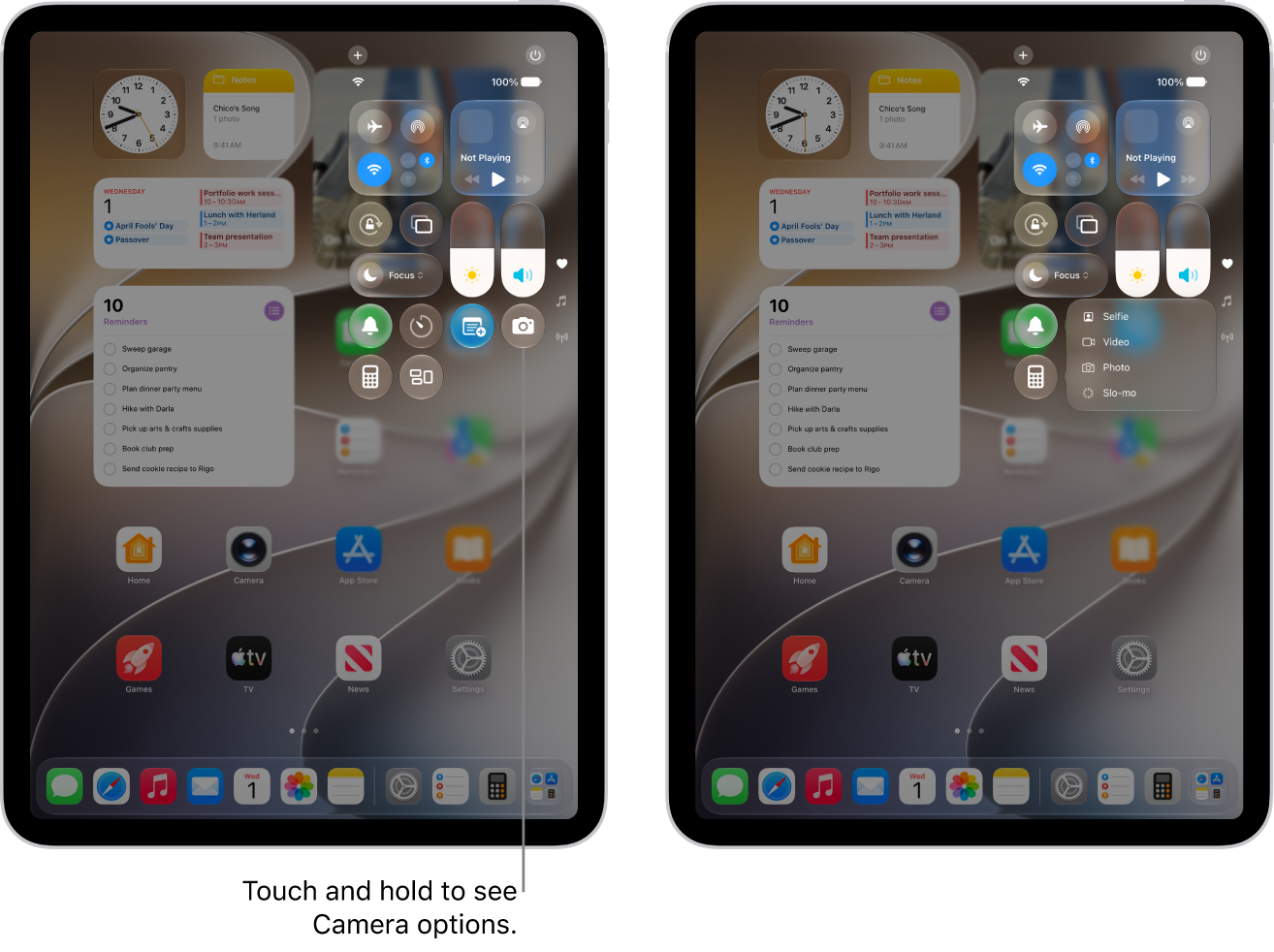
Open Control Center
Swipe down from the top-right edge. You can jump to specific groups of controls by swiping down through the icons on the right edge of the screen. Swipe up through the icons to go back to the first group.
To close Control Center, swipe up from the bottom center of the screen.
Access more controls in Control Center
Many controls offer additional options. To see available options, touch and hold a control. For example, you can do the following in Control Center:
- Touch and hold the top-left group of controls, then tap the AirDrop button to open the AirDrop options.
- Touch and hold the Camera button to take a selfie, record a video, or take a photo.
- Touch and hold the Control Center Power button at the top right of the screen (while Control Center is open). Then drag the slider to power off the iPad.
Customize controls
You can rearrange, add, or remove Control Center controls.
- Open Control Center.
- Tap the Add button at the top left of Control Center to begin editing the controls.
- Do any of the following:
- Rearrange controls: Drag a control to a new position.
- Remove a control or a set of controls: Tap the Remove button at the upper left of the control.
- Resize a control: Drag the handle at the lower right edge of the control.
- Create a new section of controls: Tap the bottommost icon (the little circle) along the right edge of the screen. Then tap Add a Control, and choose which controls to add to your custom group. Or you can drag a control off the bottom of the page to create a new section.
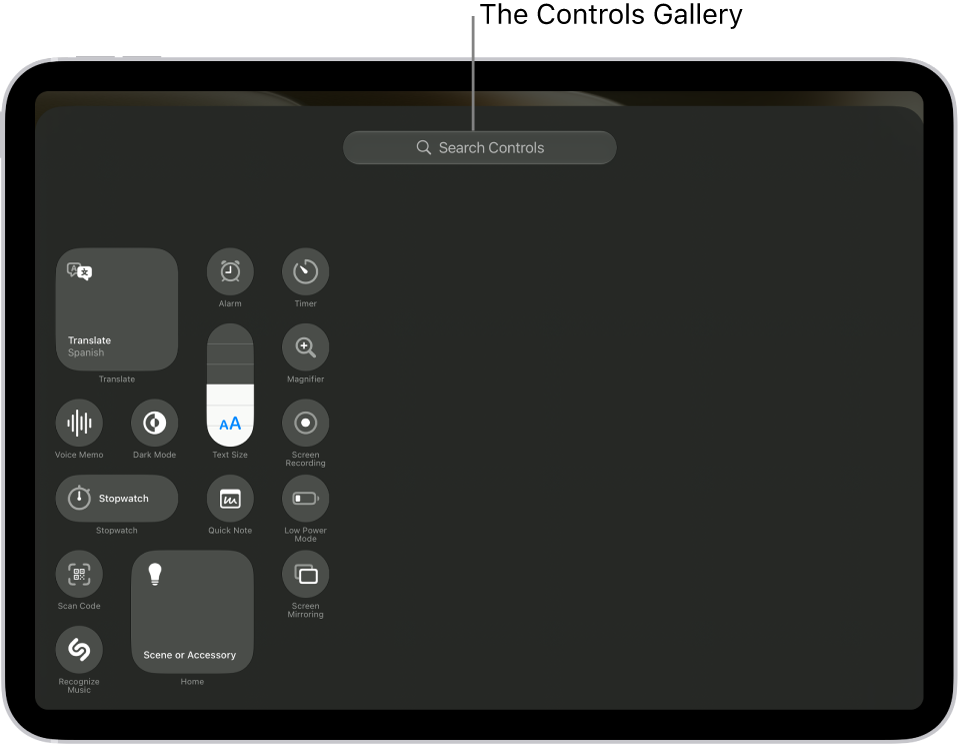
- Add more controls: Tap Add a Control to open the controls gallery. Tap a control to add it to Control Center.
- When you finish customizing, close Control Center by swiping up from the bottom center of the screen.
Add a custom group of controls
You can even add a whole new group of controls to Control Center.
- Open Control Center.
- Tap the Add button at the top left of Control Center. Then tap the bottommost icon (the little circle) along the right edge of the screen.
- Tap Add a Control at the bottom of Control Center to open the controls gallery. Then tap a control in the controls gallery to add it to the group.
- To further customize the new group of controls, do any of the following:
- Rearrange controls: Drag a control to a new position.
- Remove a control or a set of controls: Tap the Remove button at the upper left of the control.
- Resize a control: Drag the handle at the lower right of the control.
- Add more controls: Tap Add a Control at the bottom of Control Center. Then tap a control to add it to the group.
Note: If you don’t see the control you want to add, type its name in the search field at the top.
- When you’re finished, close Control Center by swiping up from the bottom center of the screen.
Temporarily disconnect from a Wi-Fi network
In Control Center, tap the Wi-Fi Switch button; to reconnect, tap it again.
To see the name of the connected Wi-Fi network, touch and hold the Wi-Fi Switch button.
Because Wi-Fi isn’t turned off when you disconnect from a network, AirPlay and AirDrop still work, and iPad joins known networks when you change locations or restart iPad. To turn off Wi-Fi, go to the Settings app, then tap Wi-Fi. (To turn on Wi-Fi again in Control Center, tap the Wi-Fi Switch button.) For information about turning Wi-Fi on or off in Control Center while in Airplane Mode, see Choose iPad settings for travel.
Temporarily disconnect from Bluetooth devices
In Control Center, tap the Bluetooth Switch button; to allow connections, tap the button again.
Because Bluetooth® isn’t turned off when you disconnect from devices, location accuracy and other services are still enabled. To turn off Bluetooth, go to the Settings app, tap Bluetooth, then turn it off. To turn on Bluetooth again in Control Center, tap the Bluetooth Switch button. For information about turning Bluetooth on or off in Control Center while in Airplane Mode, see Choose iPad settings for travel.
Turn off access to Control Center in apps
Go to the Settings app, tap Control Center, then turn off Access Within Apps.
See also