You can securely erase your personal information, content, and settings (such as privacy and network settings) from your iPad. When you erase your iPad, it’s restored to factory settings.
If you want to reset your iPad settings but keep your personal content, see Reset iPad settings to their defaults. Before you begin, you back up your iPad so you can restore your data later, and if you have an eSIM, you can choose to erase it or keep it.
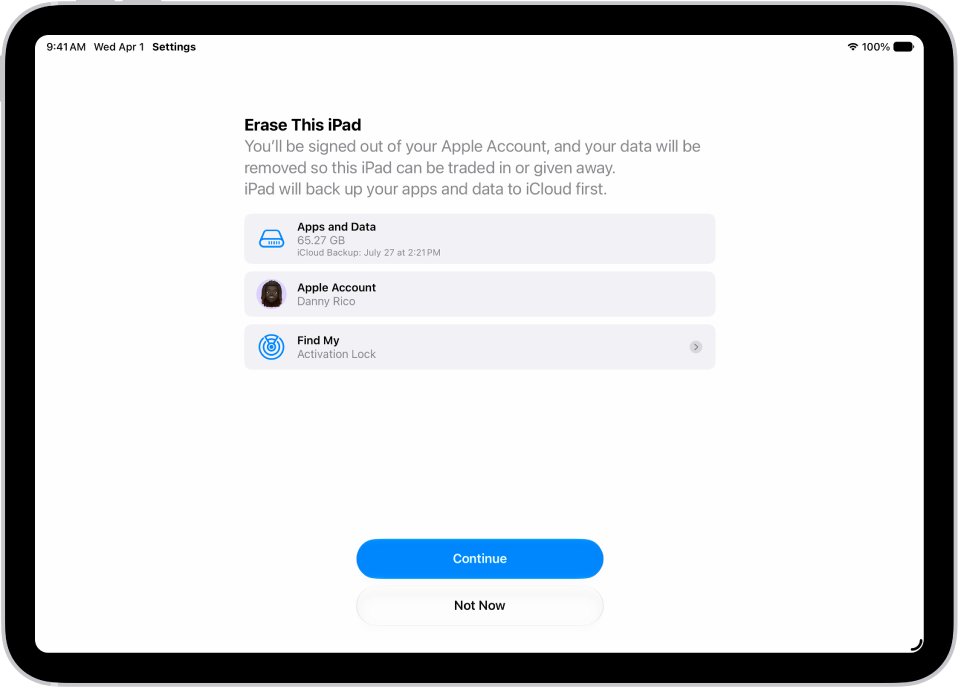
Before you begin
Back up your iPad so you can restore your data later on a different device.
Erase iPad using Settings
- Open the Settings app on your iPad.
- Tap General, then tap Transfer or Reset iPad.
- Tap Erase All Content and Settings.
- If asked, enter your iPad passcode or Apple Account password.
- Tap Continue to confirm.
If you have an eSIM, you can choose to erase your eSIM or keep it. If you erase your eSIM, you need to contact your carrier to reactivate your cellular plan.
Erase iPad using your Mac or Windows device
- Connect your iPad to your computer with a USB or USB-C cable.
- On your Mac, click the Finder icon to open a Finder window, or open the Apple Devices app on your Windows device.
If your Mac is using macOS 10.14 or earlier, or your Windows device doesn’t have the Apple Devices app, open iTunes instead.
- Click the iPad icon in the Finder sidebar (below Locations). Then click General at the top of the window.
- Click Restore iPad, then click Restore to confirm.
Note: If you’re signed in to Find My, you need to sign out before you can click Restore.
See also