How to add more homes with iPad

You can add more homes with iPad in the Home app, give each one a name and wallpaper, and switch between them.

By Kristina Terech - Staff Writer
0 Min Read

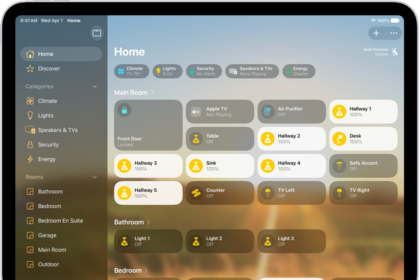
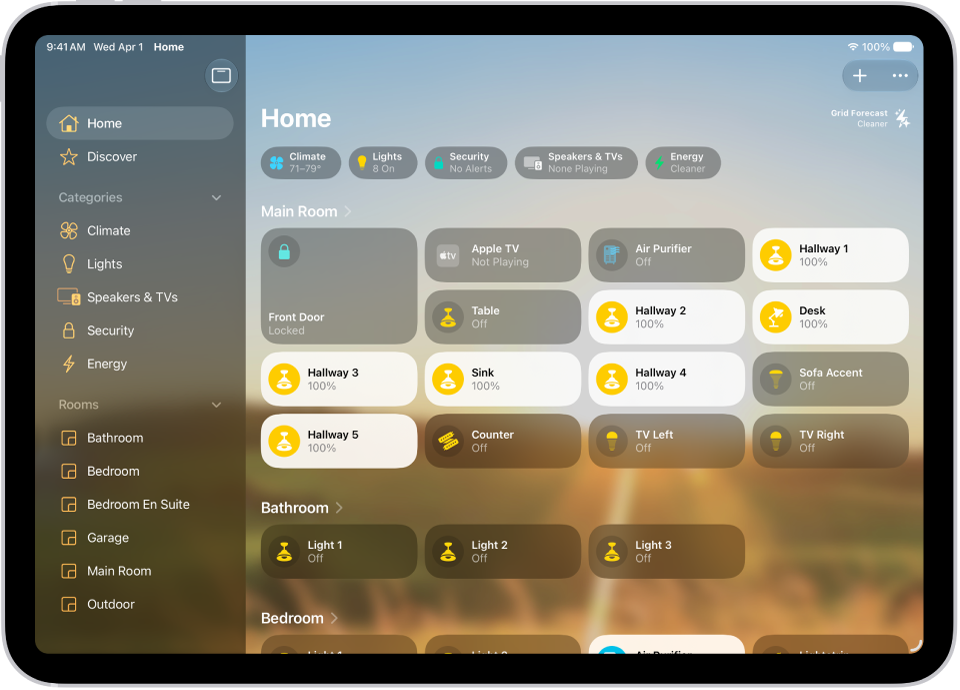
In the Home app on your iPad, you can add more homes when you have more than one physical space—a home and a small office, for example. You just name the home, choose its wallpaper, then save it. And once you’ve added more homes, you can switch to another home whenever you want.

  1. Go to the Home app on your iPad.
  2. Tap the Add button and then tap Add New Home.
  3. Name the home, choose its wallpaper, then tap Save.
  4. To switch to another home, tap the More button and tap the home you want.

See also

TAGGED:
Staff Writer
Follow:
Kristina is a staff writer at GeeksChalk, and is interested in all things Apple. This includes its best products such as the iPad, iPhone, Mac, AirPods, and Apple Watch. When she's not tinkering with the latest Apple gear, you’ll find her watching movies, taking pictures and exploring the great outdoors.
Leave a Comment