To make it easier to see what’s on your iPad screen, you can invert and filter colors or make transparent items solid.
Smart Invert reverses colors everywhere except images, while Classic Invert reverses all the colors onscreen. You can also apply a filter for grayscale or color vision deficiencies. A dark background makes text stand out, especially in apps that don’t support Dark Mode.
Here’s how to change display colors on iPad to make it easier to see what’s onscreen.
Quick tip: Quickly set brightness with the slider in Control Center.
Invert colors
You might find a dark background makes text and content stand out, especially in apps and websites that don’t support Dark Mode.
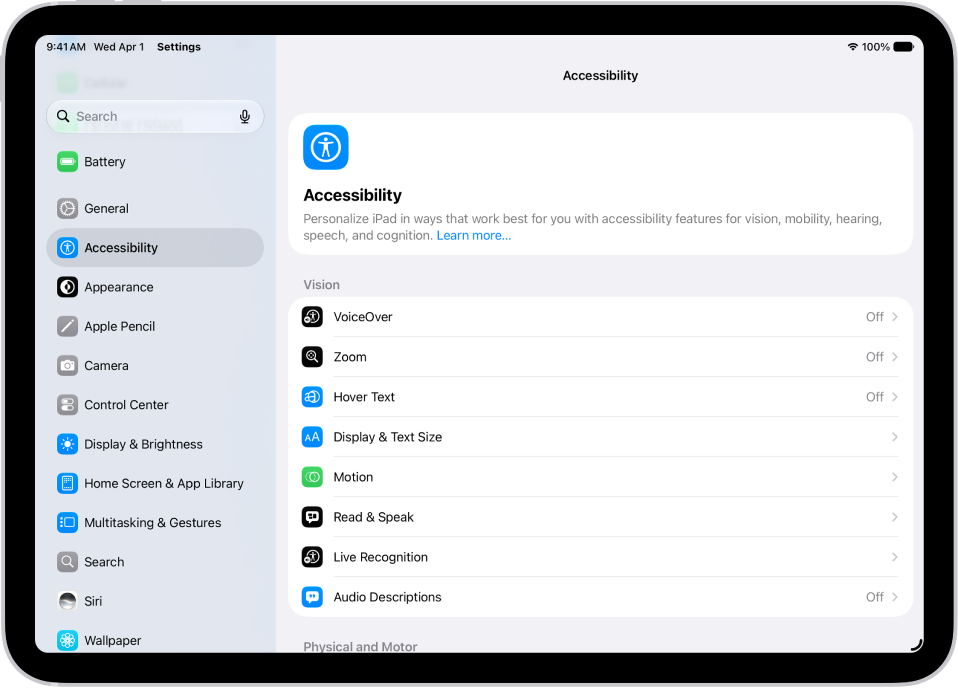
- Open Settings, tap Accessibility, and then tap Display & Text Size.
- Turn on one of the following:
- Smart Invert: Reverse colors everywhere except images.
- Classic Invert: Reverse all the colors onscreen.
Differentiate or tone down colors
With a filter, you can see the entire screen in grayscale, tint the screen a color you choose, or adjust colors for color vision deficiencies.
- Open Settings, tap Accessibility, and then tap Display & Text Size.
- Tap Color Filters, turn on Color Filters, and then tap a color filter to apply it.
You can drag any slider that appears to adjust the intensity or hue. The pencils reflect how the filter affects a range of colors.
Note: Color filters can change the look of images and videos.
Turn on Reduce White Point to tone down the intensity of bright colors.
Night Shift makes screen colors warmer as it gets dark out, and it automatically removes inverted colors and color filter effects (except grayscale).
With the Magnifier app, you can capture an image of nearby text or objects, then add a color filter to it, too. Check out our guide, Customize controls in Magnifier.
Make transparent items solid
Some backgrounds are transparent or blurred by default. Give them a solid color to make them opaque. Those parts of your screen then look simpler and are easier to see.
- Open Settings, tap Accessibility, and then tap Display & Text Size.
- Turn on Reduce Transparency.
Differentiate without color
Some screen items use color to convey information, and you can replace that with other ways to tell them apart, like text or shapes.
- Open Settings, tap Accessibility, and then tap Display & Text Size.
- Turn on Differentiate Without Color.
Use symbols for on/off switches
Switches turn green when they’re on, and you can add a vertical line for on and a circle for off.
- Open Settings, tap Accessibility, and then tap Display & Text Size.
- Turn on On/Off Labels.
If you want these settings applied to only the contents of the zoom window, read our article, Zoom in on the iPad screen.
Increase contrast between colors
If you want more contrast between different elements on your iPad, like apps and background colors, you can increase it.
- Start the Settings app on your iPad.
- Tap Accessibility, tap Display & Text Size, turn on Increase Contrast.
See also