With built-in accessibility features for vision on iPad, you can make it easier to see what’s on the screen, or hear what’s on the screen spoken out loud. You can even use your iPad as a magnifying glass, and hold it up to get descriptions of your surroundings.
With a mouse or trackpad, you can see a bigger version of any text you hover over, and make the pointer easier to see.
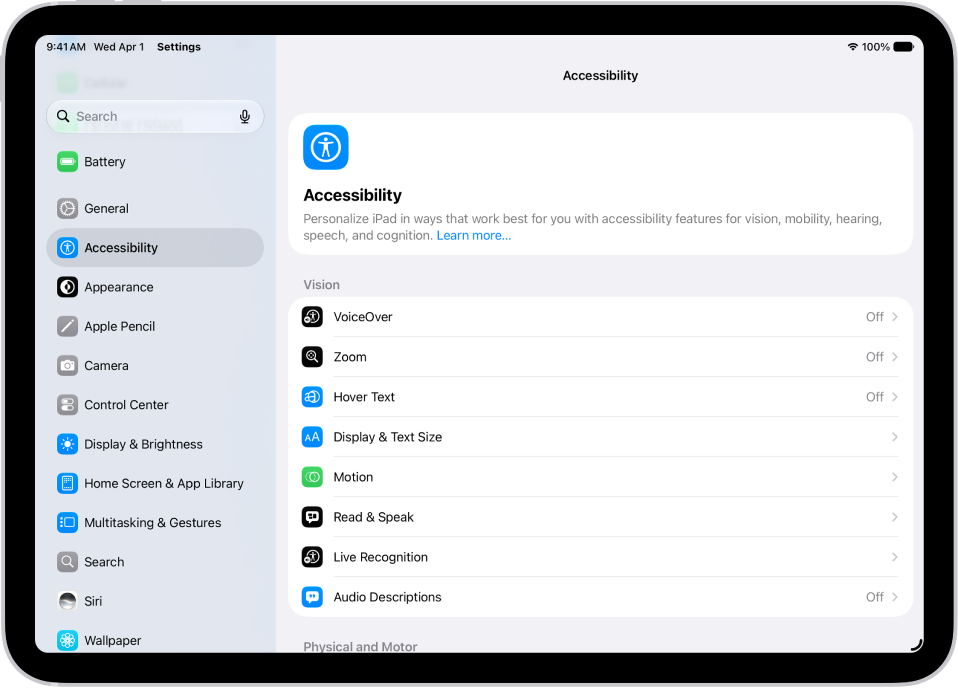
To explore accessibility features for vision, go to Settings > Accessibility. Vision features are at the top.
Hear what’s on the screen
- Use Braille Access with a braille display
Turn iPad into a braille notetaker that can launch apps, perform calculations, open Braille Ready Format (BRF) files, transcribe conversations, and more.
- Read or listen to text in apps
Customize text appearance for any app with Accessibility Reader. You can also listen to spoken text.
- Control iPad with VoiceOver
Have the built-in screen reader speak what’s on the screen. Navigate your iPad with gestures, or with a connected keyboard or braille display.
- Speak onscreen text
Even when VoiceOver is off, have iPad read all text on the screen, what you’re typing, and more.
Hear iPad speak the screen, selected text, and typing feedback
- Hear descriptions of video
Get spoken descriptions of visual content in movies, TV shows, and other media, when available.
Quick tip: Siri and Dictation let you complete common tasks and enter text with just your voice.
Get information about your surroundings
- Point at text and hear it spoken
Have iPad read text on household appliances, ATMs, and more.
- Hear about your surroundings
Hold up iPad and get information about what your camera is pointed at, including when people, doors, or text are detected.
- Get a closer look
Use iPad as a magnifying glass to zoom in on items around you.
Make text and other onscreen content larger
- Zoom in
Enlarge what you’re viewing—the entire screen or one part of it.
- Make text bigger and bolder
Adjust the reading size for text across iPad apps and system features.
- Enlarge text as you type
Display a separate window with a larger version of the text that you’re typing.
If you use a mouse or trackpad with iPad, you can also show a larger version of text when you hover over it or make the pointer easier to see.
View what’s on the screen more comfortably
- Reduce onscreen motion
Pause animated images, and slow down the motion of interface elements. Or dim your display when media you’re viewing depicts strobe or flashing lights.
- Use iPad more comfortably in a car
Get animated dots on the edges of the screen that may help reduce motion sickness.
Use iPad more comfortably while riding as a passenger in a vehicle
- Use Dark Mode
If you prefer light text on a dark background, choose a dark color scheme for the iPad interface.
- Adjust the display colors
Differentiate content on the screen more easily by inverting colors, applying a color filter, and more.
Change display colors on iPad to make it easier to see what’s onscreen
See also