On iPad, you can sketch or jot a handwritten note with Apple Pencil (see compatibility) or your finger. You can edit and work with handwritten text just as you do with typed text, and you can solve handwritten math problems.
Your strokes are grouped when you draw in Freeform, and you can separate or merge them. Holding your finger or Apple Pencil still for a moment at the end can smooth or straighten a drawing’s shape.
Draw or handwrite
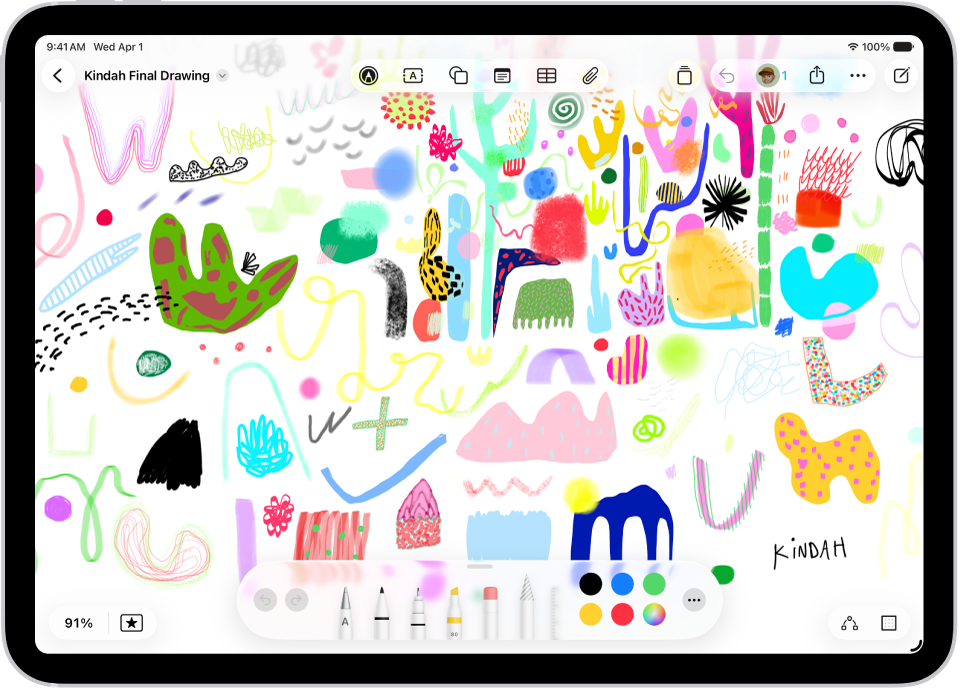
Drawing in the Freeform app groups your strokes. You can separate or merge your strokes to break a drawing apart, and delete, resize, or straighten parts of it.
- Open the Freeform app on your iPad.
- Open a board, or tap the New Board button to start a new one.
- Tap the Drawing and Handwriting Tools button and then draw with your finger or Apple Pencil.
If you’re using Apple Pencil and want to be able to switch to draw with your finger, tap the More button in the drawing tools, then turn on Draw with Finger.
Tip: Hold your finger or Apple Pencil still for a moment when you finish the drawing to smooth or straighten its shape.
- Do any of the following:
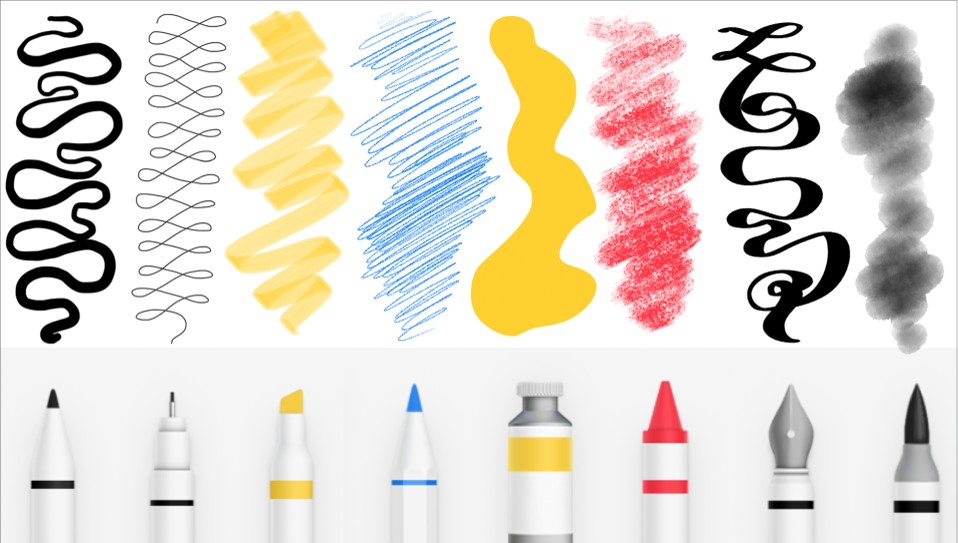
- Switch tools: Tap a tool. Swipe to see other tools, such as Fill, Crayon, Fountain Pen, Reed Pen, or Watercolor Brush.
- Change a tool’s qualities (such as angle, thickness, opacity): Tap any tool a second time.
- Fill a shape with color: Tap the Fill tool (the paint tube) and tap within a closed shape.
- Draw a straight line: Tap the Ruler tool. Rotate the ruler by placing two fingers on it and turning your hand.
- Transform your handwriting to typed text as you write with Apple Pencil: Use Scribble (next to the pen). See Enter text with Scribble.
- Select, edit, and straighten parts of your drawing: Tap the Lasso tool (between the Eraser and Ruler) in the drawing tools and tap or circle the part of the drawing you want to select. Tap an option or tap the More button to see other options.
Tip: Choose Snap to Shapes to smooth or straighten hand-drawn lines.
To clean up your handwriting without transforming it into type, see Work with handwritten text, below.
- Tap the Done button when you’re finished drawing.
Note: In Freeform, Apple Pencil acts as a drawing and writing tool by default. If you’d also like to use it to select and scroll, you can change this setting.
Work with handwritten text
Handwriting in the Freeform app is recognized as words, so you can search it just like typed text. You can also select it, straighten it, translate it, or copy and paste it as text.
- After you write on your Freeform board with the drawing tools, tap the Lasso tool (between the Eraser and Ruler) in the drawing tools.
- To select text, tap, double-tap, or circle the words, tap the More button, and then do any of the following:
- Make text more legible, smooth, and straight: Tap Refine.
Tip: To automatically smooth and straighten text as you write, tap the More button in the tools, then turn on Auto-refine Handwriting.
- Make your writing more level: Tap Straighten.
- Correct spelling: Tap an underlined word and choose how you want to correct it. The fix appears in your own writing style.
- Move handwritten text: Touch and hold the selected text and then drag it to a new position.
- Drag and drop: Touch and hold the text.
- Erase text: Strike through the writing and then hold down your finger on iPad. (Supported when using a markup tool such as Pen, Mono line, or Marker.)
- Make text more legible, smooth, and straight: Tap Refine.
When you tap a handwritten link, address, phone number, or date, it may open a menu or another related app.
Solve handwritten math problems
- Open the Freeform app on your iPad.
- Open a board, or tap the New Board button to start a new one.
- Tap the Actions Menu button, tap Math Results, and then choose how you want your iPad to respond to the math problems you enter:
- If you want it to solve them: Choose Insert Results. (The answer appears in writing that matches your own.)
- If you want suggestions to appear: Choose Suggest Results. (A Solve button appears that, when tapped, adds the answer in writing that matches your own.)
- Tap the Drawing and Handwriting Tools button. Then start writing a math equation.
- Write an equal sign or draw a horizontal line below a stack of numbers and then do one of the following:
- In Insert Results mode: Tap the answer to open the equation. You can tap the Close button to delete the answer. Tap the expression to show the hint again, or draw the equal sign again.
- In Suggest Results mode: Tap Solve to add the answer in writing that matches your own.
Decide which mode you’d like to use, or turn off math hints. For more, see our guide, Get math hints.
Just as in the Calculator app, you can use variables, edit equations, and update results. For more, read our article, Solve math with Math Notes.
You can also enter equations to be solved in any text in sticky notes, shapes, and text boxes.
See also