On iPad, the Freeform app gives you a boundless canvas for creativity. You can bring photos, drawings, links, and files together on an online whiteboard, invite others to work with you in real time, and brainstorm, sketch ideas, or take notes by yourself or with a group.
You can put just about any kind of file in a board without worrying about layouts or page sizes, and add sticky notes to brainstorm or provide feedback. Boards you store in iCloud are on your iPhone or Mac, too, so you can keep working there.
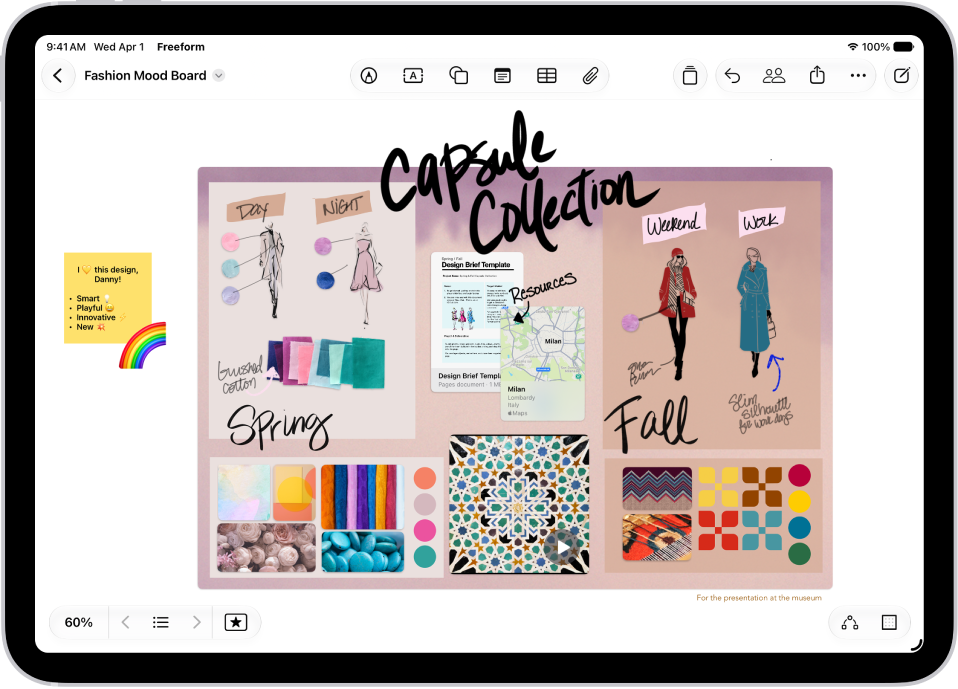
Gather ideas freely
You can put just about any kind of file in a Freeform board without worrying about layouts or page sizes. To create a board, tap the New Board button, then tap the Insert button or another option at the top of the screen to start adding your ideas.
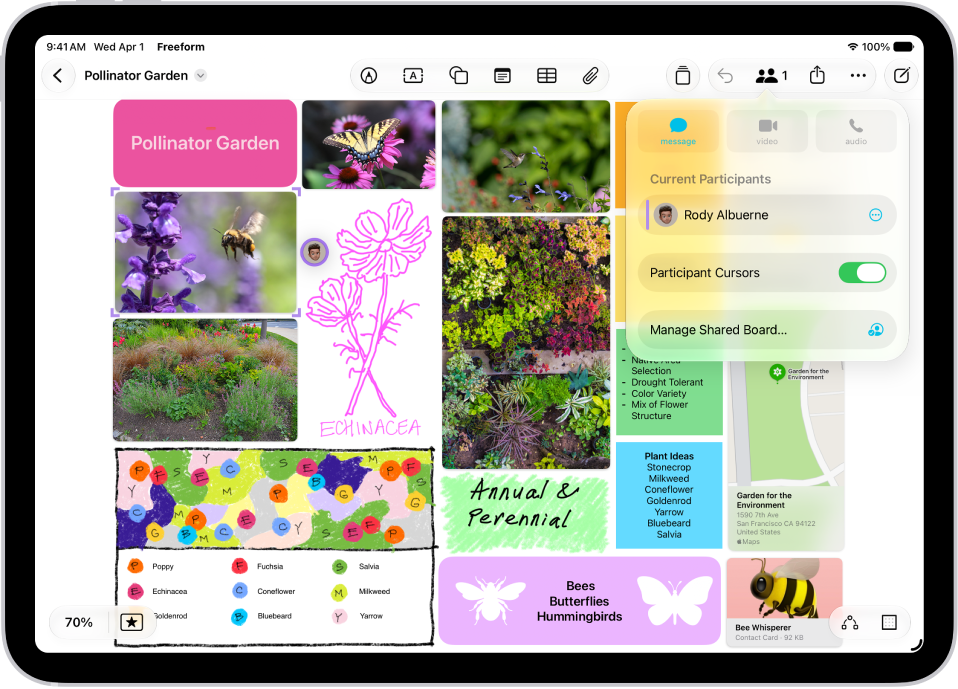
Collaborate with others
Tap the Share Board button to invite people to start working together in real time on a board. To conduct a brainstorming session or provide feedback, add a sticky note—tap the Add Sticky Note button.
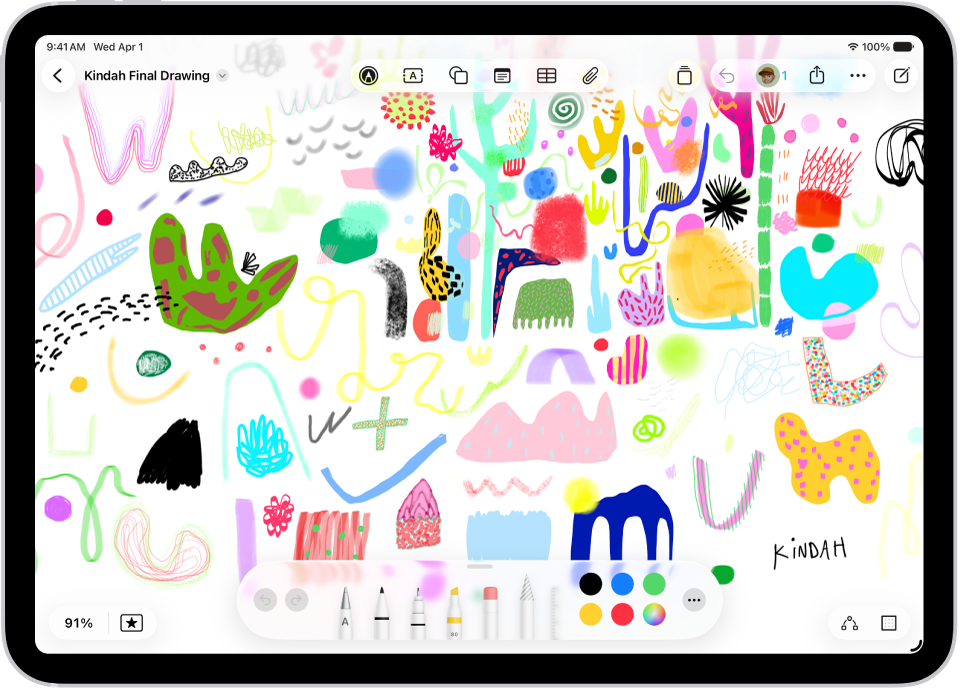
Get creative with the drawing tools
Tap the Drawing and Handwriting Tools button (or just use your Apple Pencil) to start drawing. Tap a tool to adjust the line’s thickness, transparency, color, and more. Pinch to zoom in and out as you work.
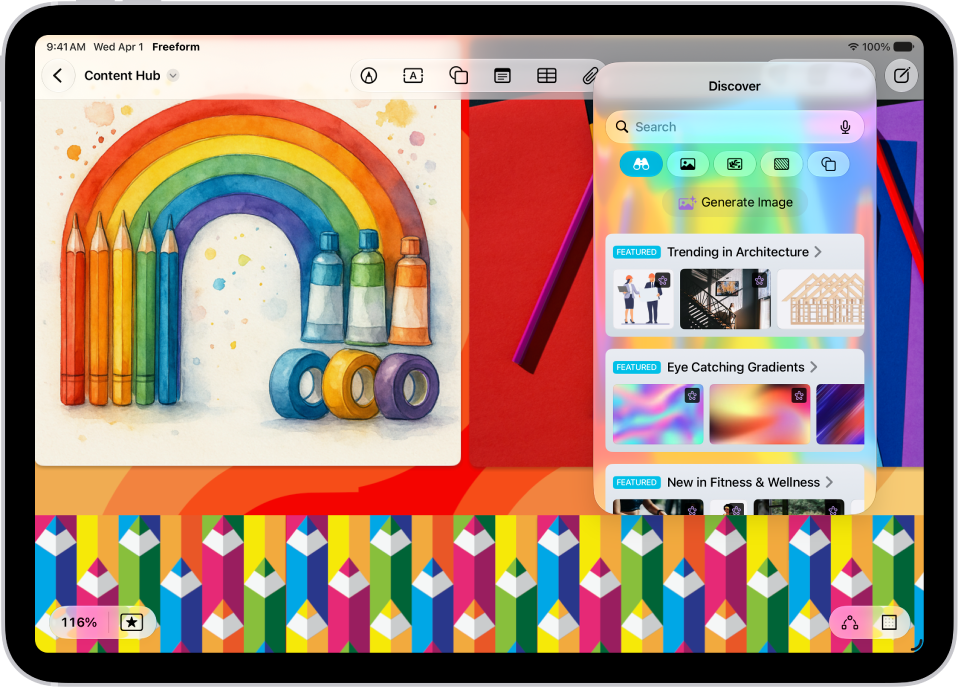
Everything you need in one place
An Apple Creator Studio subscription unlocks a rich library of premium content, along with AI-powered features like automatic cropping and photorealistic image generation.
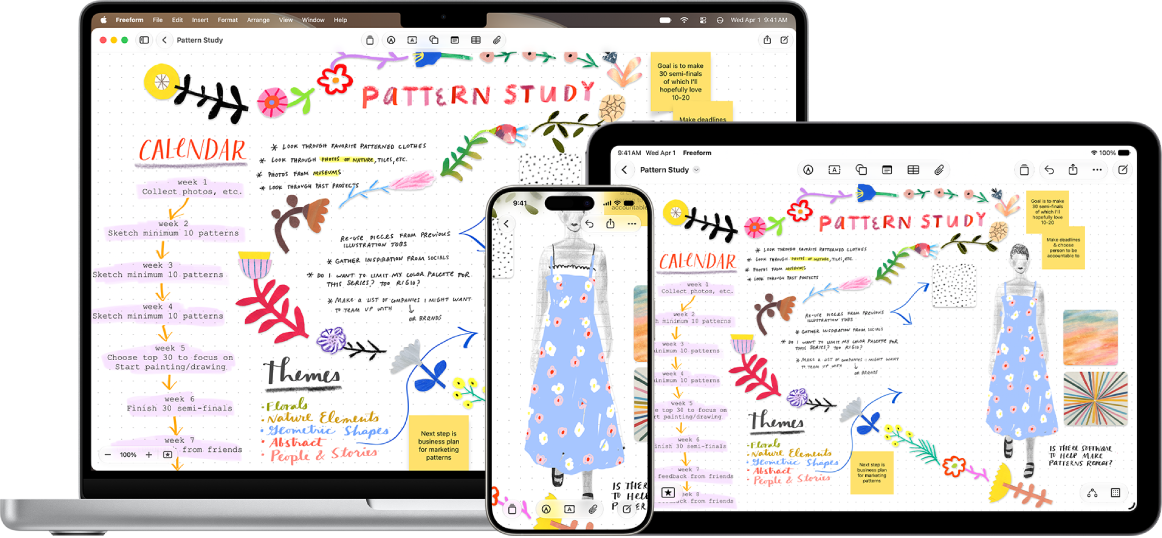
Start on your iPad, keep working on your iPhone or Mac
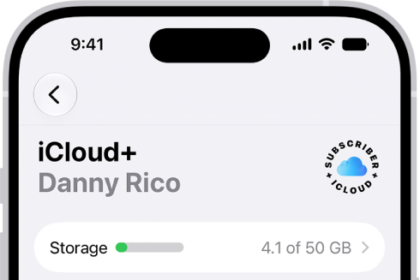
The Freeform boards you store in iCloud—and any changes you make to them—stay up to date on all your Apple devices when you’re signed in to the same Apple Account. To use iCloud with Freeform, go to the Settings app, then tap your name. Tap iCloud, tap See All (in the Saved to iCloud section), then turn on Freeform.
There’s plenty more you can do with Freeform, and these guides are a good place to start: