Facebook-f Twitter
GeeksChalk Logo GeeksChalk Logo
Notification
  • Home
  • iPhone
  • iPad
  • Mac
  • Apple Watch
  • Pages
    • About Us
    • Contact Us
    • Advertise With Us
  • 🤩 Trending:
  • 100 new iOS 26 features for iPhone
  • 10 Best iOS 26 Tips & Tricks
  • iPhone 16: Everything We Know
  • iPhone 16 Pro: Everything We Know

GeeksChalk is the leading source for all things iPhone, Mac, iPad, Apple Watch, Vision Pro, and more

GeeksChalkGeeksChalk
  • Home
  • iPhone
  • iPad
  • Mac
  • Apple Watch
Search

Popular Post

iPhone 15 Pro in black titanium, white titanium, blue titanium, and natural titanium finishes.
iPhone

Apple CarPlay GPS Not Working, Showing Wrong Location: Fix

iPhone 14 Pro and iPhone 14 Pro Max are shown in gold.
iPhone

How to Fix iPhone not sending text messages to Android

Connect an iPhone to car Bluetooth
Troubleshooting

How to fix Bluetooth not working on iPhone after iOS 26 update

iPhone outline with an Apple logo
iPhone

Need to restore an iPhone backup? Here’s how

Follow US
Copyright © 2026 www.GeeksChalk.com
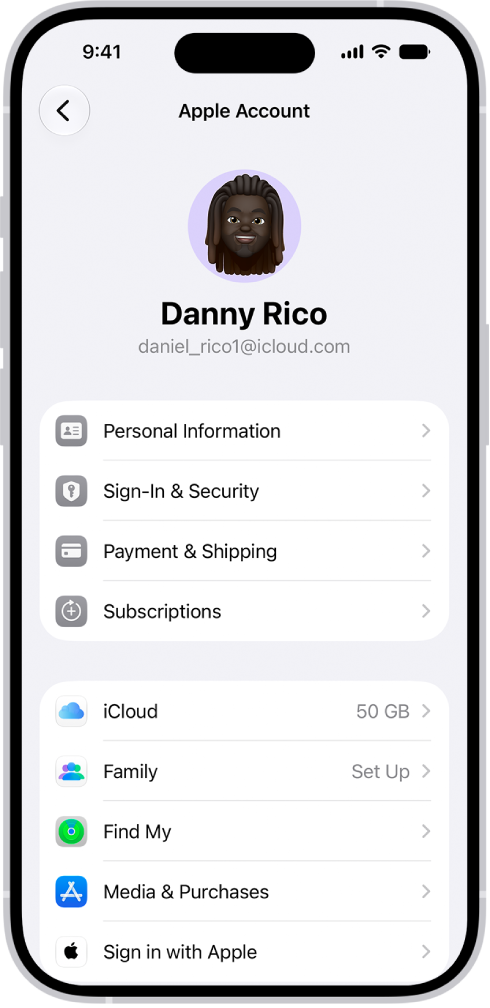
The Apple Account Settings shown with a list of options including personal information, subscriptions, Find My, and more.
GeeksChalk > Apple Watch > How to update your Apple Account settings on Apple Watch

How to update your Apple Account settings on Apple Watch

You can update your Apple Account settings on Apple Watch, edit personal information, change your password, and manage subscriptions and devices.

Last updated: October 15, 2026 5:10 pm
By Abigail Shilets - Staff Writer
Share
2 Min Read

On Apple Watch, you can view and edit information associated with your Apple Account. You can update your contact information, change your password, manage trusted phone numbers, and more.

You can also view and manage your subscriptions and devices. If you’ve turned on Stolen Device Protection on your paired iPhone, though, you can’t change your password and security settings on Apple Watch.

Here’s how to update your Apple Account settings on Apple Watch.

Edit personal information

  1. Open the Settings app on your Apple Watch.
  2. Tap your name, tap Personal Information, and then do any of the following:
    • Edit your name: Tap your name, then tap First, Middle, or Last.
    • Change your birthday: Tap Birthday, then enter a new date.
    • Get announcements, recommendations, or the Apple News newsletter: Tap Communication Preferences. You can turn on announcements; recommendations for apps, music, TV, and more; or opt in to the Apple News Newsletter.

Change your Apple Account password and security

Note: If you’ve turned on Stolen Device Protection on your paired iPhone, you can’t change your Apple Account password and security settings on Apple Watch.

  1. Open the Settings app on your Apple Watch.
  2. Tap your name and tap Sign-In & Security.

    The phone numbers and email addresses associated with your Apple Account are listed, along with their status—for example, Primary or Verified.

  3. Do any of the following:

    • Remove a verified email address: Tap the address and tap Remove Email Address.
    • Add email addresses and phone numbers: Tap Add Email or Phone Number, choose to add an email address or phone number, tap Next and enter the information. Then tap Done.
    • Change your Apple Account password: Tap Change Password, then follow the onscreen instructions.
    • Edit or add a trusted phone number: Tap Two-Factor Authentication and tap your current trusted phone number, verify when prompted. Then tap Remove Phone Number—if you have only one trusted number, you must enter a new one before you can delete the current number. To add an additional trusted phone number, tap Add a Trusted Phone Number.
    • Get a verification code to sign in on another device or at iCloud.com: Tap Two-Factor Authentication, then tap Get Verification Code.
    • Change “Sign in with Apple” settings for an app or website: Tap Sign in with Apple, then choose an app. Tap Stop Using Apple Account to disassociate your Apple Account from the app. (You may be asked to create a new account the next time you try to sign in with the app.)
    • Hide your email address: Tap Forward To and then choose an address.

      This option allows apps to contact you without storing your real email address. When you choose this option, Apple creates a unique, random email address for you, and any email sent from the app to this address is forwarded to the personal address you choose.

    • See Recovery Key status: Learn whether you’ve set up a recovery key for your Apple Account.

      With two-factor authentication and an Apple device, you have the option to generate a recovery key on your iPhone, iPad, or Mac to help improve account security. If you need to reset your password, you can use your recovery key to regain access to your Apple Account.

View and manage your subscriptions

  1. Open the Settings app on your Apple Watch.
  2. Tap your name.
  3. Tap Subscriptions, then scroll down to see your active and expired subscriptions.
  4. Tap a subscription to see its cost and length and change subscription options.
  5. Tap Cancel Subscription to end your subscription.

    Note: Some subscriptions must be canceled on your iPhone.

You can resubscribe to an expired subscription by tapping it, then choosing a subscription option such as monthly or yearly.

View and manage your devices

  1. Open the Settings app on your Apple Watch.
  2. Tap your name.
  3. Scroll down, then tap a device to display information about it.
  4. Tap Remove from Account if you don’t recognize the device.

See also
  • Unpair and erase Apple Watch
TAGGED:Apple Account
ByAbigail Shilets
Staff Writer
Follow:
Abigail is a staff writer for GeeksChalk based in Pennsylvania. She covers news, how-tos, and user guides for iPhone, iPad, Mac, and Apple Watch. Before becoming a writer Abigail studied computer science at University and also worked at Apple for more than two years. When not creating masterpiece for GeeksChalk, you can usually find Abigail hiking, climbing, or otherwise unplugged.
Leave a Comment Leave a Comment

Leave a Reply Cancel reply

Your email address will not be published. Required fields are marked *

Recent News Flash

The front of Apple Watch, with the Digital Crown shown at the top on the right side of the watch and the side button shown at the bottom right.

How to recover Apple Watch

The front of Apple Watch, with the Digital Crown shown at the top on the right side of the watch and the side button shown at the bottom right.

How to restart Apple Watch

The iCloud settings screen showing the iCloud storage meter and a list of features—including Photos, iCloud Drive, and iCloud Backup—that can be used with iCloud.

How to restore Apple Watch from a backup

An iPhone and Apple Watch showing their syncing screens.

How to unpair and erase Apple Watch

Trending Now

AirTag, circular shape, white color ring around outer edge, front exterior, reflective silver color material, Apple logo, centered, back exterior, white color  

How to Share an AirTag With Someone Else

The Phone app showing a call in progress.

How to make calls on Apple Watch

The onscreen keyboard is open in the Mail app. The Dictation button in the bottom-right corner of the screen is selected and the Dictation button appears below the insertion point in the text field.

Dictation commands for punctuation, formatting, and emoji on iPhone

Explore More

Recommended For You

An iPhone and Apple Watch showing their syncing screens.

How to pair and set up Apple Watch with iPhone

An iPhone and Apple Watch showing their syncing screens.

How to set up Apple Watch using VoiceOver

A Depth screen on Apple Watch Ultra, showing the current depth, elapsed time, and water temperature.

How to measure underwater temperature, duration, and depth on Apple Watch

A Depth screen on Apple Watch Ultra, showing the current depth, elapsed time, and water temperature.

How to log your underwater activity with the Depth app on Apple Watch

GeeksChalk Logo GeeksChalk Logo
  • Home
  • Contact Us
  • Advertise
  • Our Staff
  • Editorial Guidelines
  • Terms
  • Privacy
  • Accessibility
  • Copyright
  • About Us
  • Fact Checking Policy
  • Correction Policy
  • Ethics Policy
  • Ownership Policy
Copyright © 2026 www.GeeksChalk.com
Welcome Back!

Sign in to your account

Username or Email Address
Password

Lost your password?