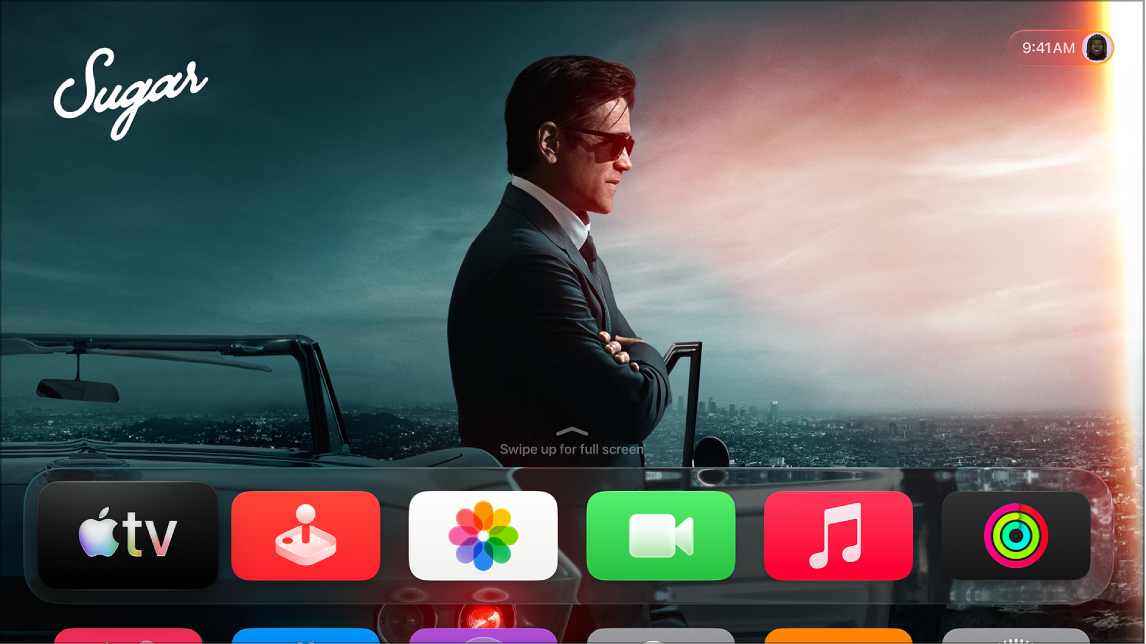
With Zoom turned on, you can zoom in to the image shown onscreen on Apple TV 4K and pan around the zoomed image. You can switch between Follow Focus and Panning, and adjust the magnification, too. There’s also a way to have it speak the currently selected screen item.
Turn Zoom on
- Go to Settings on Apple TV 4K.
- Go to Accessibility > Zoom and select Zoom to turn it on.
Tip: You can also set up an accessibility shortcut to activate Zoom.
Use Zoom on Apple TV 4K
Once Zoom is turned on, you can do any of the following:
- Zoom in or out: Press the clickpad center or touch surface on your remote three times.
- Switch between Follow Focus and Panning: Tap the clickpad center or touch surface with two fingers.
- Use Zoom in Follow Focus mode: Navigate to the item you want to zoom in on to center the currently highlighted item.
- Use Zoom in Panning mode: Drag your finger on the clickpad or touch surface in the direction you want to pan.
- Adjust the magnification: Double-tap the clickpad center or touch surface, then quickly drag up or down with two fingers.
To limit the maximum magnification, in Settings on Apple TV 4K go to Accessibility > Zoom > Maximum Zoom Level.
- Speak the currently selected screen item: Press the Siri/Search button on your remote twice.
Not all features and content are available in all countries or regions or on all Apple TV hardware models.