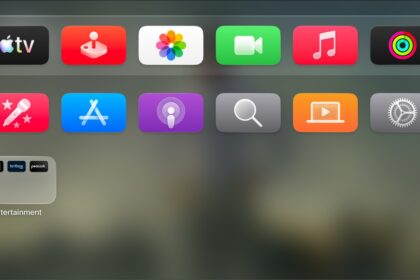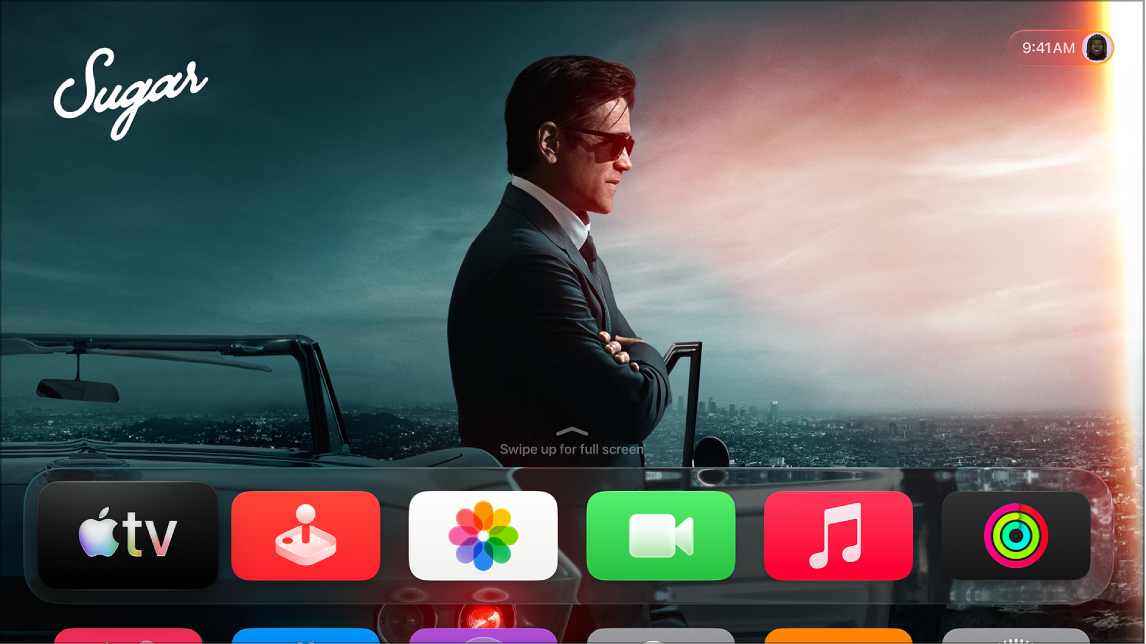
Item scanning on Apple TV 4K alternately highlights each item or group of items on the screen until you trigger your Select Item switch. If there are many items, Switch Control highlights them in groups, and highlighting continues with the items in a group when you select it.
Once you select a unique item, scanning stops and the control menu appears. It’s the default when you first start using Switch Control. You can make the scanning slower or faster, and hear the names of items as they’re highlighted.
There are three scanning styles to choose from:
- Auto scanning automatically highlights items, one after the other.
- Manual scanning uses one switch to highlight an item and another to activate it.
- Single-switch step scanning uses a switch to move the highlight from item to item. If you take no action after a period of time, the highlighted item activates.
You can pick a scanning style on Apple TV 4K in Settings, at Accessibility > Switch Control > Scanning Style.
Select an item or enter a group
- Watch (or listen) as items are highlighted.
- When the item you want to control (or the group containing the item) is highlighted, trigger your Select Item switch.
- Work your way down the hierarchy of items until you select the individual item you want to control.
Back out of a group
- Trigger your Select Item switch when the dashed highlight around the group or item appears.
Dismiss the control menu without performing an action
You can dismiss the control menu without an action in two ways:
- Trigger your Select Item switch when the item itself is highlighted.
- Choose Escape from the control menu.
Hear the names of items as they’re highlighted
To hear item names as they’re highlighted, do one of the following:
- In Settings on Apple TV 4K, go to Accessibility > Switch Control, then turn on Speech.
- Choose Settings from the control menu, then choose Speech On.
Slow down or speed up the scanning
- Go to Settings on Apple TV 4K.
- Go to Accessibility > Switch Control > Auto Scanning Time. Then slide to adjust scanning speed.
Not all features and content are available in all countries or regions or on all Apple TV hardware models.
See also