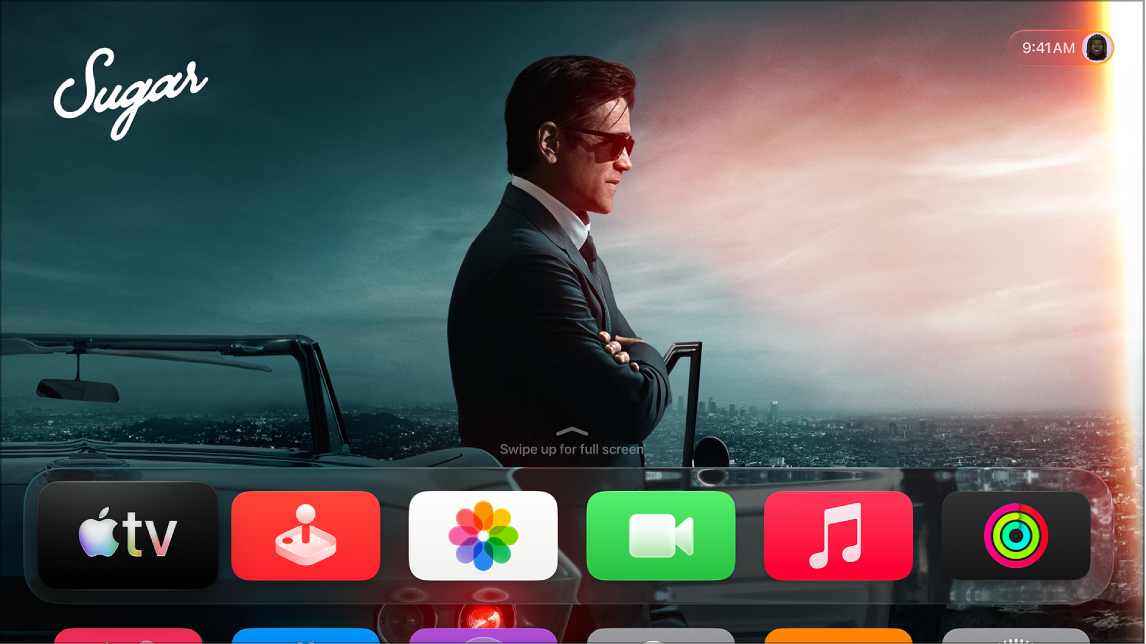
Whenever Apple TV 4K is idle, the screen saver can show you stunning aerial videos, your favorite people, places, pets, and memories, or Snoopy and Woodstock. You can set the current screen saver selection in Settings, or switch between screen savers any time it’s active.
Aerials take you all over the world, underwater, and even into space. On Apple TV 4K (2nd generation or later), Portraits show clocks featuring your best photography. You can also activate the screen saver yourself. While it’s active, you can switch to another screen saver category or skip to the next visual.
Change the current screen saver when it’s not active
- Go to Settings on Apple TV 4K.
- Go to Screen Saver > Current Selection and choose from the following:
- Aerials: Breathtaking videos of locations shot from all over the world, underwater, and even space. See Set up an Aerial screen saver.
- Memories & Slideshows: View memories and slideshows from your iCloud Photo Library. See Create a screen saver with your photos.
- Portraits (Apple TV 4K 2nd generation or later): View clocks featuring your best photography. See Create a Portraits screen saver.
- Snoopy (Apple TV 4K 2nd generation or later): Watch Snoopy and Woodstock frolic across your screen.
Activate and control your screen saver
If you want, you can activate the screen saver manually, and there are a few ways to change what you’re viewing while your screen saver is active.
- Do either of the following:
- On the Apple TV 4K Home Screen: Go to the left-most app icon in the top row. Press the Back button or the Menu button.
- In an app: Press the Back button or the Menu button repeatedly until the screen saver activates.
- While the screen saver is active, do any of the following:
- Switch to another screen saver category (Apple TV 4K 2nd generation or later): Swipe up or press up on the clickpad or touch surface and select the category you want to switch to.
- View more information about what you’re seeing: Tap the clickpad or touch surface to view more information, like the name of an Aerial location or which Memory you’re viewing.
- Skip to the next visual: Swipe right on the clickpad or touch surface, or press right on the clickpad ring (silver remote only).
- Press the clickpad center or touch surface to deactivate the screen saver.
To adjust how long Apple TV 4K is idle before the screen saver automatically turns on, see Adjust screen saver settings on Apple TV 4K.
Not all features and content are available in all countries or regions or on all Apple TV hardware models.