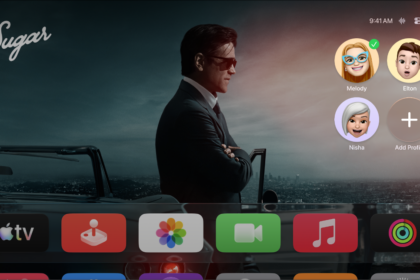
Siri can do much more than find a great show for you to watch on Apple TV 4K. You can also use Siri to open apps, find a nearby device, check the weather, and more.
It’s able to answer questions about a program you’re watching, play songs from the Music app if you’re an Apple Music subscriber, and take you straight to the action when you ask about a specific sports team. If you’re signed in with your Apple Account, Siri can even control many Apple Home products, including lights, thermostats, and shades.
Quick tip: Siri understands a wide variety of phrases and search terms beyond the ones listed below, so try different queries and see what you can find.
Navigate Apple TV 4K
To open an app or switch to another app, you can use Siri.
Siri: Press and hold the Siri/Search button on your remote, then say something like:
- “Open App Store”
- “Launch HBO Max”
- “Play PBS KIDS Video”
- “Go to Photos”
Get more information about a show
To get more information about a program you’re watching, you can ask questions.
Siri: Press and hold the Siri/Search button on your remote, then say something like:
- “Who’s in this show?”
- “Who directed this?”
- “What’s this rated?”
- “When did this come out?”
Play music
If you subscribe to Apple Music, Siri can play songs from the Music app.
Siri: Press and hold the Siri/Search button on your remote, then say something like:
- “Play ‘Sleek White Baby’ by Punch Brothers”
- “Play music I like”
- “Play the first Alabama Shakes album”
- “Add ‘Uptown Funk’ by Bruno Mars to my library”
- “Add Kacey Musgraves to my queue”
- “Play more like this”
Play live channels and sports
When you speak the name of the channel you want to watch, the live video stream immediately begins to play.
Siri: Press and hold the Siri/Search button on your remote, then say something like:
- “Watch ESPN”
- “Turn on CBS News”
Ask Siri about a specific sports team, score, or schedule, and it takes you straight to the action if the game is available on a supported app.
Siri: Press and hold the Siri/Search button on your remote, then say something like:
- “Next Eagles game”
- “What hockey games are on?”
Select the onscreen Watch Live button to open the app and watch the game.
You can also ask about sports schedules in general.
Siri: Press and hold the Siri/Search button on your remote, then say something like:
- “Who’s playing baseball tonight?”
Siri shows you a list of all the relevant games, their start times and scores (if game has already started), and a Go to Game button if a supported app is currently airing the game.
Find an iOS, iPadOS, watchOS, or macOS device
Siri can trigger an audible alert on any of your other Apple devices that are signed in with the same Apple Account as your Apple TV 4K and have the Find My feature turned on. Both your Apple TV 4K and the device need to be nearby and on the same network.
Siri: Press and hold the Siri/Search button on your remote, then say something like:
- “Where is my iPhone?”
- “Ping my iPad”
- “Find Lisa’s watch”
Control Apple Home products
Signed in on Apple TV 4K with your Apple Account? Then you can ask Siri to control many Apple Home products, like lights, thermostats, shades, and more. And when you’re outside your home, your iPhone or iPad with Siri and the Home app lets you run automations, set a scene, change a setting, get a list of devices, or get the status of one.
Siri: Press and hold the Siri/Search button on your remote, then say something like:
- “Show me the front yard camera”
- “Dim the dining room lights to 50 percent”
- “Turn on the coffee maker”
- “How many outlets are in my apartment?”
- “Set the temperature to 72 degrees”
- “Are the upstairs lights on?”
- “Is the front door locked?”
- “Play this in the kitchen”
- “Goodnight”
- “I’m heading out”
Note: Apple TV 4K can’t control secure Apple Home-compatible products, like door locks, motorized doors or windows, security systems, and garage doors. For those devices, you’ll need an iPhone, iPad, or Mac.
Get general information
You can also ask Siri about topics like sports, weather, and stocks, or ask the kind of specific questions you might search for on the internet.
Siri: Press and hold the Siri/Search button on your remote, then say something like:
- “Who are the Mavericks playing tomorrow?”
- “How’s the weather?”
- “What’s the weather in Vancouver?”
- “When is sunset in Paris?”
- “Where’s the NASDAQ today?”
- “How’s Apple’s stock?”
- “Is corn a fruit?”
- “How old is Mozart?”
- “Explain photosynthesis.”
Results show up at the bottom of the screen.
In some cases, you can swipe up on your remote to see more information.
Not all features and content are available in all countries or regions or on all Apple TV hardware models.
See also