VoiceOver lets you control Apple TV 4K without seeing the screen. You use simple gestures on the clickpad or touch surface of your remote to move around, and VoiceOver speaks each item you highlight.
It has two modes. Navigation speaks selected items as you navigate them, while exploration holds the currently selected item so you can browse and hear items elsewhere on the screen.
Here’s how to turn on VoiceOver and use both modes on your Apple TV 4K.
Turn VoiceOver on or off
- Go to Settings on Apple TV 4K.
- Go to Accessibility > VoiceOver. Then select VoiceOver to turn it on or off.
Tip: You can also set up an accessibility shortcut to activate VoiceOver.
Switch between navigation and exploration modes
VoiceOver works in two modes. Navigation speaks selected items on the screen as you move through them using the remote. In exploration mode, the currently selected item is held, so you can browse the screen with the remote to hear text and items elsewhere before selecting the item.
- To switch between navigation and exploration modes while using Apple TV 4K, use two fingers to tap three times on the clickpad center or touch surface of your remote.
Use VoiceOver in navigation mode
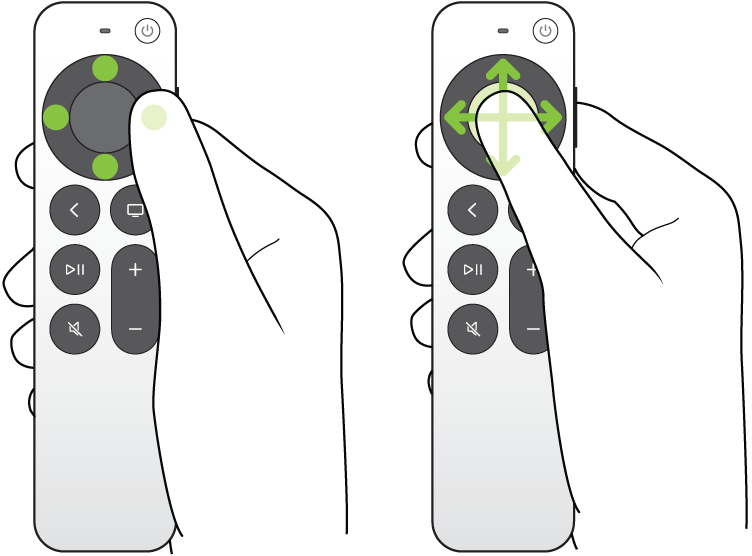
As you drag your finger over the clickpad center or touch surface of your remote while using Apple TV 4K, VoiceOver speaks each menu or text item you highlight.
- To move to another item, navigate up, down, left, or right.
- To select an item, press the clickpad center or touch surface.
If an item has a pop-up menu available, press and hold the clickpad center or touch surface to open it.
Use VoiceOver in exploration mode
Items you select in exploration mode stay selected by default while you browse adjacent or other items on the screen, so you can get a closer look at what’s available.
As you drag your finger over the clickpad or touch surface of your remote while using Apple TV 4K, VoiceOver highlights and speaks each menu or text item you browse.
In exploration mode, you can do any of the following:
- Hear the name of an item: Swipe left or right. The item also appears highlighted on the screen.
- Select a highlighted item: Press the clickpad center or the touch surface.
The newly selected item remains selected until you browse and select another item.
- Adjust the currently selected VoiceOver rotor control: Swipe up or down. See Activate VoiceOver rotor controls.
- Speak all items starting from the current text item to the bottom of the screen: Swipe down with two fingers. Tap the clickpad center or touch surface when you hear the item you want to stop on.
- Speak the items on screen, starting at the top: Swipe up with two fingers. Tap the clickpad center or touch surface when you hear the item you want to stop on.
- Pause or resume speaking: Tap once with two fingers to pause. Tap again with two fingers to resume.
Activate VoiceOver rotor controls
With the VoiceOver rotor, you adjust VoiceOver controls on Apple TV 4K with gestures on the clickpad center or touch surface of your remote.
- Rotate two fingers around a point on the clickpad center or touch surface to open the VoiceOver rotor, which contains additional controls.
The available rotor controls vary depending on what you’re doing. When you open the rotor, VoiceOver speaks the currently selected control if you’re in exploration mode. In navigation mode, you hear a sound before VoiceOver speaks the currently selected control.
- Do either of the following:
- Switch to another control: Rotate two fingers left or right again.
- Adjust a control: Swipe up or down. As you swipe, VoiceOver speaks the currently selected value.
For example, to adjust speech rate, rotate two fingers until the VoiceOver speech rate rotor control is selected. Then swipe up or down to increase or decrease the speech rate.
- To exit the rotor, swipe left or right, or wait approximately three seconds.
In navigation mode, an exit sound plays when the rotor closes.
Not all features and content are available in all countries or regions or on all Apple TV hardware models.