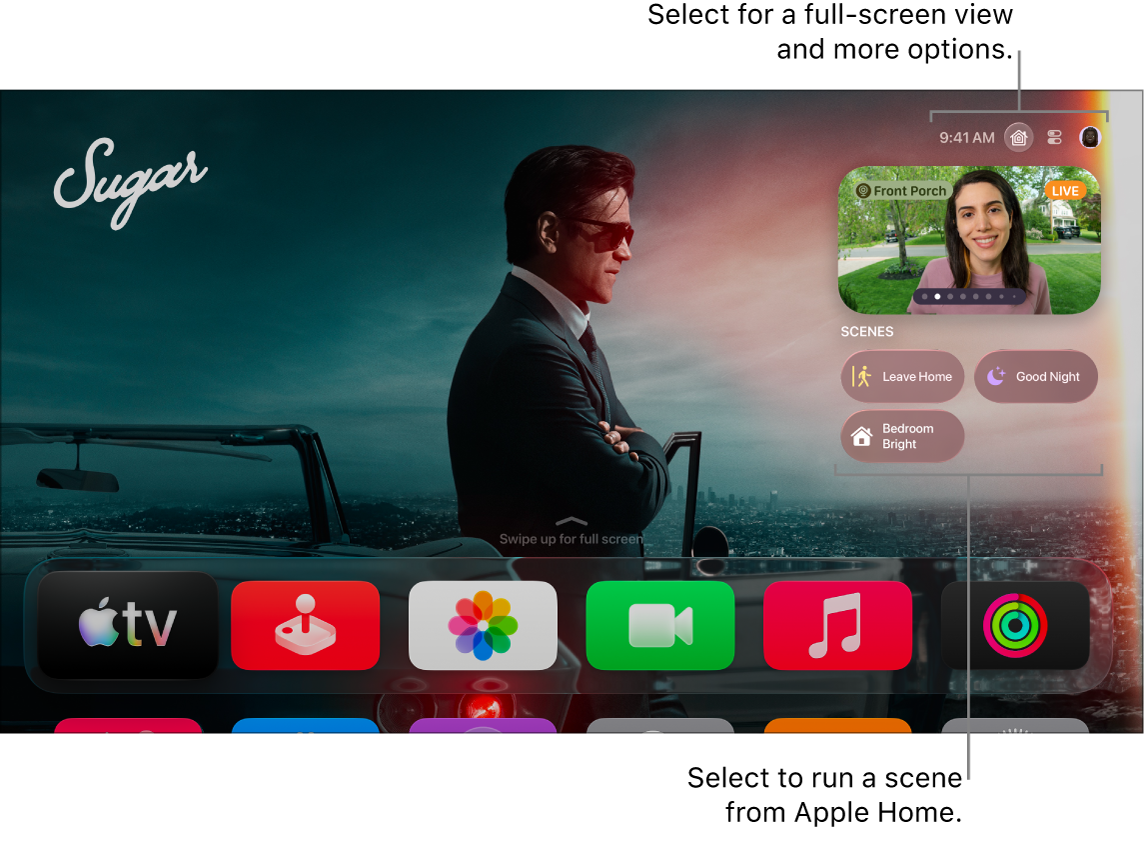
The Apple Home tab on Apple TV 4K appears if you’ve set up Apple Home- or Matter-compatible security cameras or created a scene in the Home app on an iPhone, iPad, or Mac. From there, you can view multiple cameras at the same time or run scenes that control multiple accessories, like a Watching TV scene that dims the lights.
Monitor and control Apple Home cameras
You’re able to view multiple cameras at once, control an accessory attached to the room you’re viewing, or monitor live video in Picture in Picture mode while you watch something else.
- Press and hold the TV button on your Apple TV 4K remote to open Control Center. Go to the Apple Home tab.
- Swipe down to highlight your cameras. Do one of the following:
- Select All Cameras to see a full-screen grid view of all your cameras, then select one.
- Navigate left or right to a camera, then select it.
Siri: Press and hold the Siri/Search button on your remote, then say “Show me” followed by the name of the camera in the Home app. For example, say “Show me the front yard camera.”
- Do any of the following:
- Control an accessory attached to the room you’re currently viewing: Select the Accessory button and then select an accessory to turn it on or off.
- View live video from multiple cameras at the same time: Select the Grid View button. Select a camera for a full-screen view.
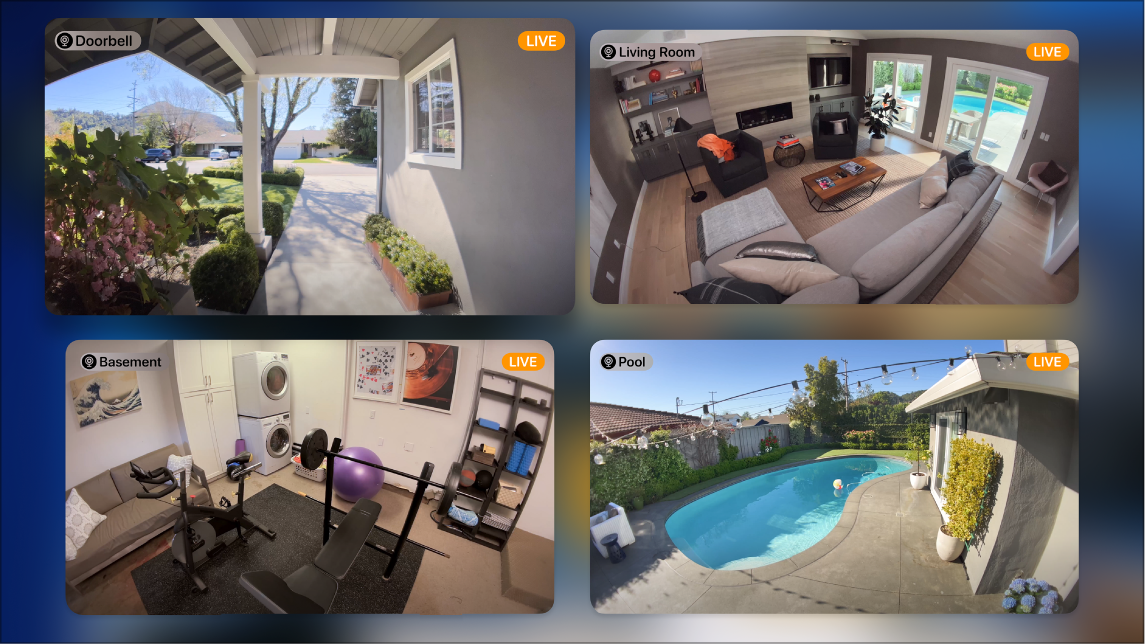
- View live video from a camera in Picture in Picture mode: Select the Picture in Picture button. See Turn on Picture in Picture viewing.
Quick tip: You can view video from supported security cameras and receive a notification when a supported doorbell camera detects someone at your door. You get a personal notification if Apple Home recognizes the person from your Photos library.
Run an Apple Home scene from Apple TV 4K
With scenes, you control multiple accessories in your home at once. You can create a Watching TV scene, for example, that dims the lights and sets the temperature.
- Press and hold the TV button on your Apple TV 4K remote to open Control Center. Go to the Apple Home tab.
- Swipe down. Then select the scene for a secure HomeKit-compatible product such as a door lock, light, motorized door or window, security system, or garage door.
Not all features and content are available in all countries or regions or on all Apple TV hardware models.