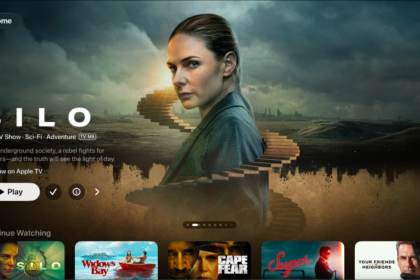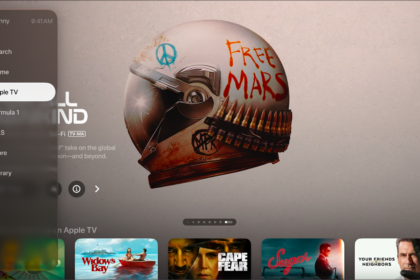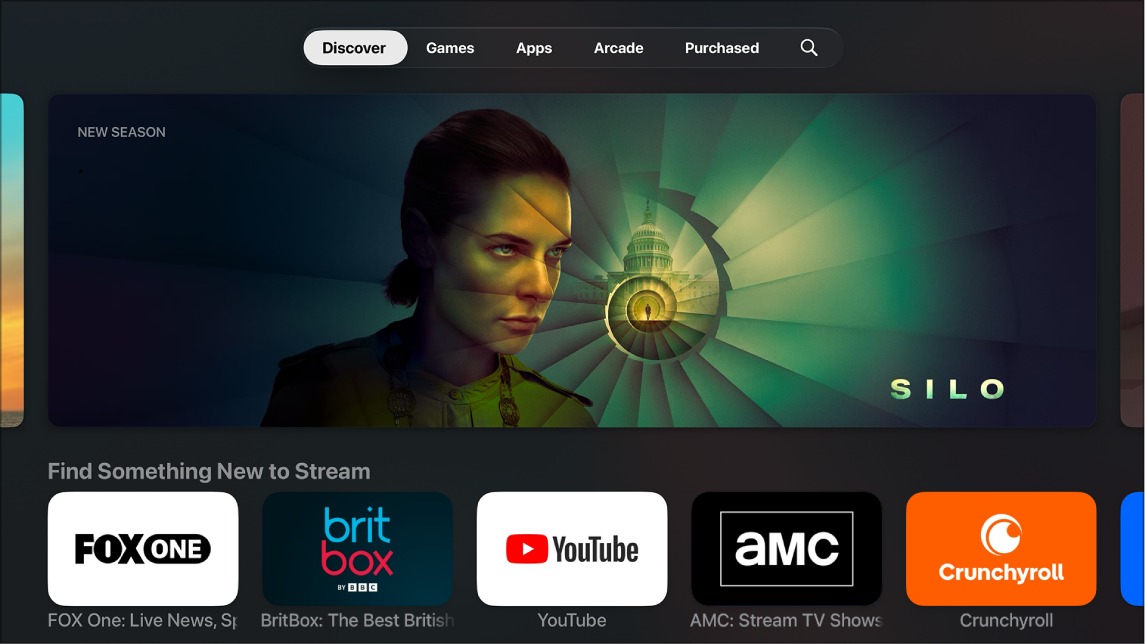
You can find a wide variety of apps to install in the App Store on Apple TV 4K, and if you no longer need an app you’ve installed, you can delete or offload it. When you offload an app, it’s removed from the Home Screen to free up storage, but its data stays in case you install it again. Deleting an app also deletes its data, and while you can download any app you’ve purchased again for free, the data may not be restored.
Here’s how to install apps on your Apple TV 4K, and how to delete them.
Install an app
Once you find an app you want, whether by browsing the App Store or searching with Siri, you can download it in the App Store.
- On the Apple TV 4K Home Screen, go to the App Store, navigate to an app, then select Buy or Get (for a free app).
Note: Seeing Install means you’ve already purchased the app, so you can download it again for free. And if you see Open, the app is already installed, so select Open to launch it.
Delete or offload an app
- On the Apple TV 4K Home Screen, go to the app you want to delete and then press and hold the clickpad or touch surface on your remote.
- Select Delete App, then select Delete or Offload.
Offloading an app removes it from the Home Screen to free up storage, but retains its data in case you install it again.
Deleting an app also deletes its data. You can download any app again that you’ve purchased on the App Store, free of charge, but the data may not be restored.
Note: You’ll need to sign in to some apps and content providers before using them. Just follow the onscreen instructions when you open the app to sign in or set up an account.
Not all features and content are available in all countries or regions or on all Apple TV hardware models.
See also