To quickly hand off audio, bring your iPhone near HomePod. If you’re on a call or listening to media, you can transfer it from HomePod to your iPhone and vice-versa.
HomePod can also play audio sent from an iPhone or iPad using AirPlay and Siri, whether you’re streaming from the Music app or Podcasts app or using Control Center. With Siri, it can even play media from media services that aren’t supported on HomePod.
Here’s what you need to know about playing audio on your HomePod from an iPhone or iPad.
Transfer audio between HomePod and your iPhone
When you’re on a call or listening to media, you can transfer the audio from HomePod to your iPhone and vice-versa.
If you’d like to change who can hand off audio to HomePod, see our article, Allow others to control audio.
- Start the Settings app on your iPhone.
- Check the following:
- Wi-Fi: Make sure your iPhone is connected to the same Wi-Fi network as HomePod.
- Bluetooth®: Make sure Bluetooth is turned on.
- AirPlay: Tap General, tap AirPlay & Continuity, and then make sure Transfer to HomePod is turned on.
- To transfer audio, hold your iPhone near the top of HomePod until the transfer is complete.
Stream to HomePod from Apple Music or Apple Podcasts
- Start the Music app or Podcasts app on your iPhone or iPad.
- While playing music or a podcast, open the media controls.
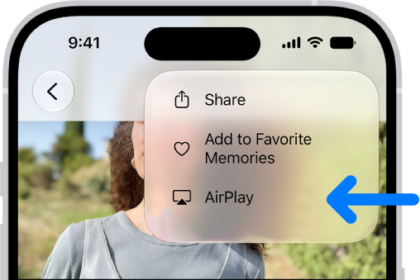
- Tap the AirPlay button and then select your HomePod.
- To return to the playback screen, tap outside the AirPlay options.
- To add an item to the Playing Next queue on HomePod, touch and hold the item. Tap Play Next or Play Last.
Play audio on HomePod using Control Center
- To open Control Center on your iPhone or iPad, do one of the following:
- On iPhone with Face ID or on iPad: Swipe down from the top-right edge.
- On iPhone with a Home button: Swipe up from the bottom.
- Tap the audio card and tap the AirPlay button. Then select one or more HomePod speakers.
To play audio from other devices that support AirPlay, check the documentation for that device to find details about selecting an audio destination.
Use Siri to play music on HomePod with AirPlay
You can use Siri to play media from media services that aren’t supported on HomePod. HomePod will automatically start an AirPlay session from your nearby iPhone or iPad.
Note: Some music services may not support Siri and AirPlay on iPhone or iPad.
To play music on HomePod using AirPlay:
- Set up voice recognition and personal content on your HomePod. HomePod will recognize the preferred music service of each member of the home.
- Start the Settings app on your iPhone or iPad.
- Check the following:
- Wi-Fi: Make sure your iPhone or iPad is connected to the same Wi-Fi network as HomePod.
- Your location: Tap your name, tap Find My, and then make sure My Location is set to This Device.
- When making your request to Siri, mention the app name.
Siri on HomePod learns your preferred music service over time and automatically plays music from that app so you no longer need to say the app name in your request.
Media stops playing automatically once your iPhone or iPad moves out of your HomePod’s range.
This guide is for HomePod software version 27 or later.
See also