Quick Fix
- On your iPhone, go to Settings > Apps, then tap Messages.
- Tap Send & Receive.
- In the "Start new conversations from" options, tap your phone number. This should stop your iPhone from sending texts from your email address.
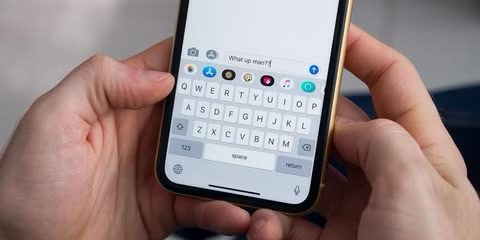
Did you send an iMessage® from your iPhone® then realized it went out from your email? Well, this means your iMessage is using your email instead of your phone number.
We’ll show you how to fix this issue, so you don’t confuse the person you’re texting.
Here’s what to do when iMessages are sent from your email.
Why would a text come from an email address?
There are a few reasons a text you send might come from your email address rather than your phone number.
- Your iMessage is set to use your email instead of your phone number.
- Your iPhone need to be restarted.
- Your iPhone’ software need to be updated.
How to stop sending iMessages from your email address
If Messages is sending texts from your email instead of your phone number, try updating your sender address and make it your phone number:
- On your iPhone, go to Settings > Apps > Messages.
- Tap Send & Receive.
- In the "You can receive iMessages to and Reply From" section, select your phone number and Apple Account.
- In the "Start new conversations from" options, select your phone number.
- New iMessages now will be sent from your phone number.
- If you have existing Messages conversations that you started with your email address and you want to use your phone number instead, you need to start a new conversation.
What to do if you can’t see or select your phone number in Messages
If you’re wondering, “why are my texts coming from my email?” but you can’t see or select your phone number in the Messages app, here are a few things to try:
Make sure that you’re using the latest version of iOS
- On your iPhone, go to Settings > General, then tap Software Update.
- If an update is available, tap update now, then follow the on screen instructions.
Make sure that you correctly followed the iPhone steps to set up your phone number
- On your iPhone, go to Settings > Apps > Messages and make sure that iMessage is on. You might need to wait a moment for it to activate.
- Tap Send & Receive. If you see "Use your Apple Account for iMessage," tap it and sign in with the same Apple Account that you use on your Mac or iPad.
- In the "You can receive iMessages to and Reply From" section, make sure that your phone number and Apple Account are selected.
Sign out of iMessage, then sign back in
If your phone number is unchecked and you can’t select it, or you have some other issue, log out of iMessage, then log back in. Here’s how:
- On your iPhone, go to Settings > Apps > Messages > Send & Receive.
- Tap your Apple Account, then tap Sign Out.
- Go back to Settings > Apps > Messages and make sure that iMessage is turned on.
- Tap Send & Receive, then choose "Use your Apple Account for iMessage" and sign in with your Apple Account.
- Using the same Apple Account, sign back in to Messages on your other devices.
Restart your iPhone
If you still can’t see or select your phone number in Messages after trying the previous fixes, restarting your iPhone can fix the issue. Follow these steps:
- Go to Settings > General and tap Shut Down.
- Drag the power off slider to the right to turn off your iPhone.
- Wait for at least 30 seconds.
- Finally, to turn on your iPhone, press the power button until you see the Apple logo.
See also: Why Is My iMessage Not Working On My iPhone? How to Fix it!